

Follow the steps below to properly configure deduction settings for payroll computation and reporting.
Step 1: Start Creating Deduction Code
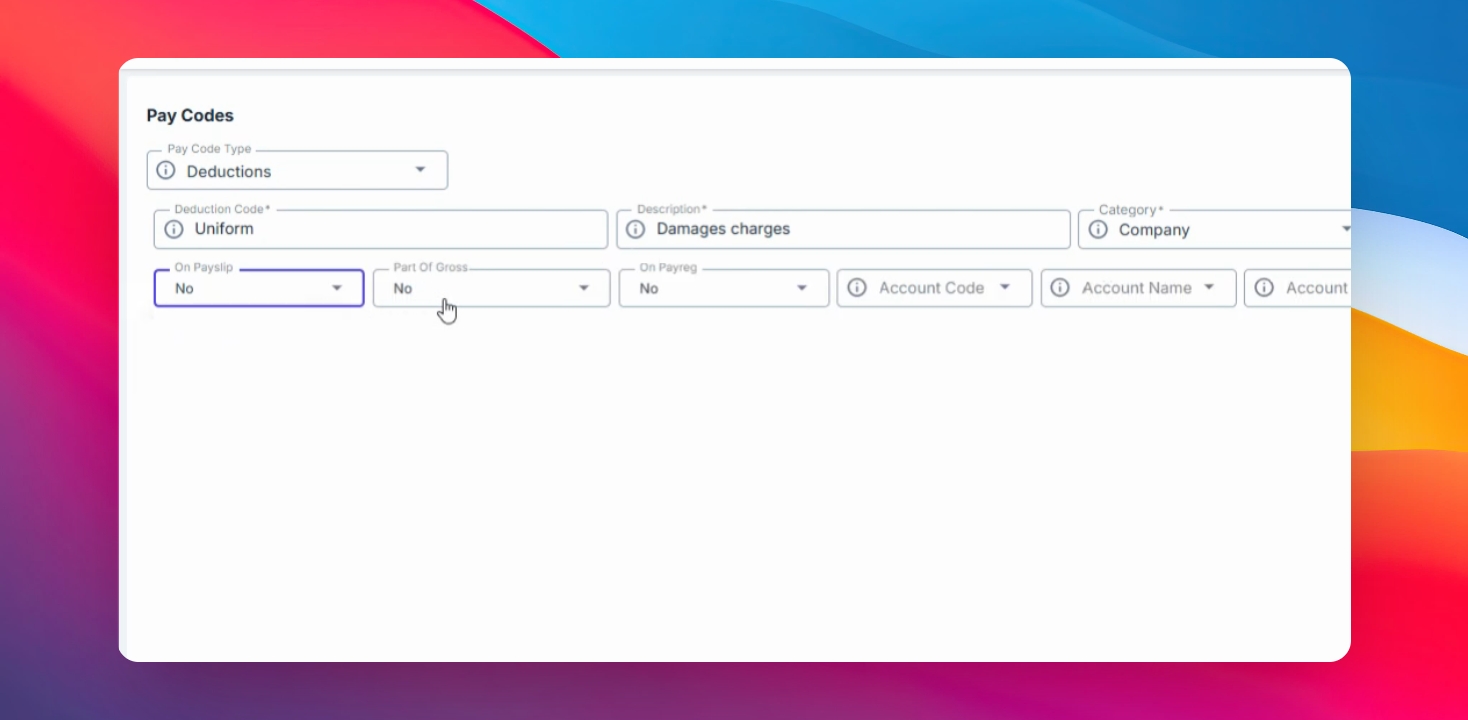
Go to the Payroll menu, select Code and Pay Codes, then click Create. Choose Deductions as the pay code type. Enter the Deduction code you want to appear on your payment register, payslip, and add it.
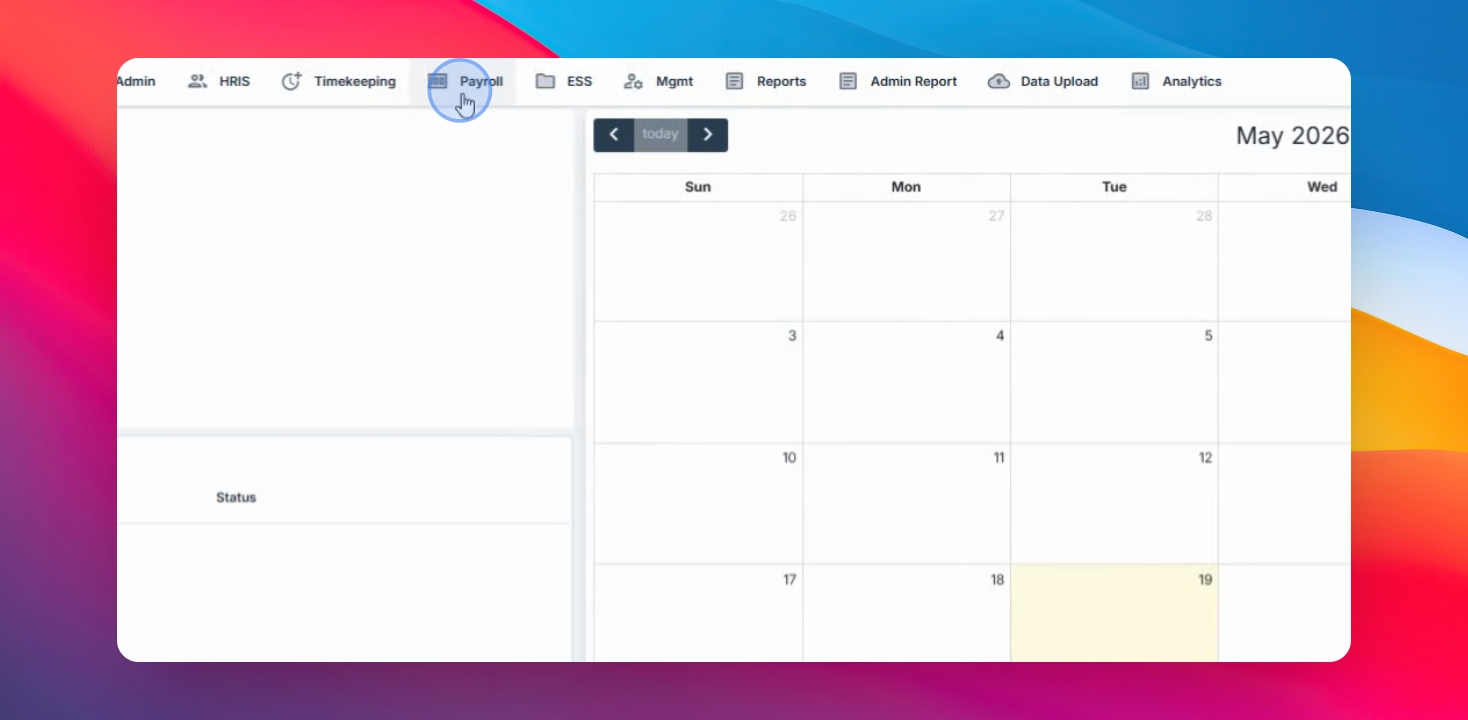
Step 2: Set the Deduction Description
Enter the deduction description. You may use the same name as the deduction code for consistency.
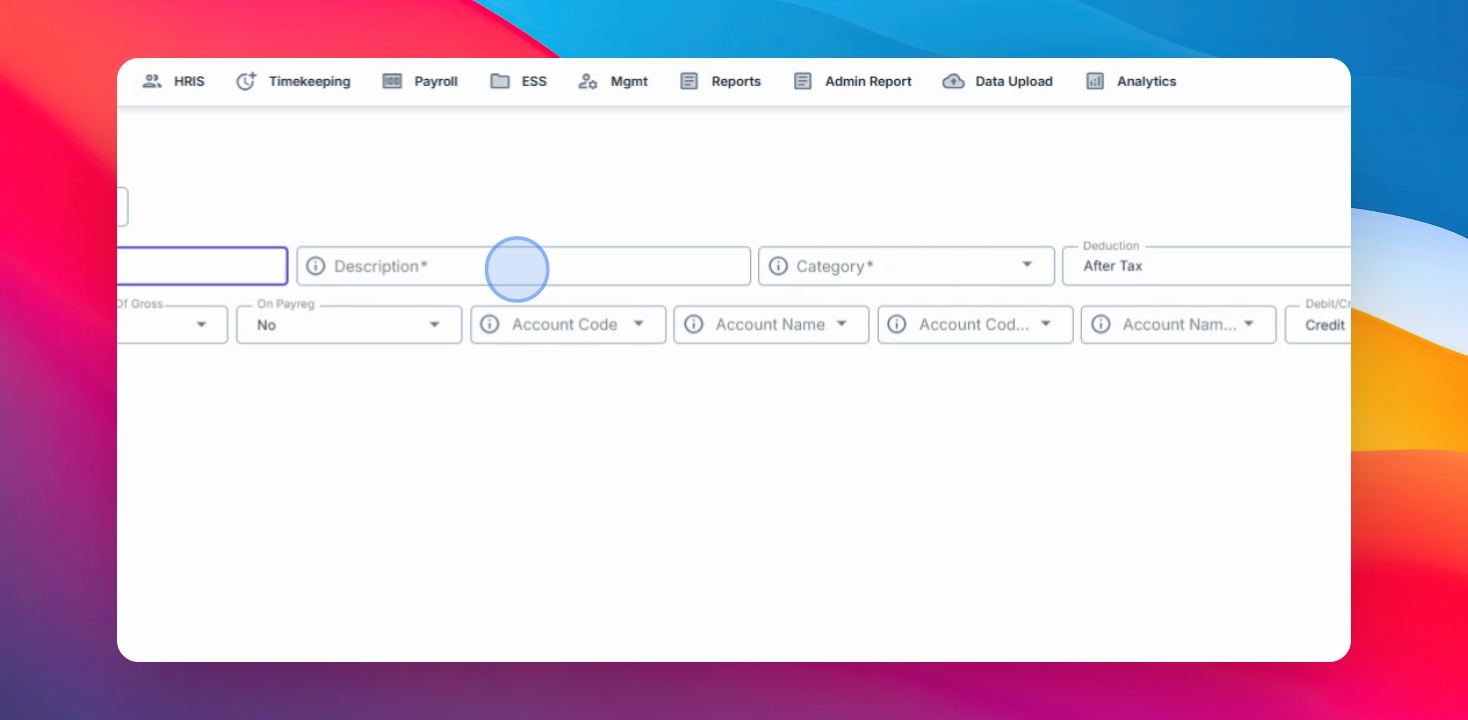
Step 3: Select the Deduction Category
Configure the necessary deduction settings based on your payroll requirements.
Choose the appropriate category:
Bank
Company
Government
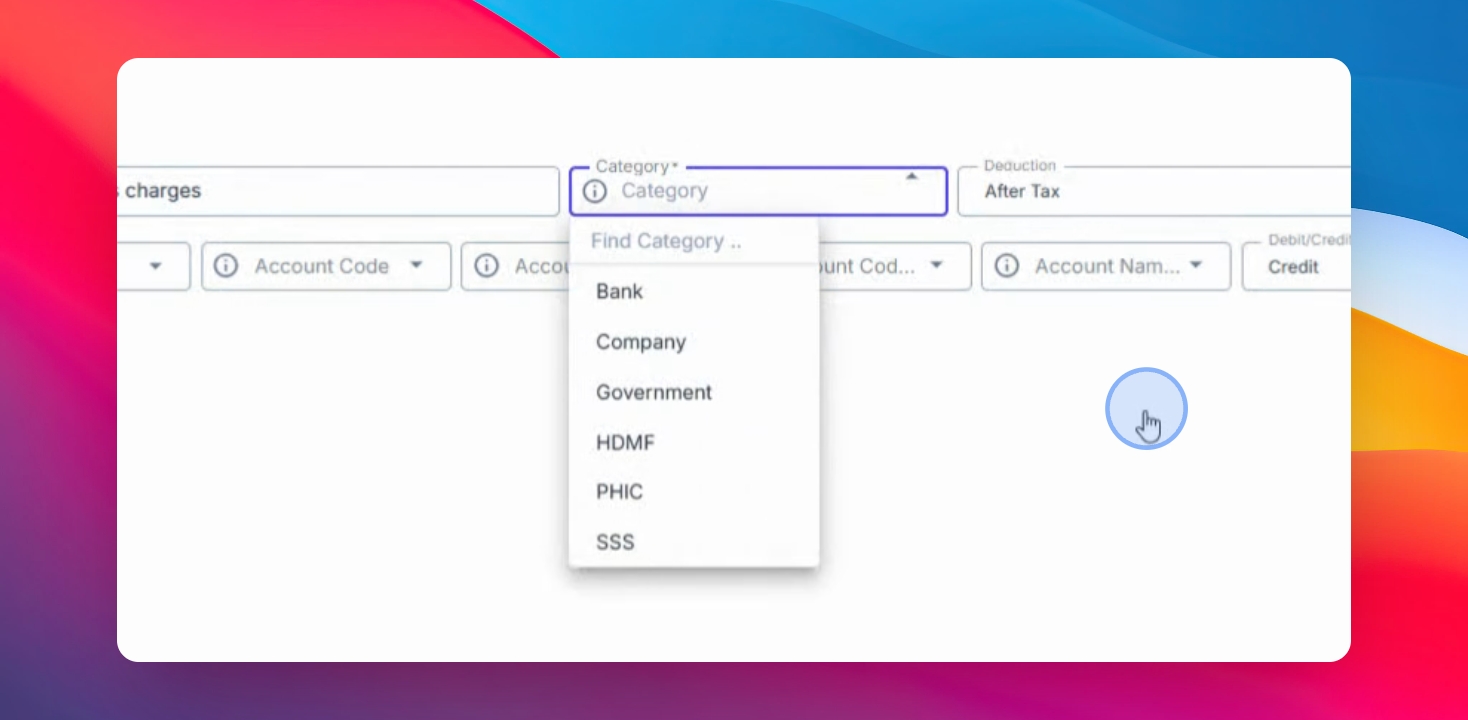
Step 4: Configure Tax Settings
Specify whether the deduction should be:
Before Tax
After Tax
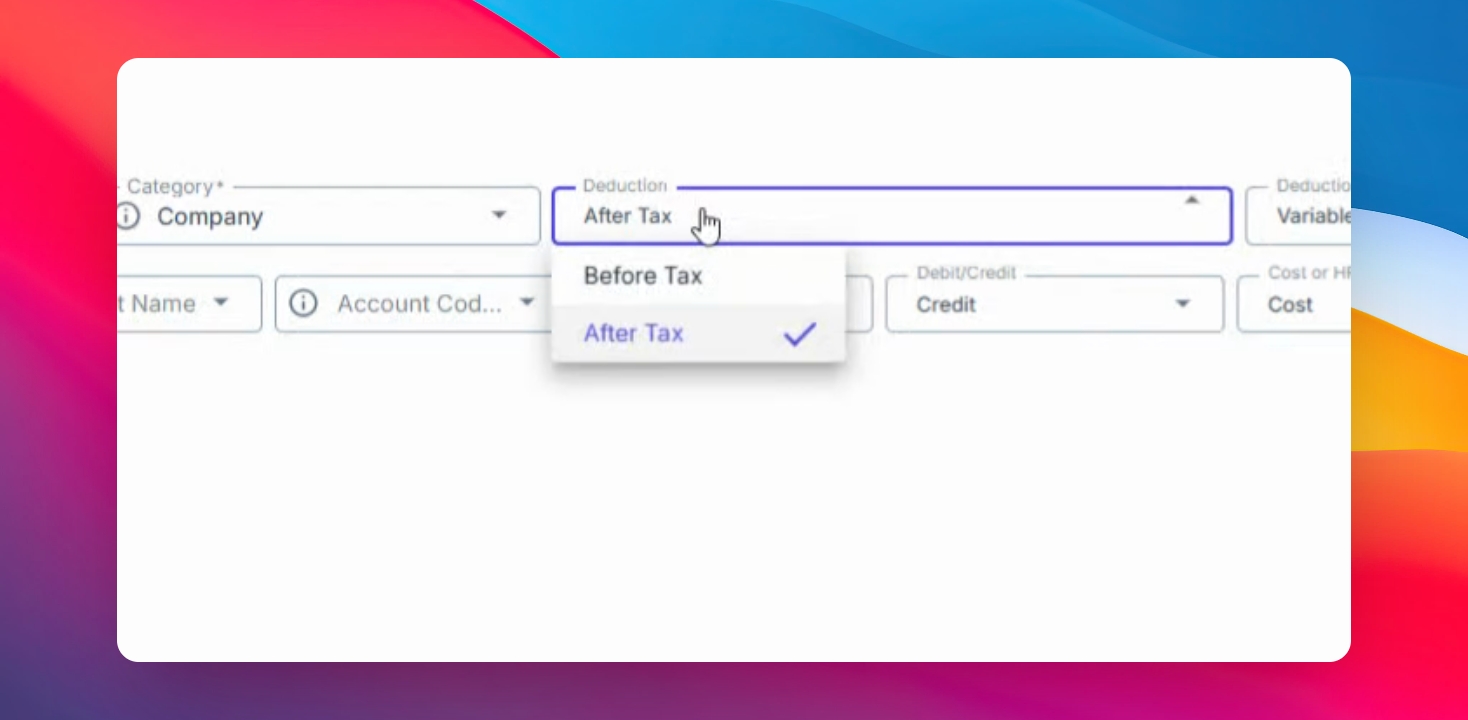
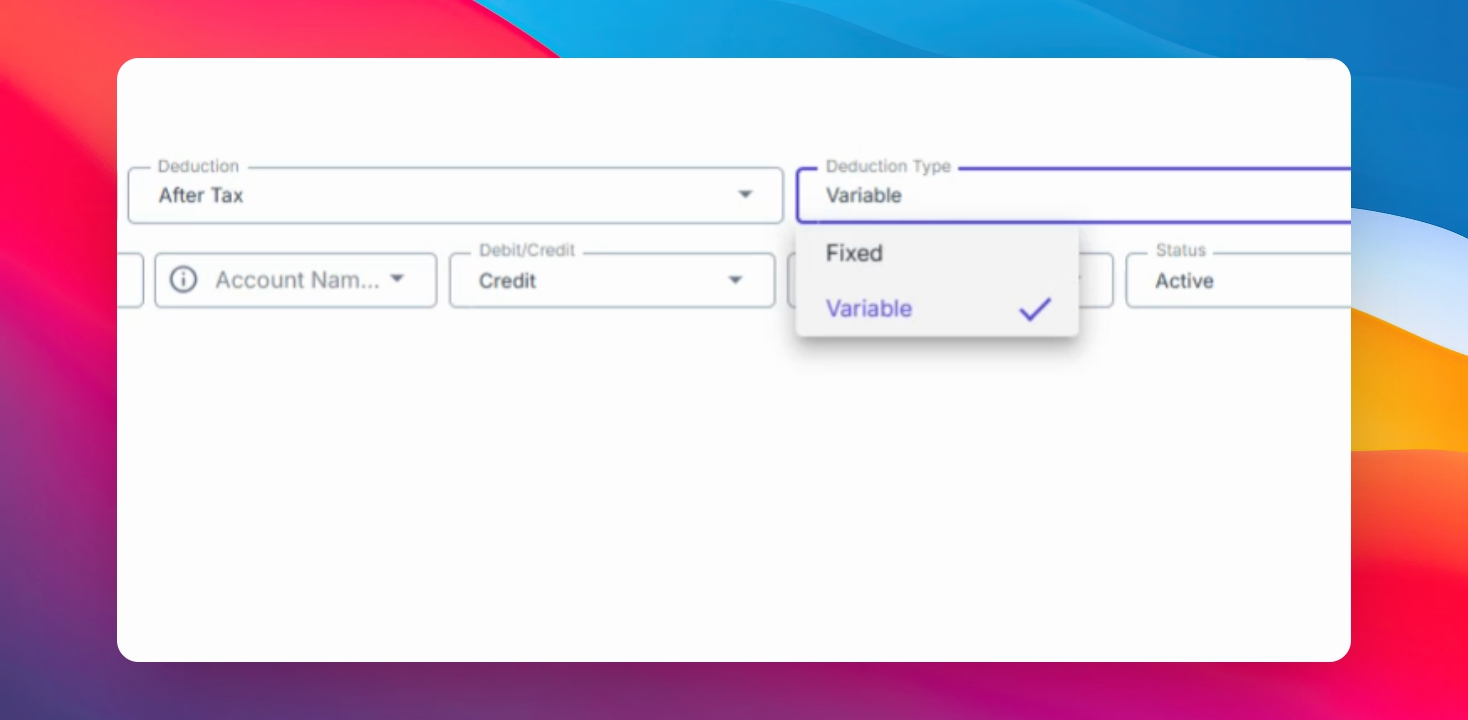
Step 5: Select Deduction Type
Choose whether the deduction amount will be:
Variable
Fixed
Step 6: Configure Display and Payroll Options
You may also configure whether the deduction will:
Appear on the Payslip
Be included as part of the Gross Pay
Appear in the Payroll Register
Step 7: Configure Journal Entry Settings
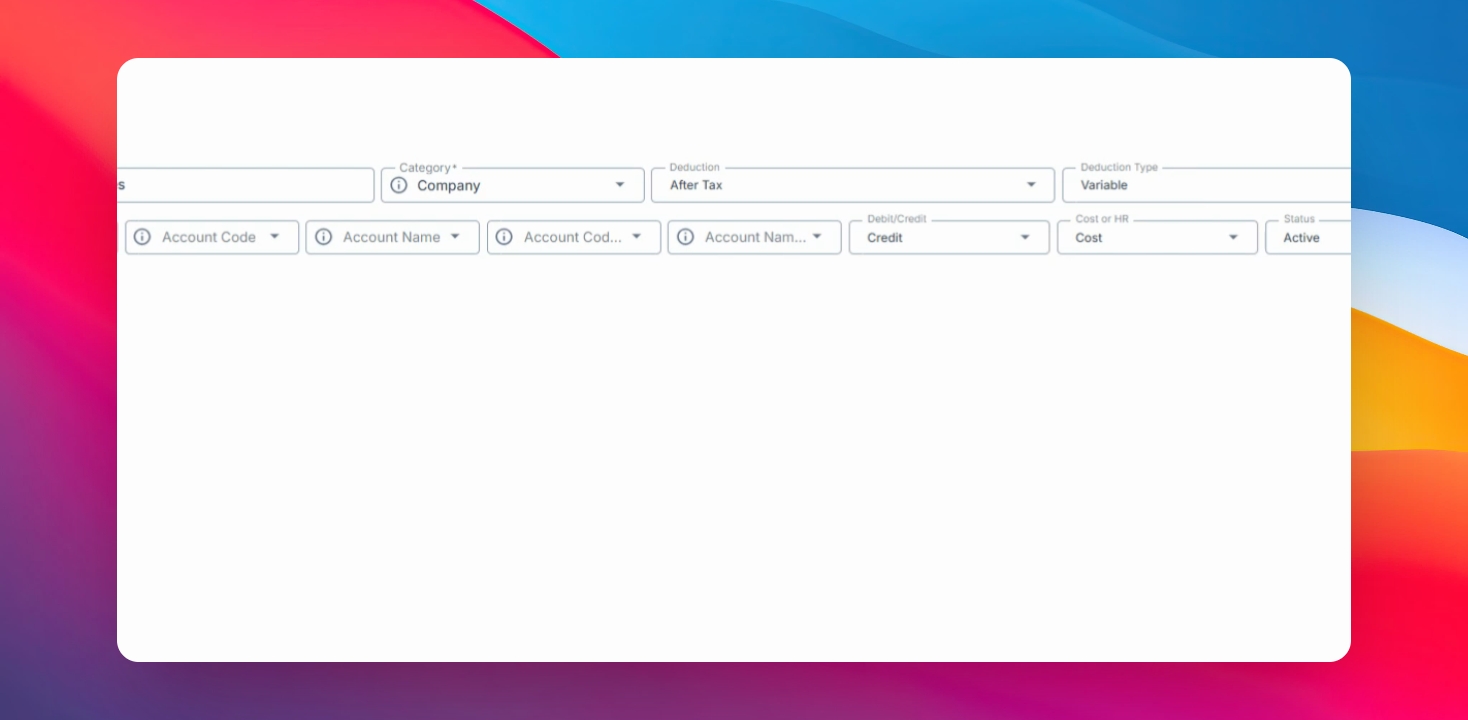
For accounting integration, configure the following:
Account Code Name
Secondary Account
Debit or Credit Entry
Cost Center or HR Tagging
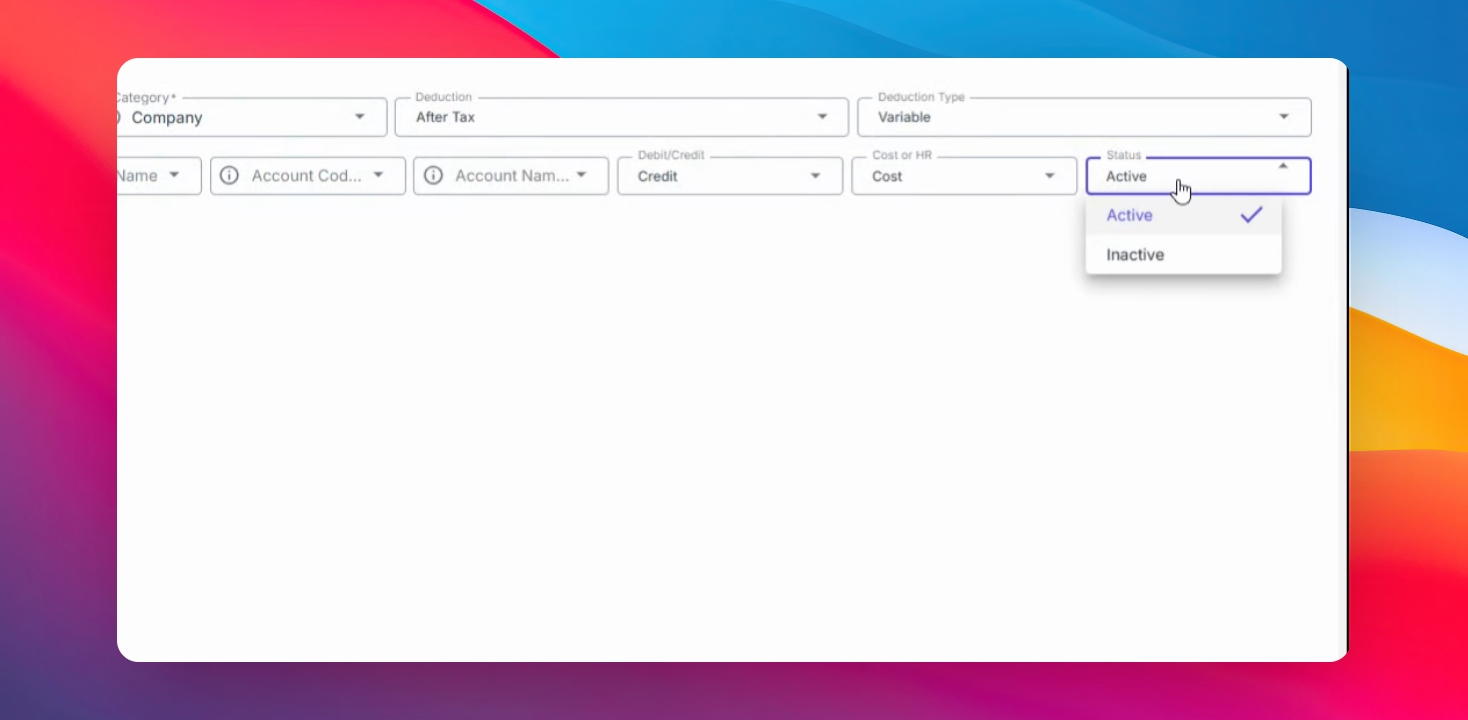
You may also mark the deduction code as Inactive later if it is no longer needed
You have now learned how to create and configure a Deduction Code in the HR Payroll system. Proper setup of deduction codes helps ensure accurate payroll processing, reporting, and accounting integration.