

Welcome! In this tutorial where we will guide you through how to navigate your dashboard as a Basic User in AanyaHR
Follow the steps below to familiarize yourself with the main features available in your account.
Step 1: Log In
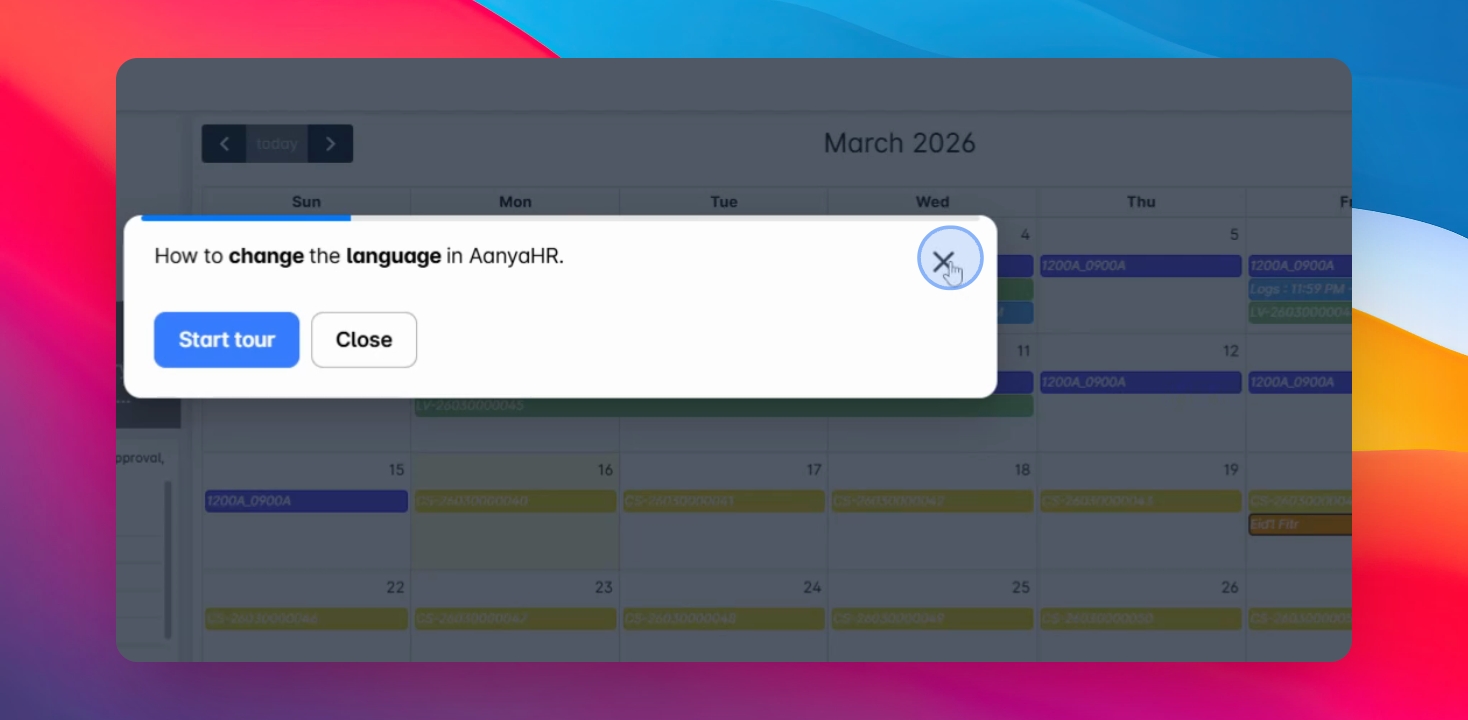
After logging in, you will see a checklist or tutorial guide that helps you navigate the platform. This includes helpful prompts such as language settings and basic navigation tips.
Step 2: Start the Tour
You can start the system tour to explore the dashboard. The tour will introduce key areas of your account, including your profile information and system modules.
Step 3: View Your Profile
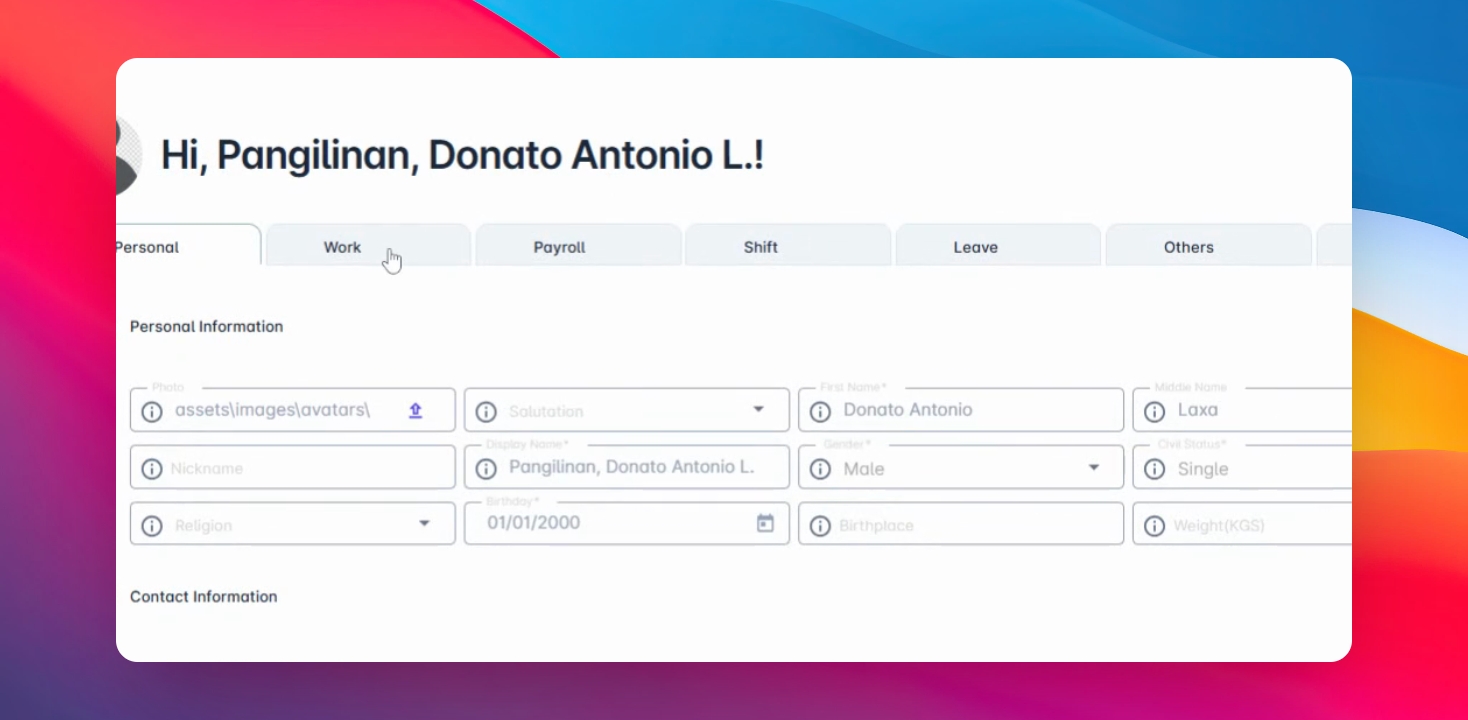
At the upper left section of the dashboard, you will find your profile menu.
From here you can view:
Basic Information
Personal and Work Information
Payroll details
Schedule
Entitled leaves
Change Password Options
You can also change your password on this moduole
Step 4: Full Screen Option
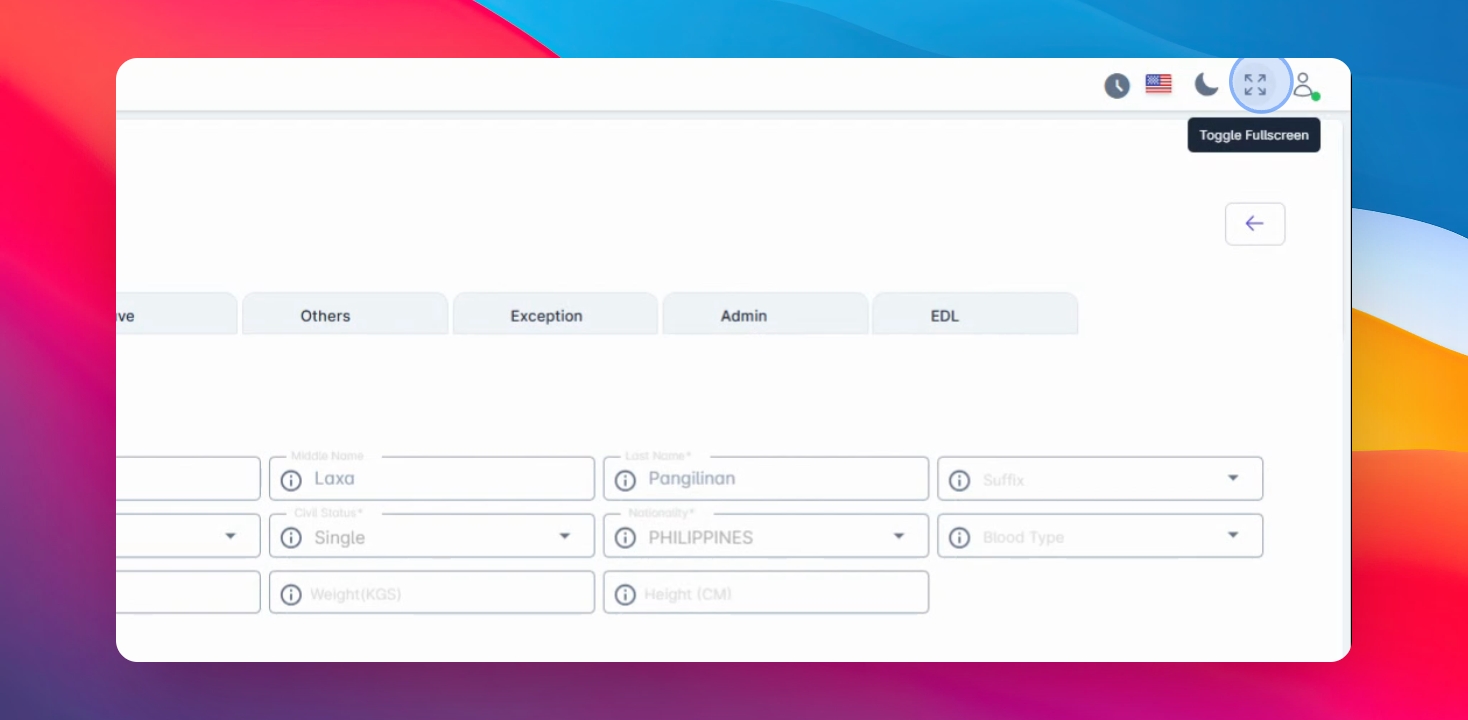
You also have the option to switch to full screen mode for a wider view of your dashboard.
Click the Toggle Fullscreen to enable or disable this option.
Step 5: Customize Theme
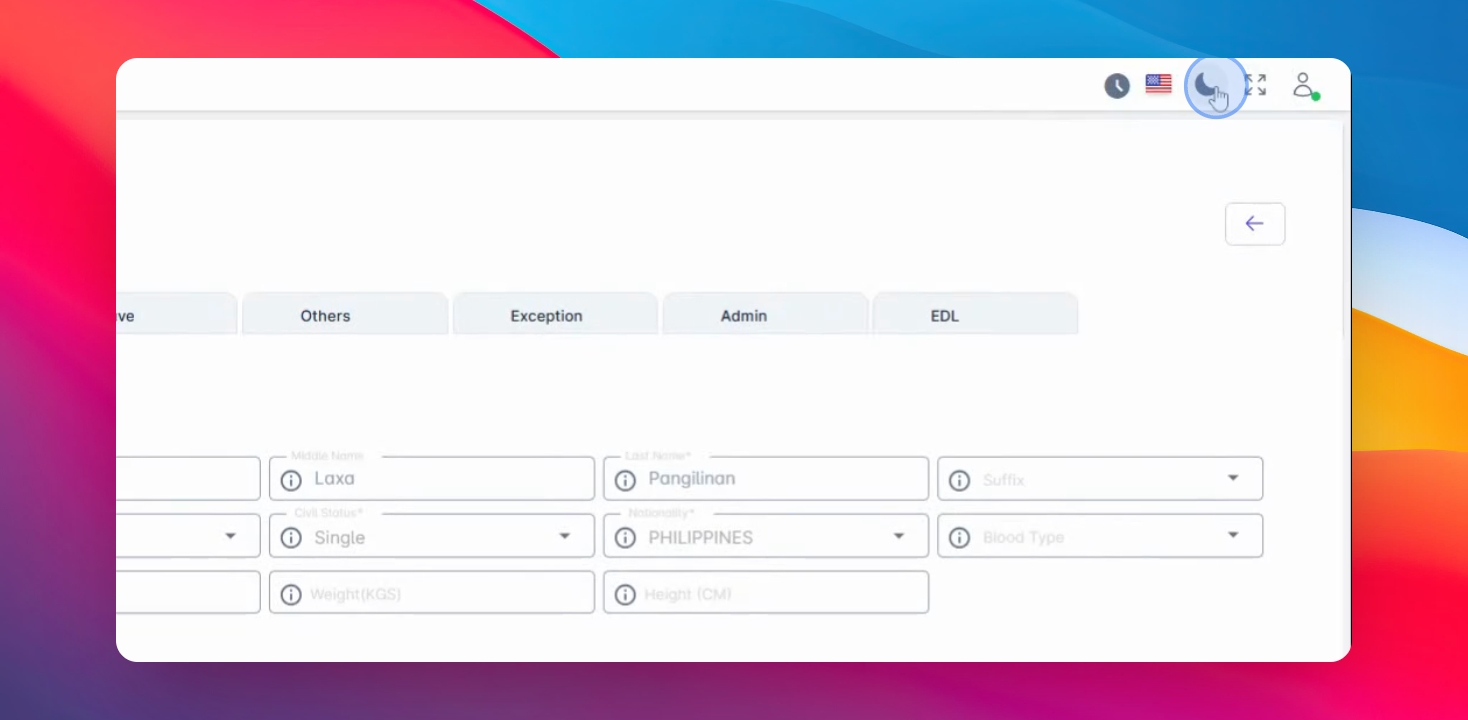
You may personalize the appearance of your account by selecting your preferred theme and scheme.
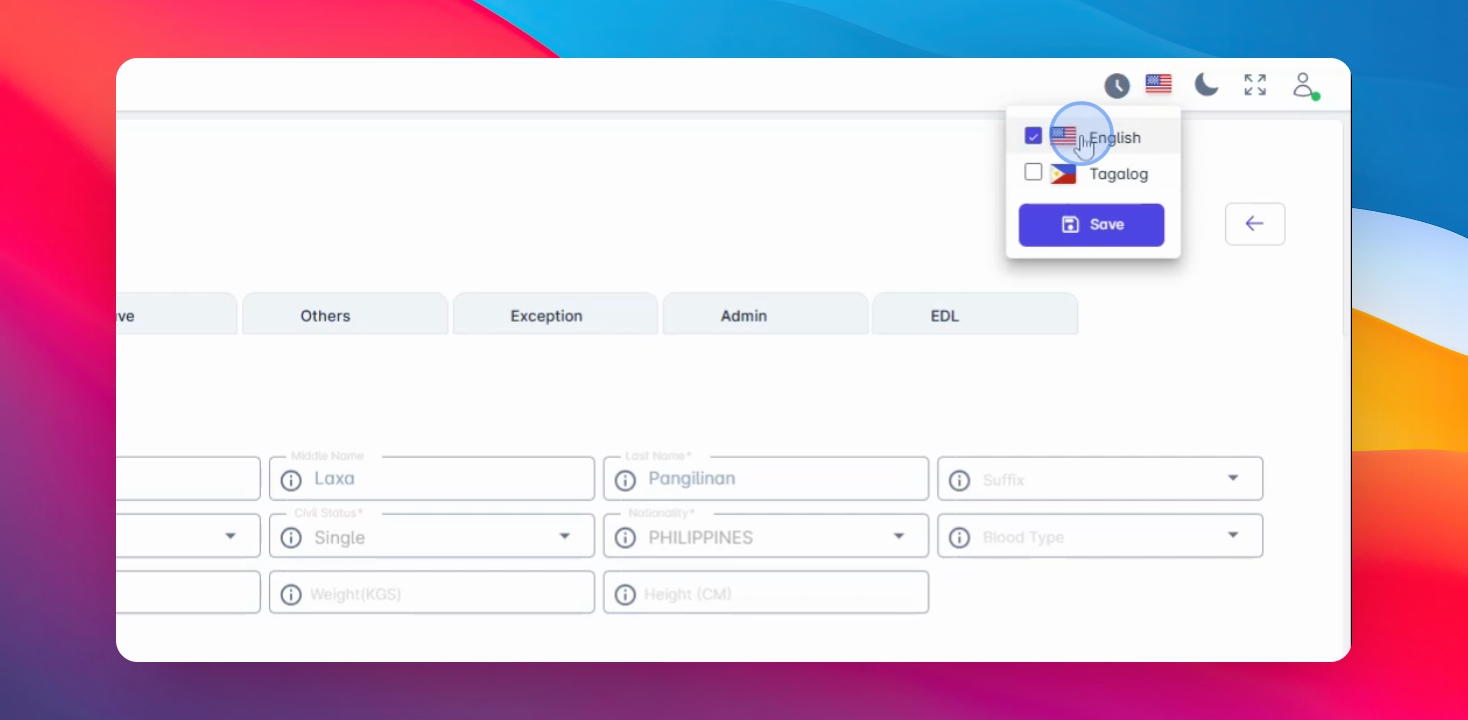
Step 6: Choose Language
We have a language option where you can choose from English or Tagalog.
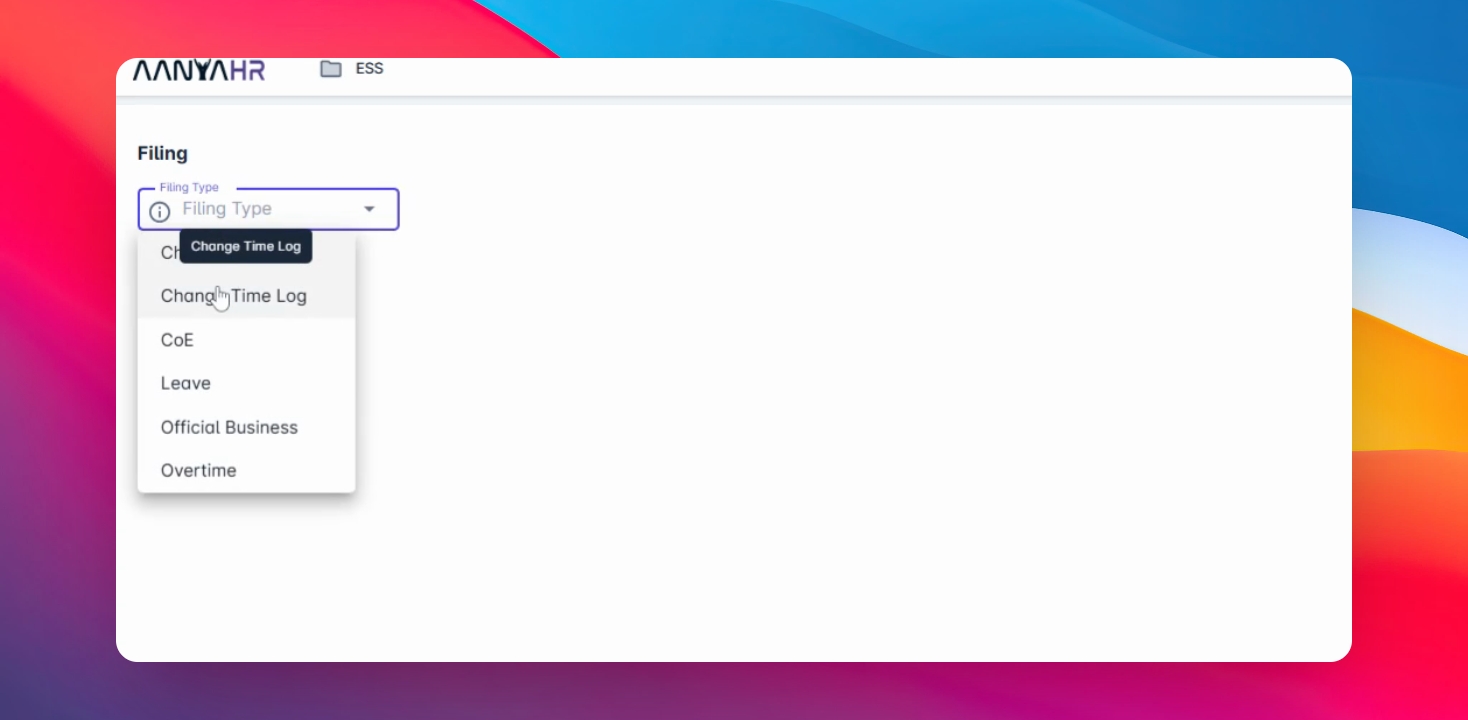
Step 7: Access ESS
Next, navigate to the ESS (Employee Self-Service) which includes the filing module where you can file or cancel your request.
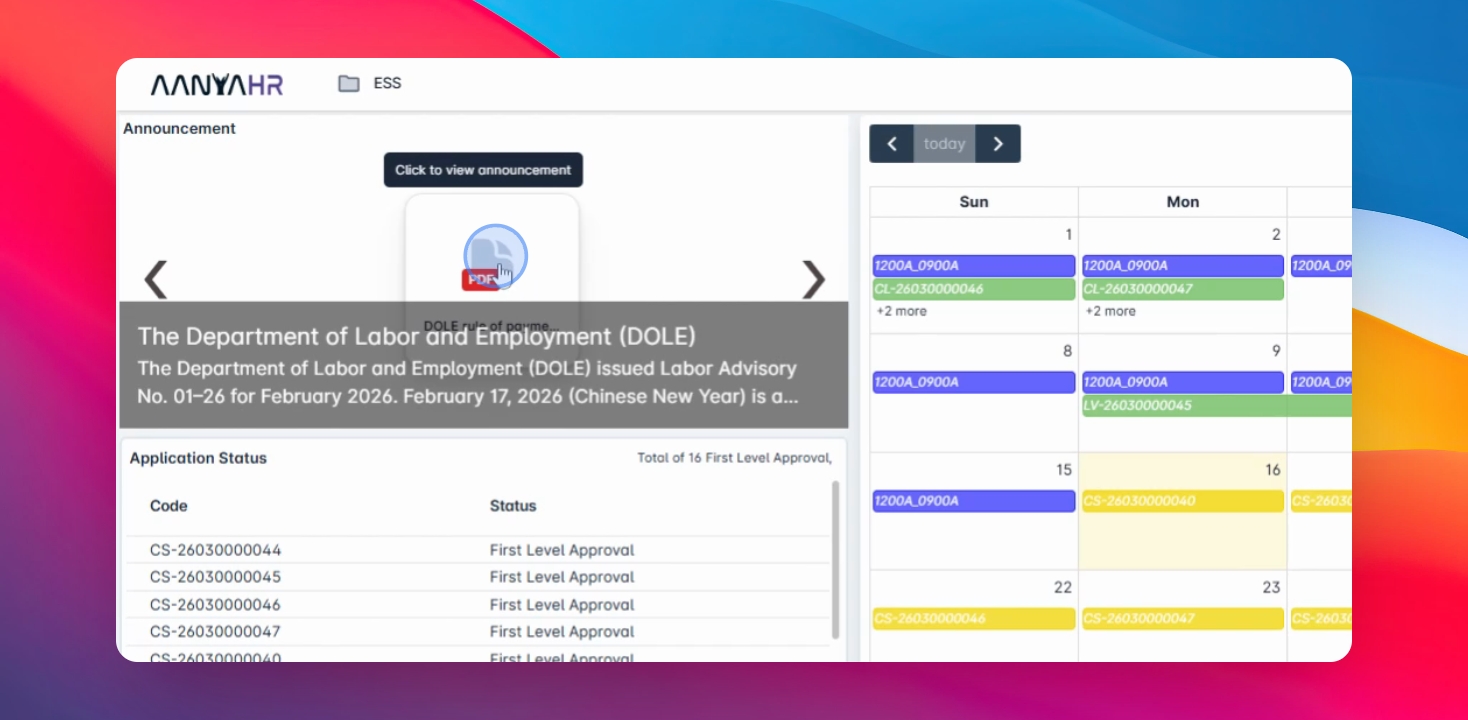
Step 8: View Announcements
You can access company announcements here.
Announcements may include PDF files or other downloadable documents shared by the organization.
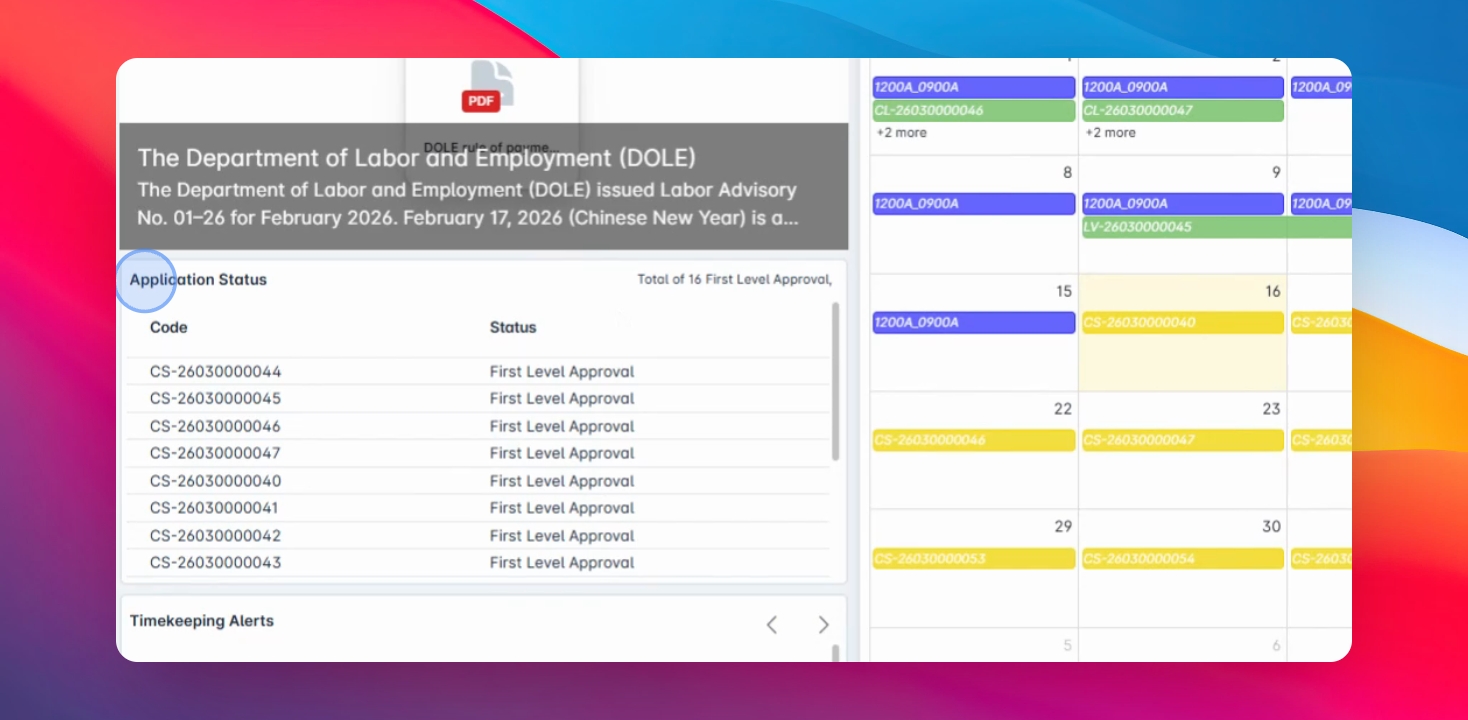
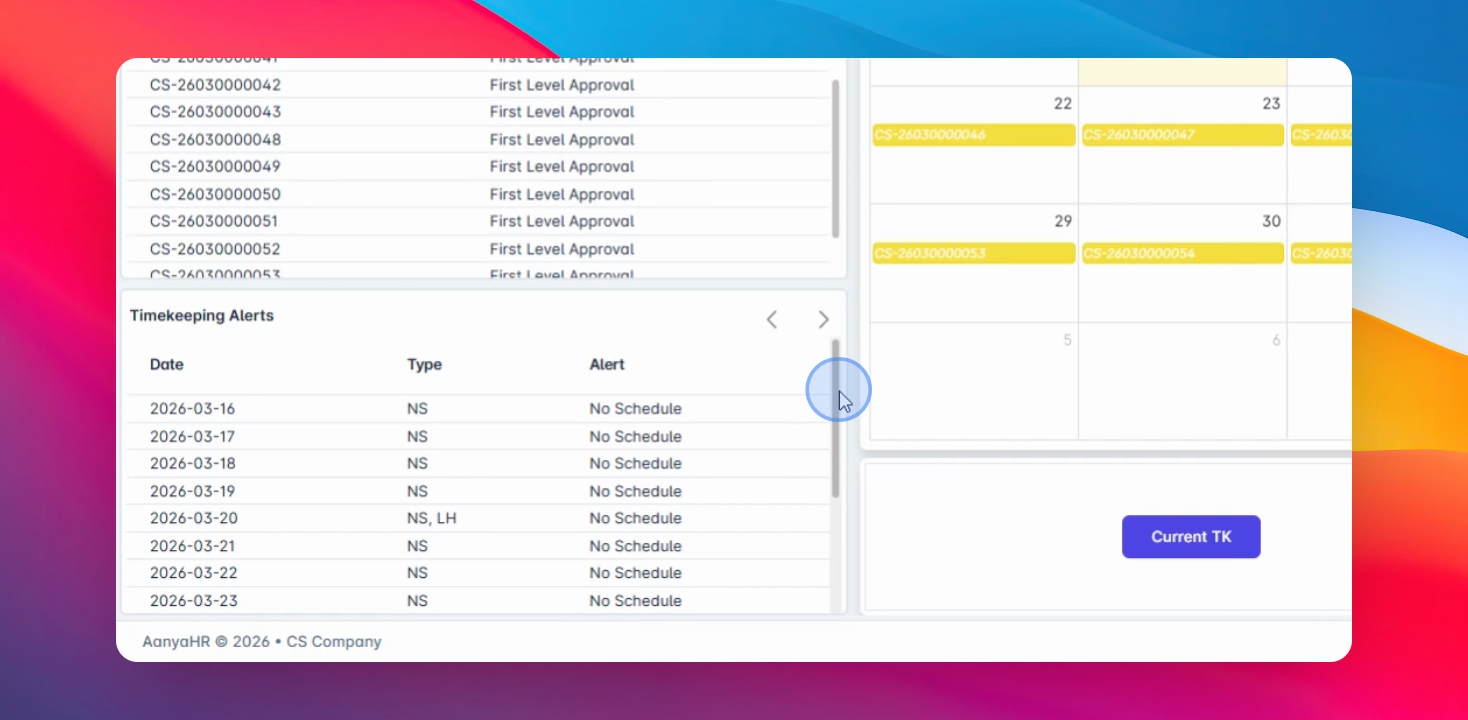
Step 9: Check Application Status
You can monitor your application status whether it's for first level approval, approved, or cancelled.
Step 10: Timekeeping Alerts
Check the timekeeping alert which can show potential errors on your timesheet, such as no schedule or no clock in and out.
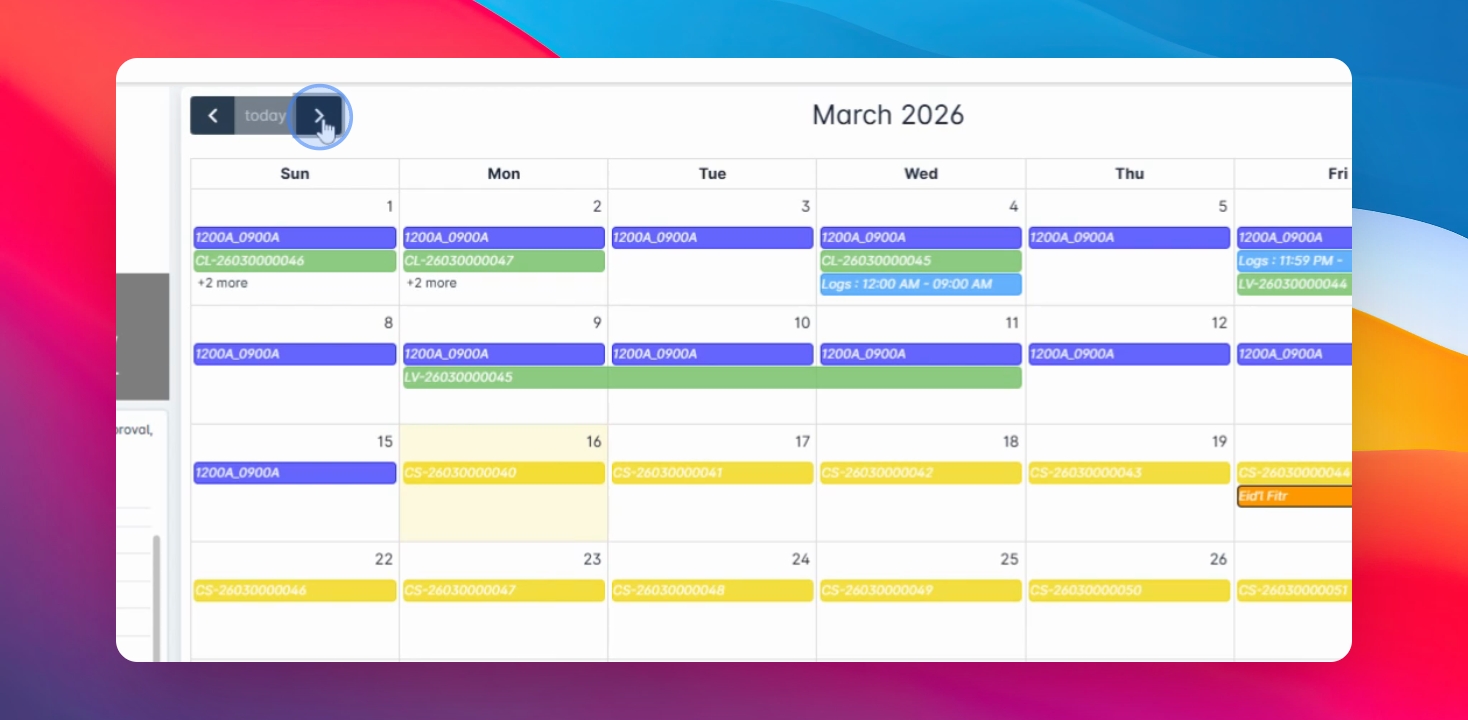
Step 11: Calendar View
You can view your schedule and activity logs using the calendar view
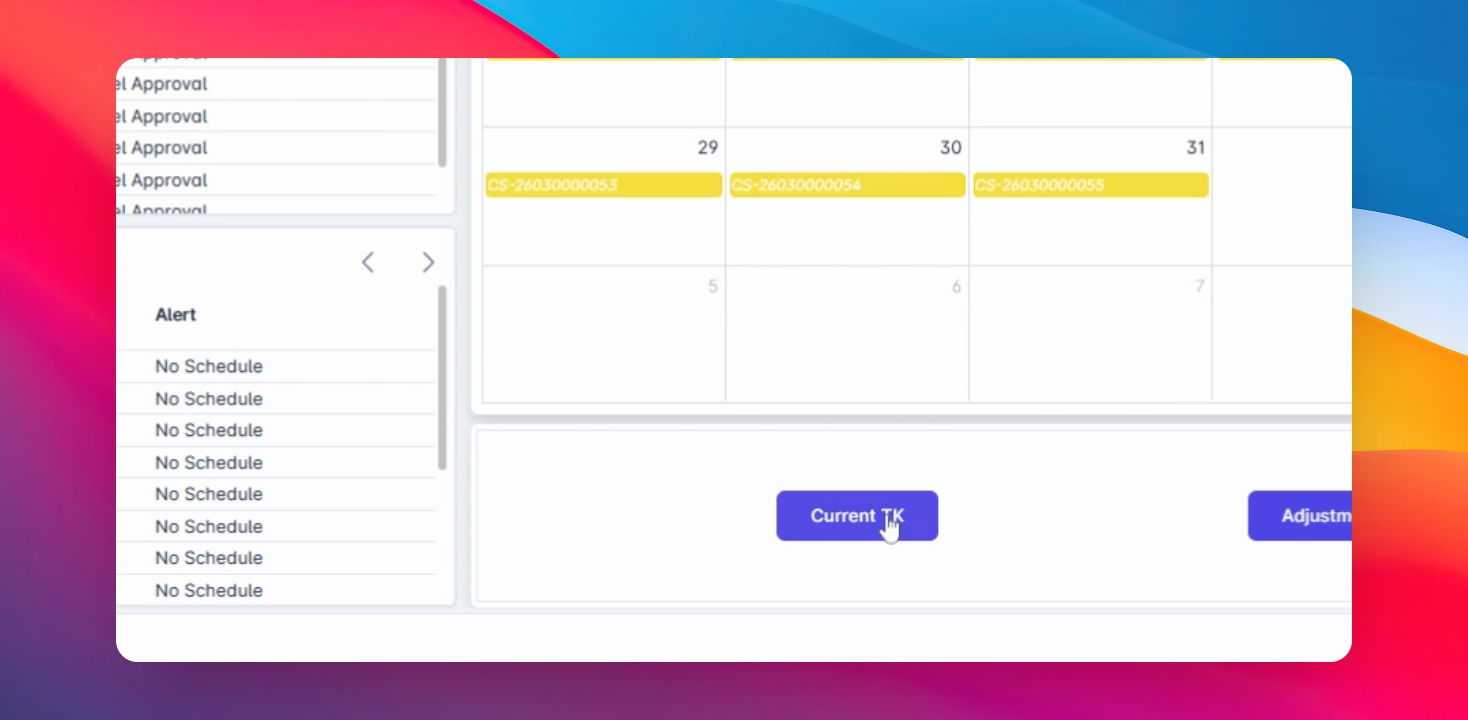
Step 12: View Timesheet
To check your timekeeping records, select the cut-off period or date, then click the button to display your timesheet.
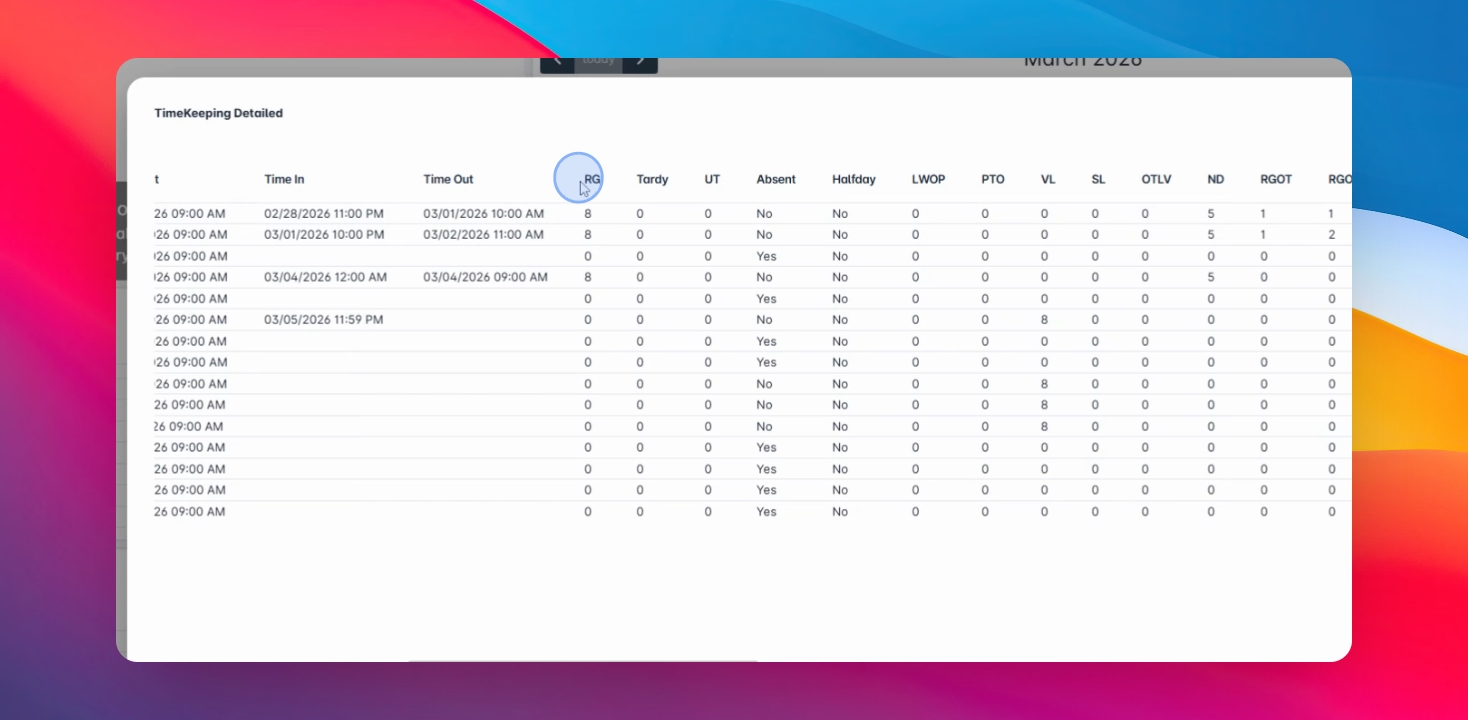
Step 13: Review Timesheet Details
Your timesheet includes regular hours, absences, unpaid and paid leaves, and other premium fees.
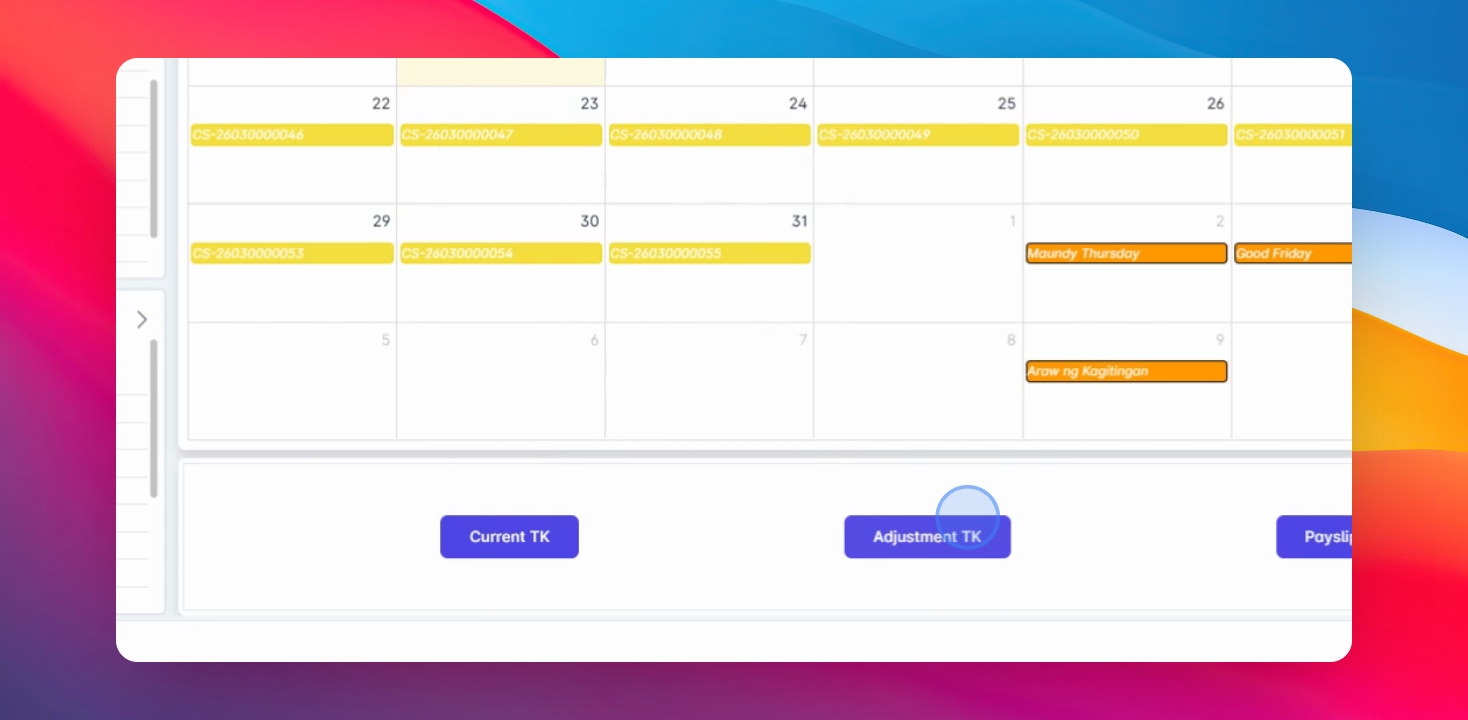
Step 14: Adjustment Timekeeping
If your company allows adjustment timekeeping, view it here and select the TK code provided by your HR or Payroll Officer.
Step 15: Access Payslip Module
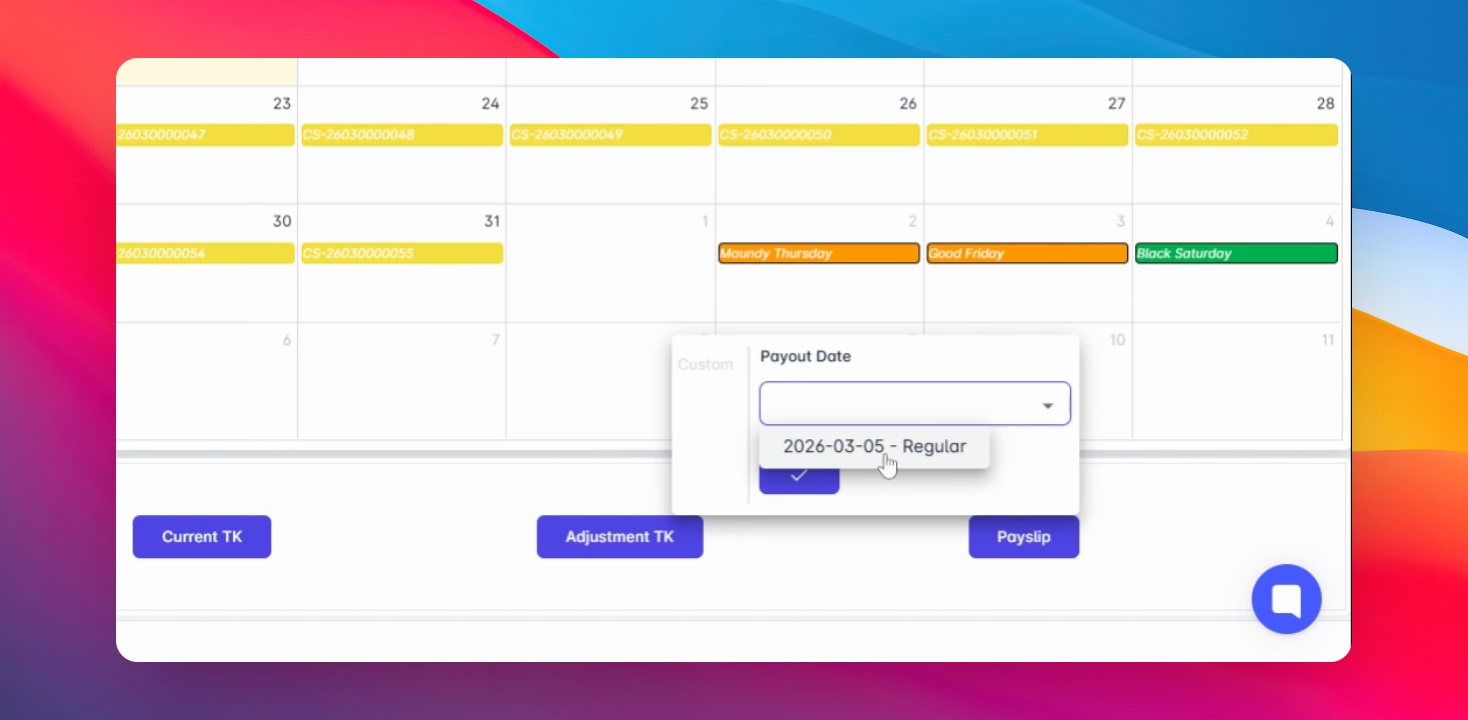
To view your payslip, select the payout date and check the box to display your payslip details.
Step 16: Visit Help Center
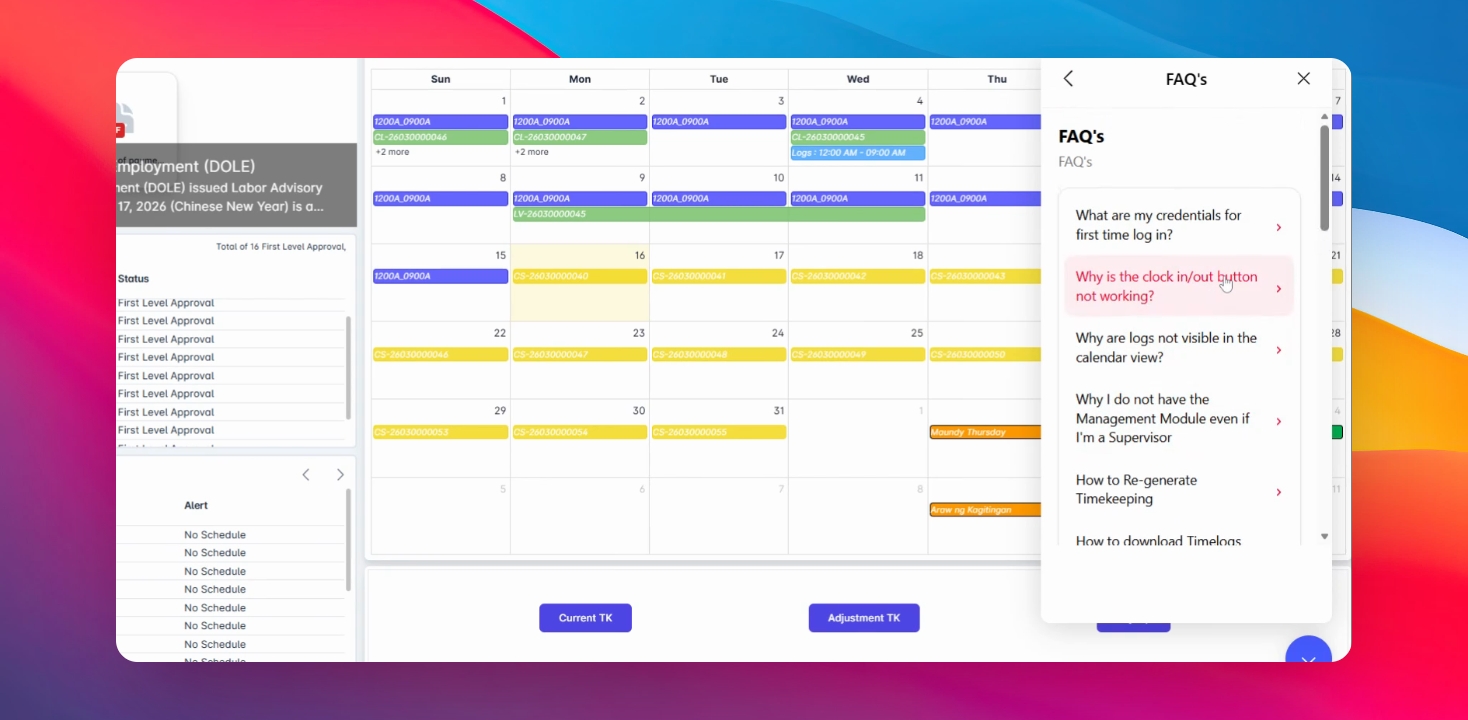
You may visit the Help Center for additional support.
This section contains:
Tutorials
FAQs
Helpful articles
You're All Set!
You now know how to navigate your AanyaHR dashboard as a basic user. From viewing your profile and checking announcements to managing your timekeeping and payslips, the dashboard gives you easy access to all essential features.