

This tutorial provides updated guidelines for approving overtime requests, detailing the streamlined process and enhancements in the approval module.
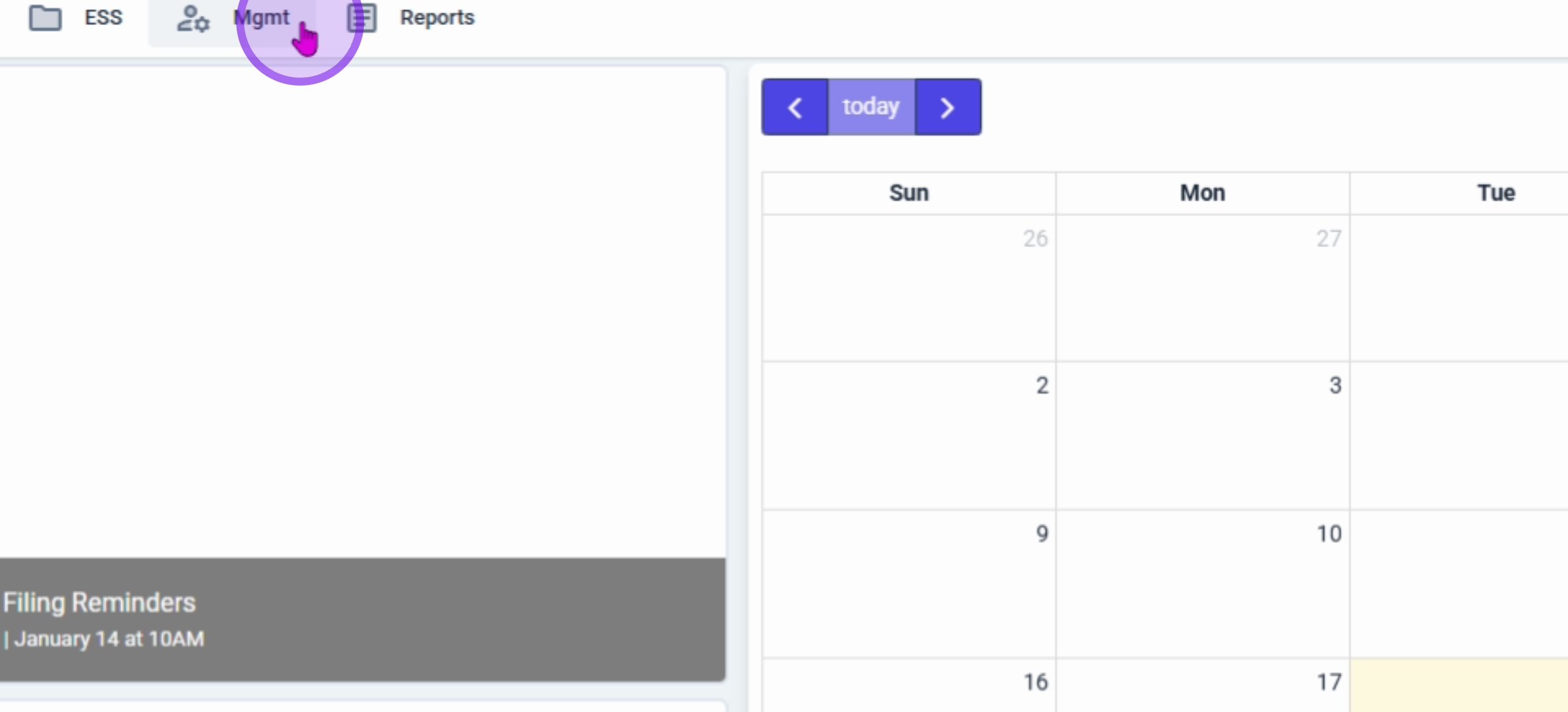
Begin by navigating to the management module.
Then, click or select Approval.
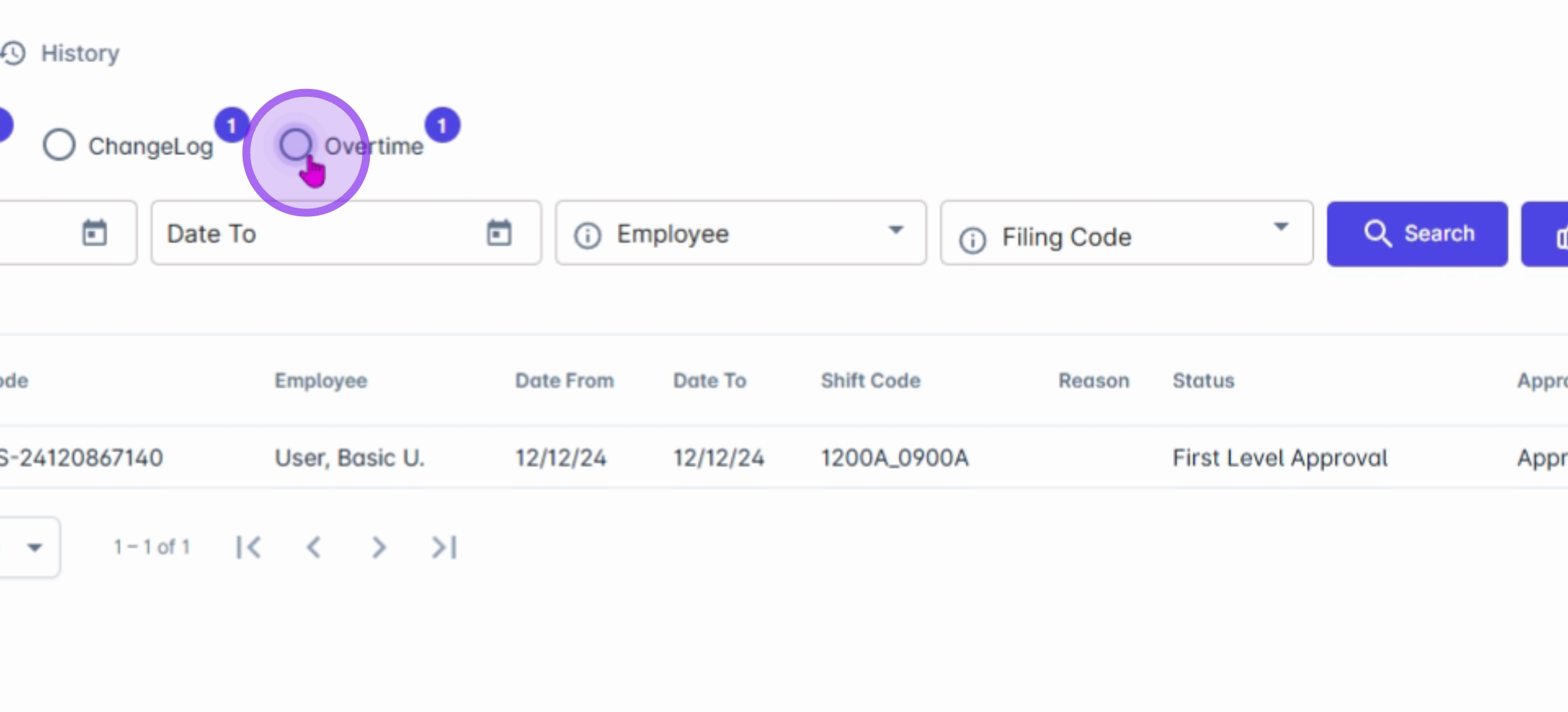
Next, click on the overtime notification to review the request.
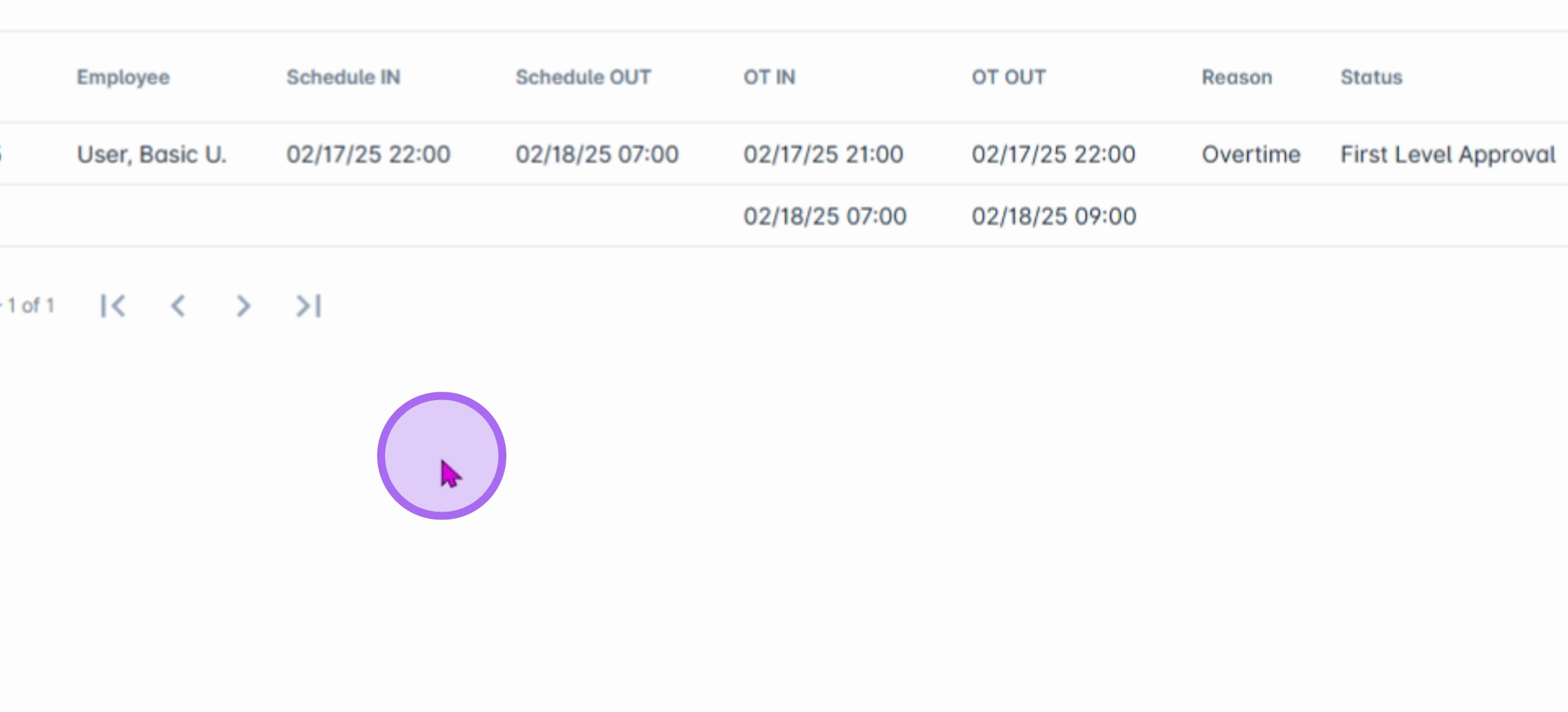
The system will display a single OT code for every straight filing schedule.
Additionally, in and out times will also be visible for better clarity.
The newly added OT in and out module splits and categorizes overtime into different OT types.
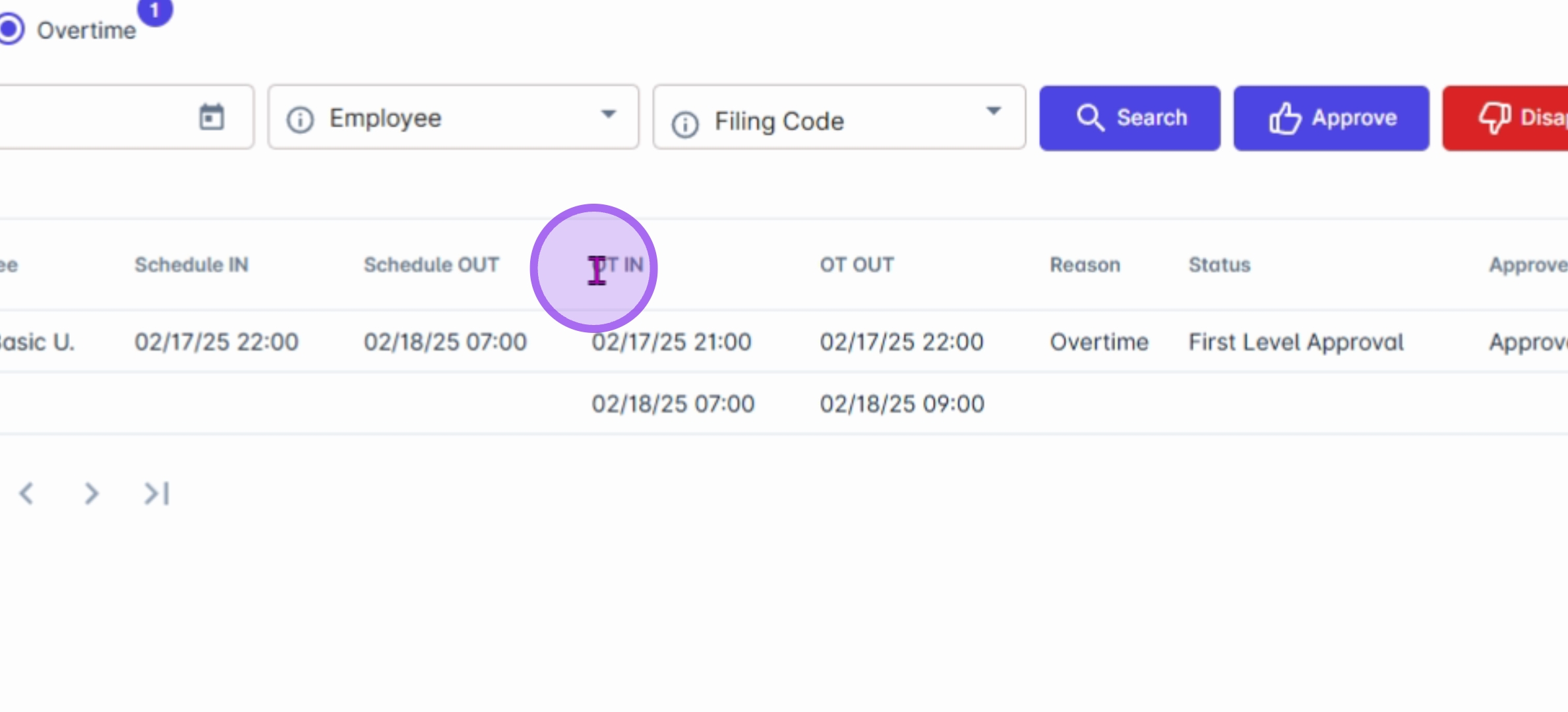
The enhanced system automatically calculates and categorizes overtime into Pre OT, Post OT, Holiday OT, or Rest Day OT.
To approve or disapprove the overtime request, select a specific checkbox related to the request.
Then, choose a specific OT code and click Approve or Disapprove Order Request.
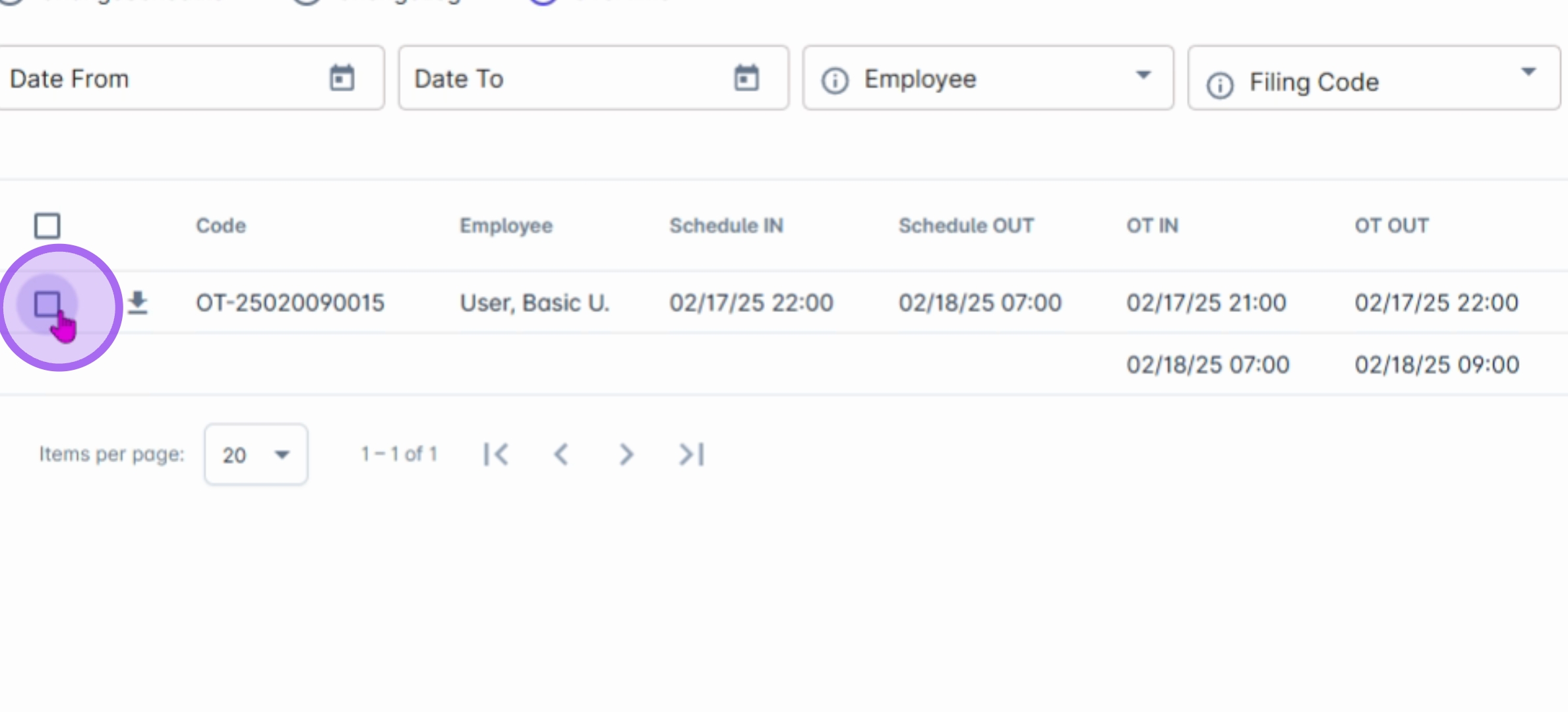
If you wish to approve or disapprove all filings for an employee or your subordinates, you can click this check button to select all OT codes.
Subsequently, click Approve to proceed.
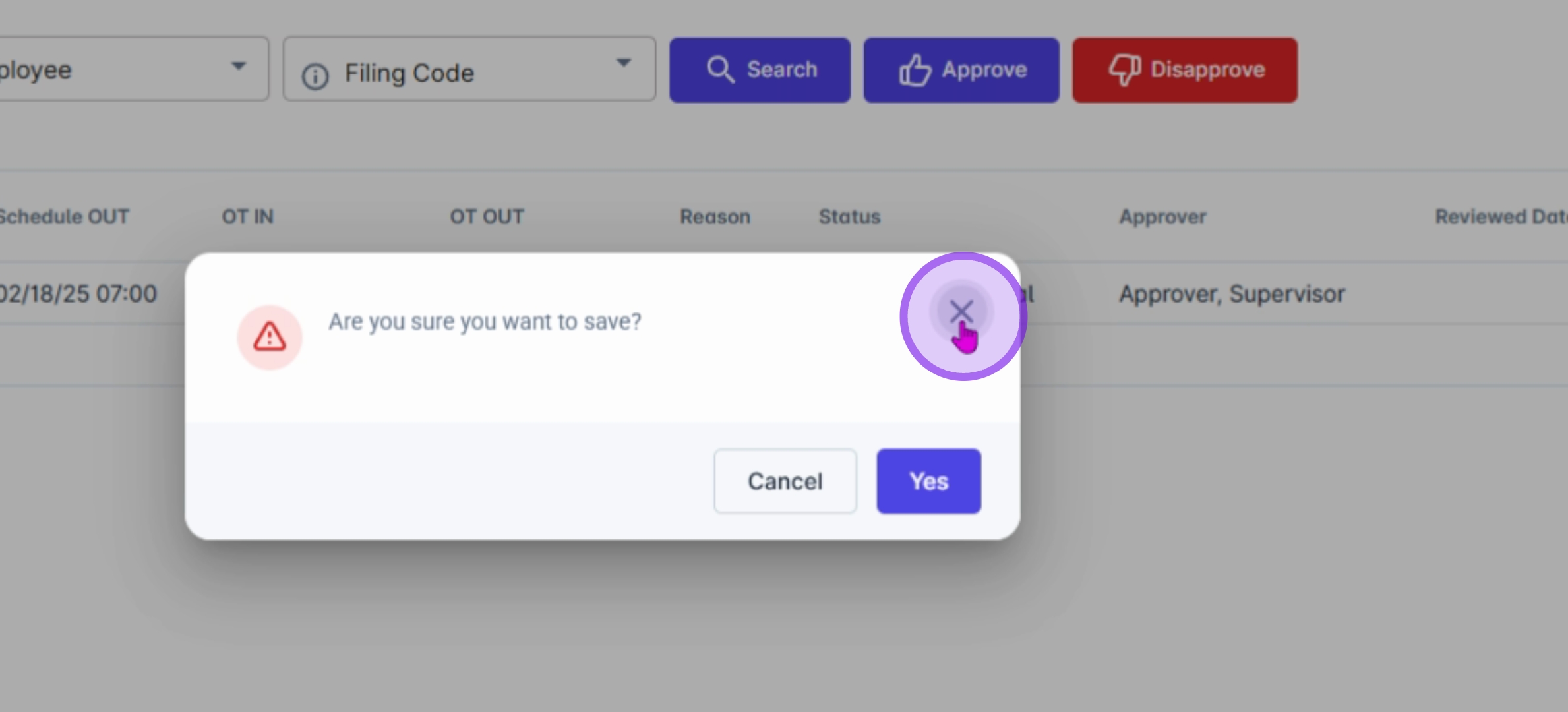
A prompt message or confirmation message will be displayed.
Simply click yes to proceed or refer this approval.
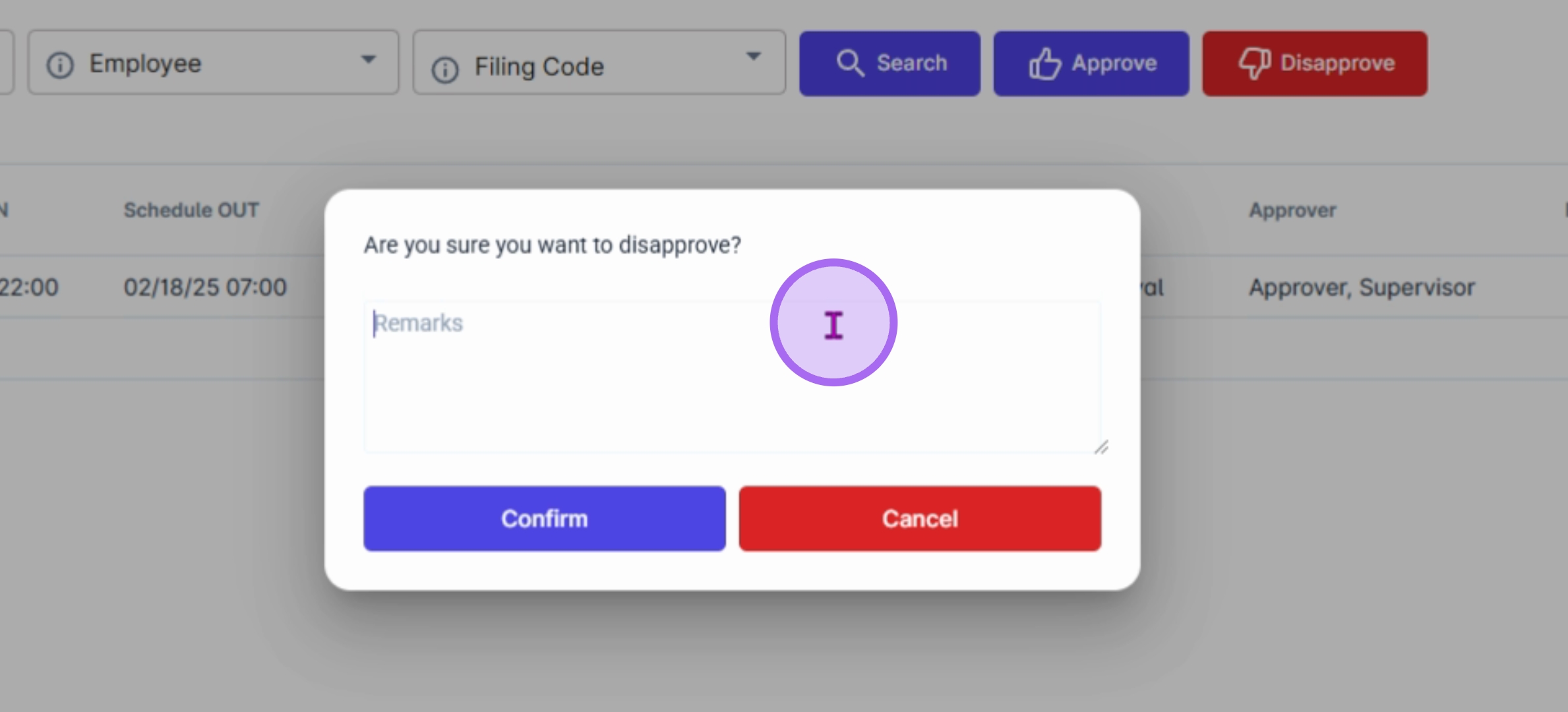
If you need to disapprove a request, you can encode or enter the reason for disapproval.
Finally, click Confirm to finalize your decision.
By following these updated guidelines, you can efficiently approve or disapprove overtime requests while utilizing the improvements made in the approval module.