

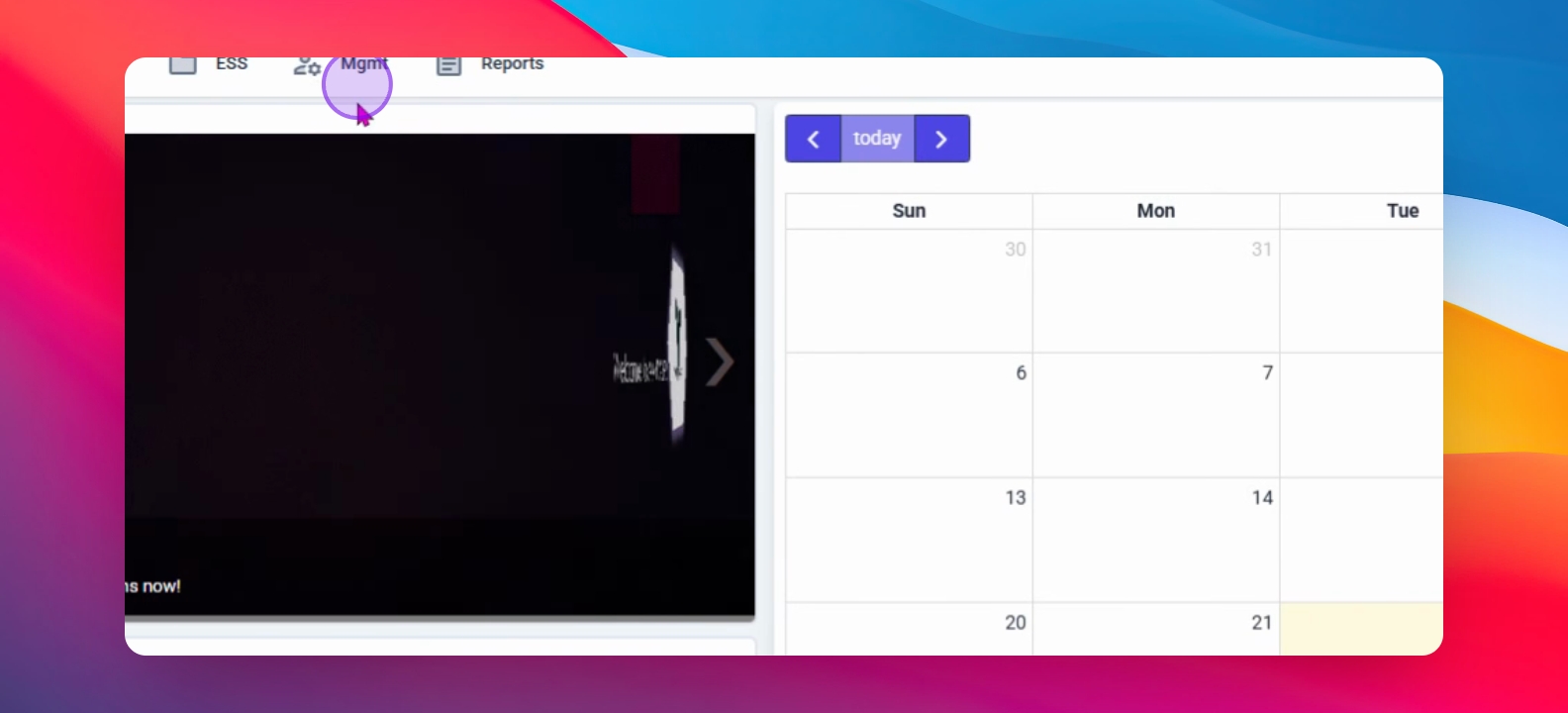
First, navigate to the Management Module and click on Approval.
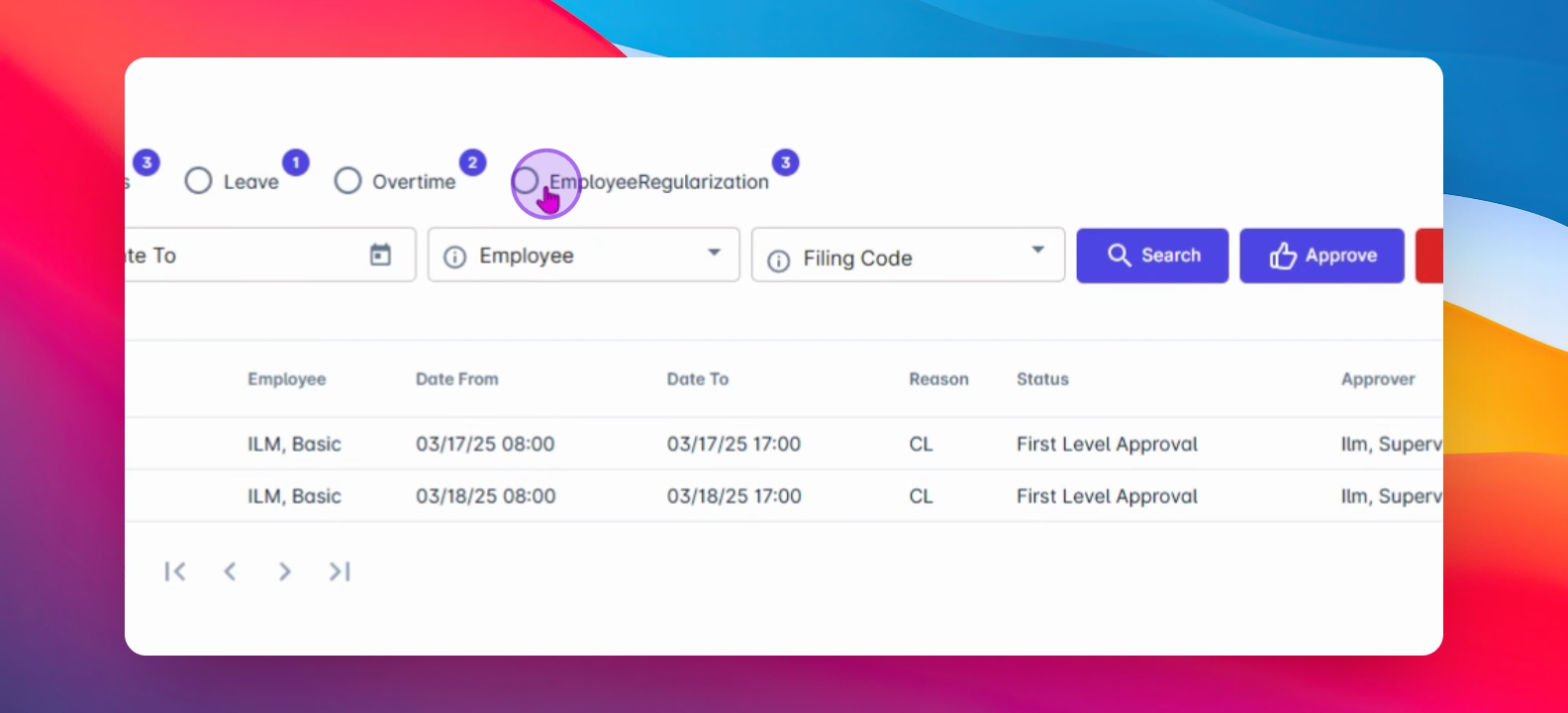
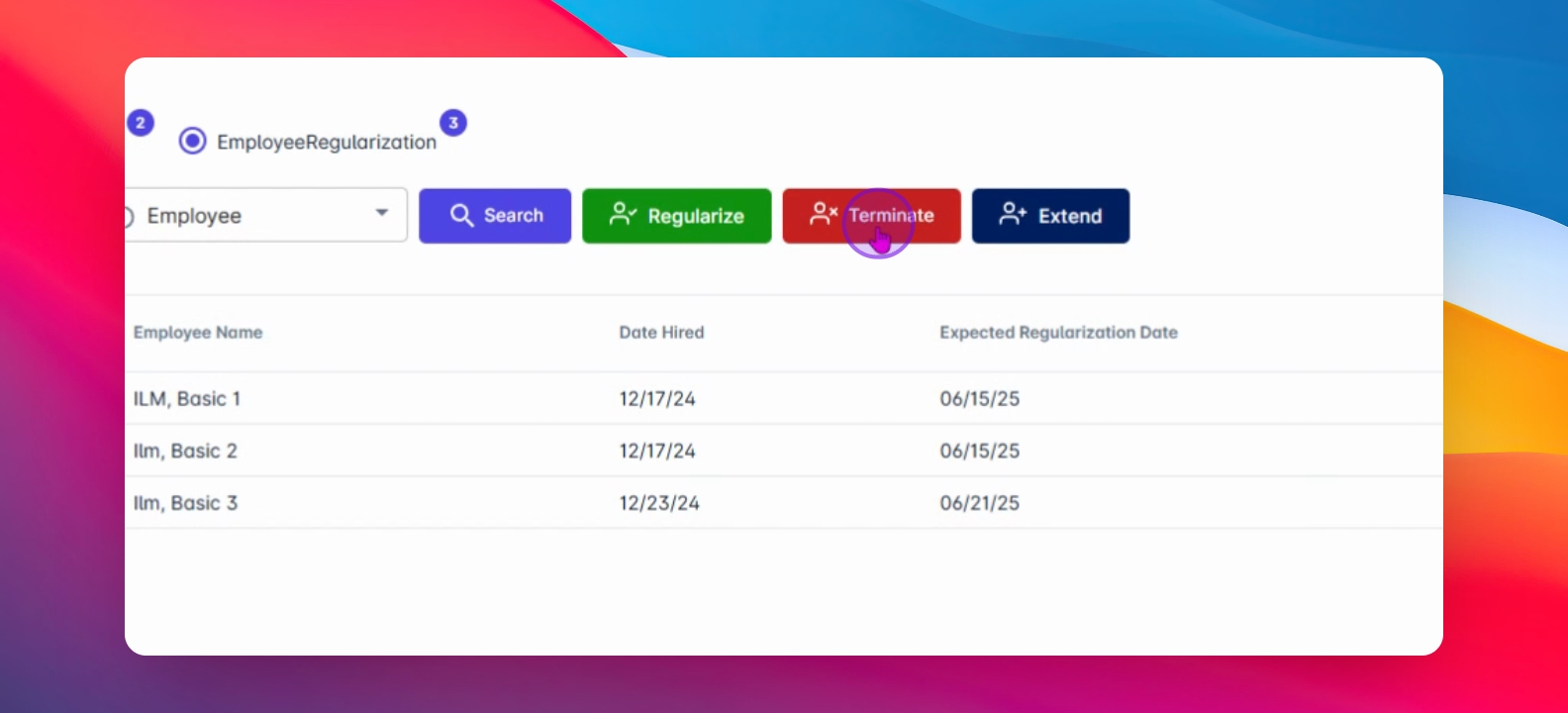
Next, choose the Employee Regularization button. You will then be able to see the list of employees subject to review.
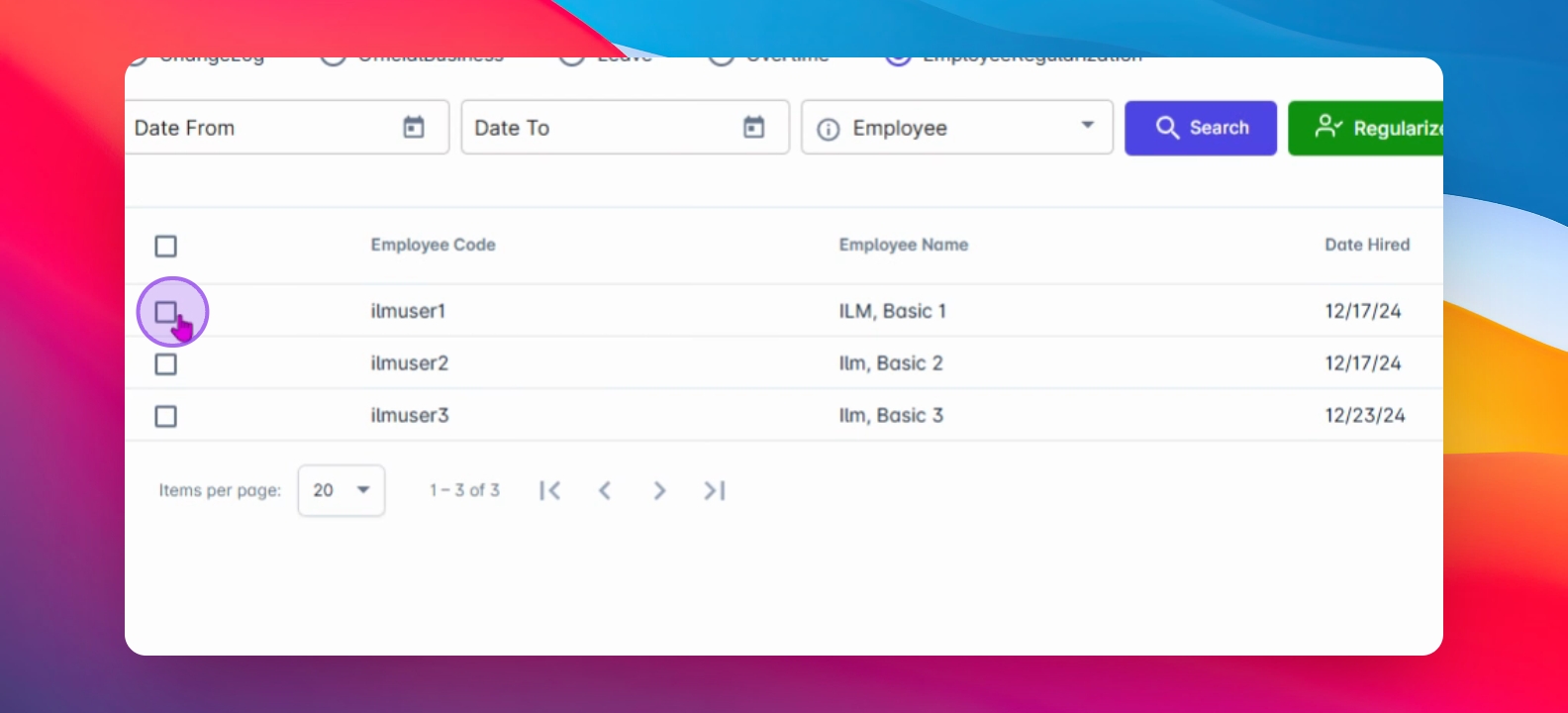
You can select a specific employee by clicking the check button, or click the Select All button to choose all employees.
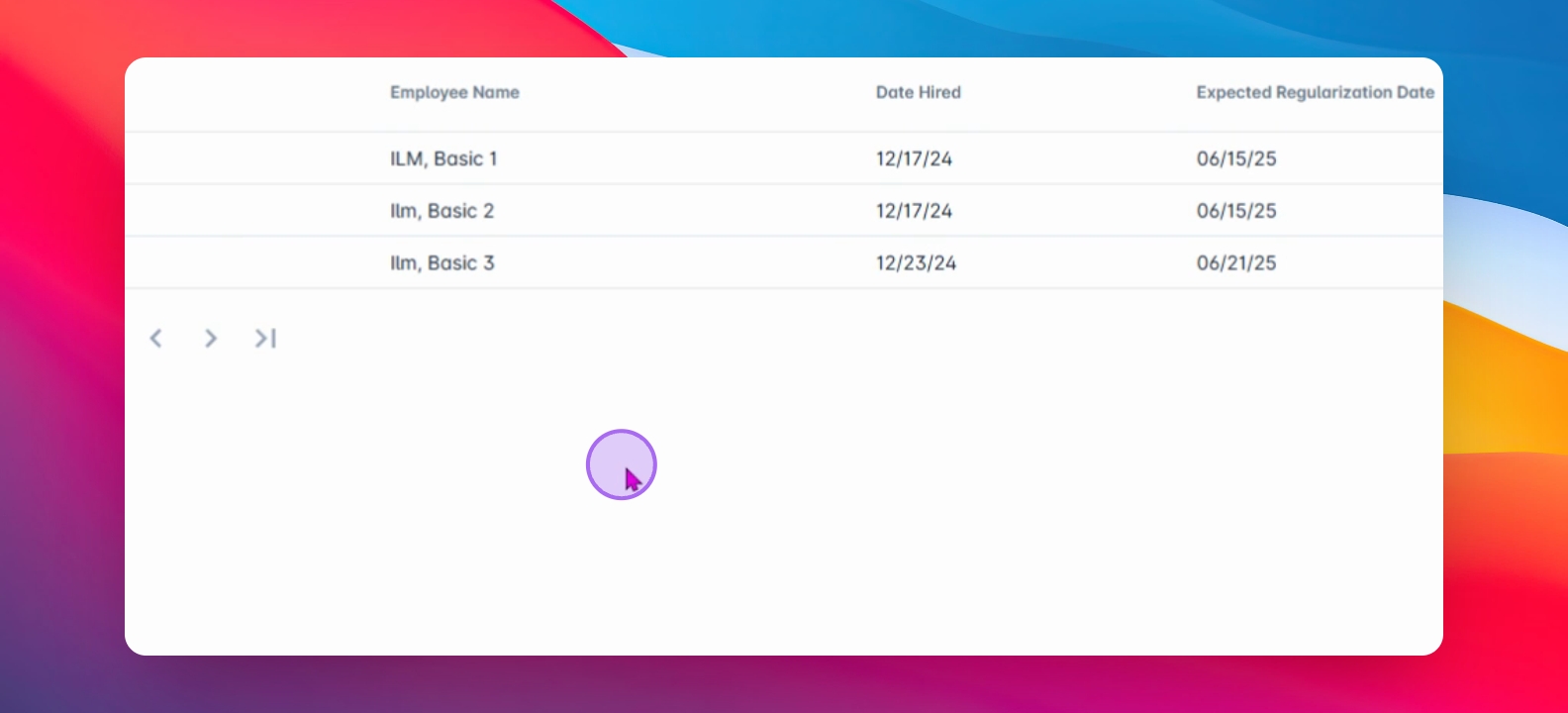
You have the option to regularize, terminate, or extend the probationary period of the employee.
If you wish to regularize the employee, click the Regularize button. A prompt message will be shown, click Yes to proceed. Once saved, the status of the employee in the master file will automatically change to Regular once the assigned regularization date is met.
If you wish to terminate the employee, you will need to input the Effective Date and Separated Date. Click Confirm to proceed, and the system will automatically update the master file to reflect the termination.
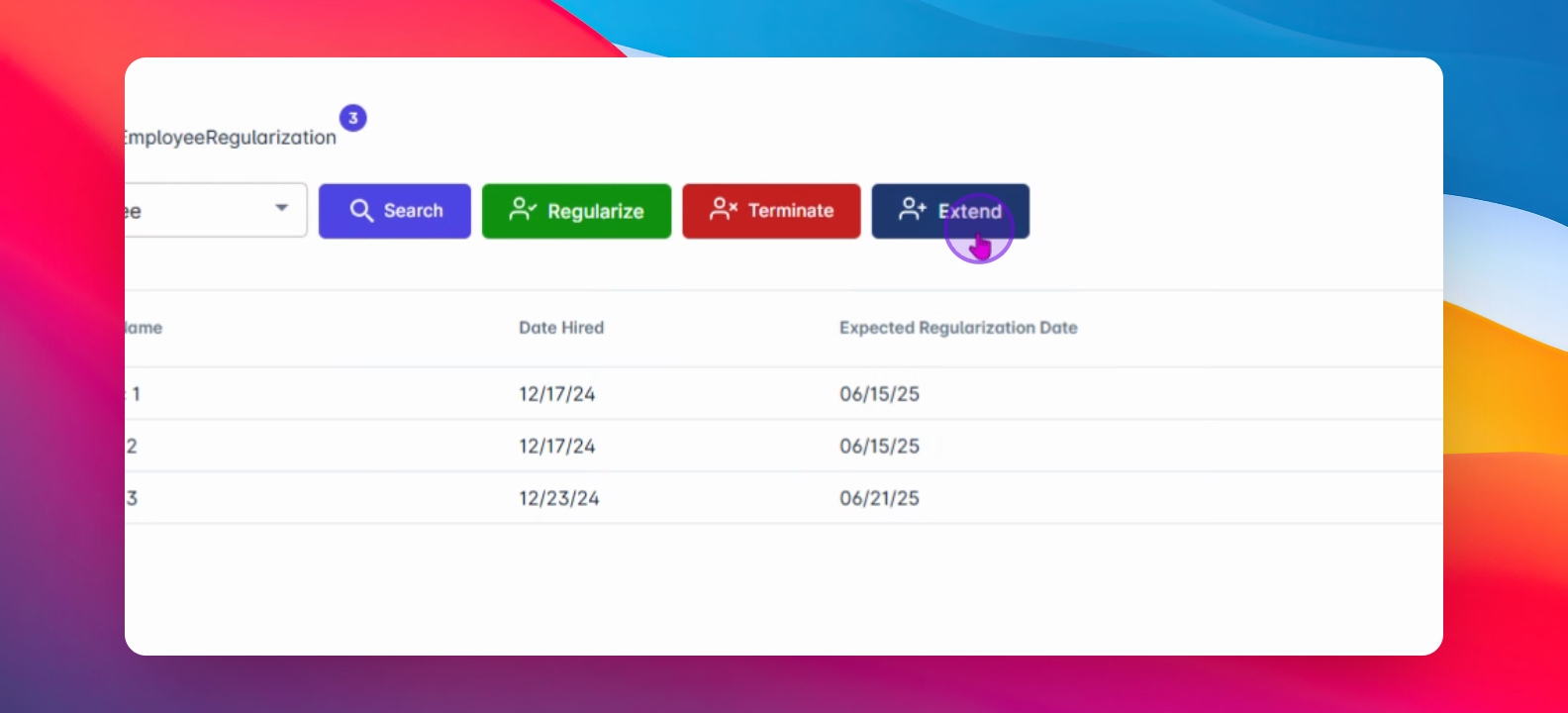
If you wish to extend the provisionary period, click the Extend button. A prompt will require you to input the Days to Review (for example, 30 days) and the Days to Regularize (which will be 60 days). Once you click the Confirm button, the system will count the specified days again to notify you to review the regularization date. A prompt message will appear, click Yes to proceed.
This process will eliminate all manual checking of employee status in your system.
By following these steps, you will efficiently manage the regularization approvals for provisionary employees.