

Introduction
In today’s fast-paced world, having quick and secure access to your accounts is essential. This tutorial will guide you through the straightforward process of setting up your Mobile PIN (MPIN) for the Unhure mobile app. By following these steps, you can enhance your login experience and ensure your information remains secure.
How to Instructions
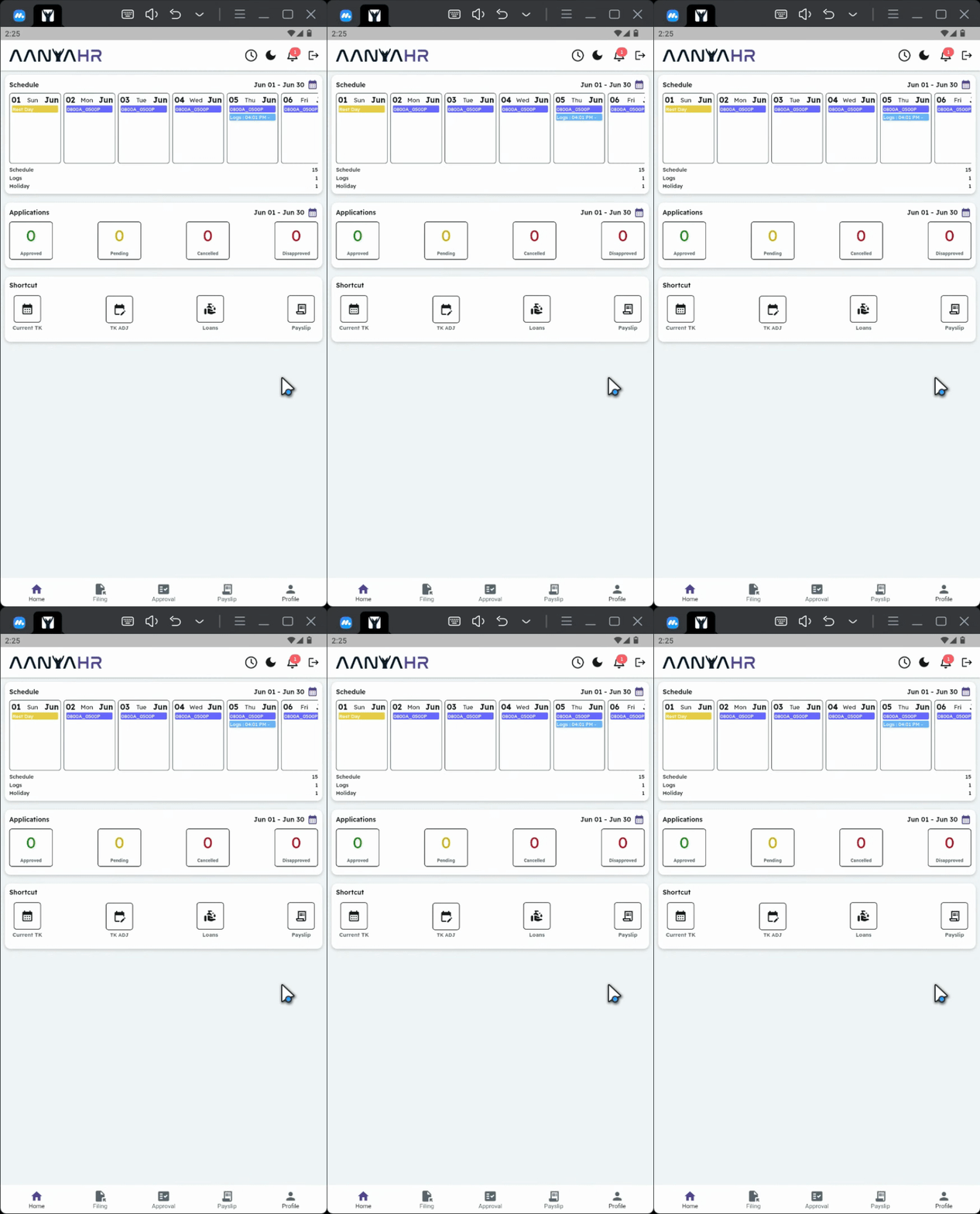
1. Access Your Profile Module
From the dashboard, tap the Profile module located at the bottom of the screen.
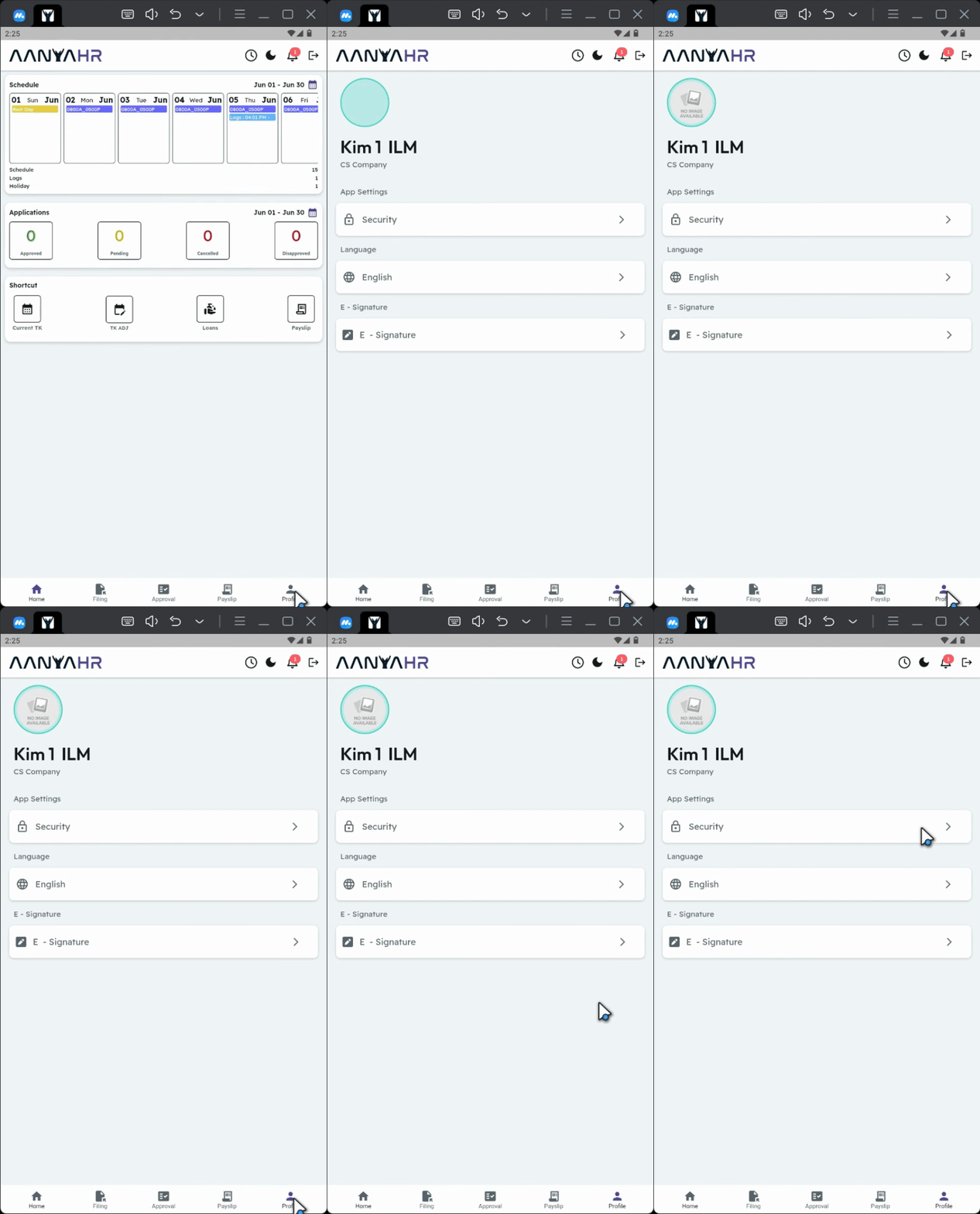
2. Navigate to Security Settings
Select the Security option from the available settings.
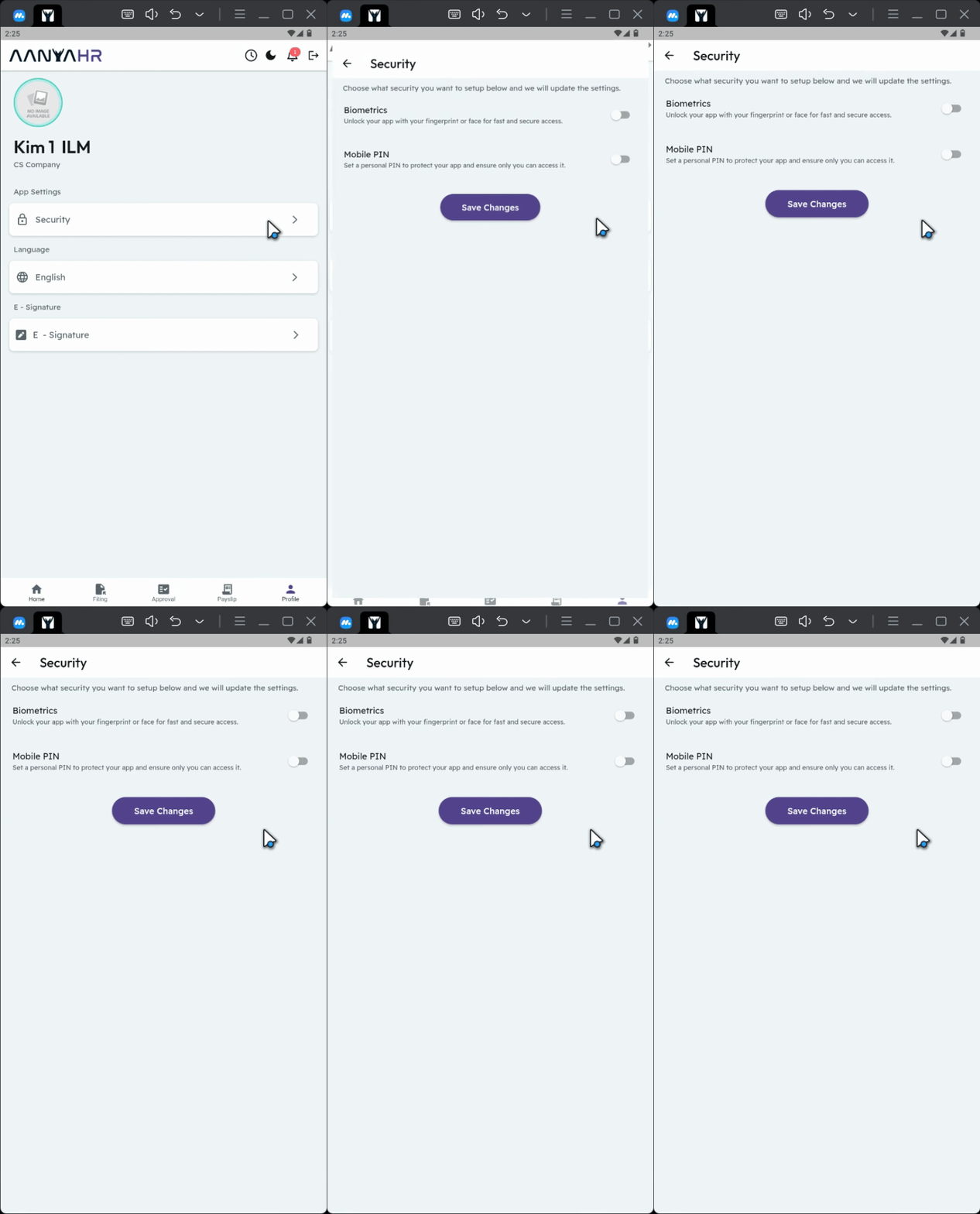
3. Enable Mobile PIN
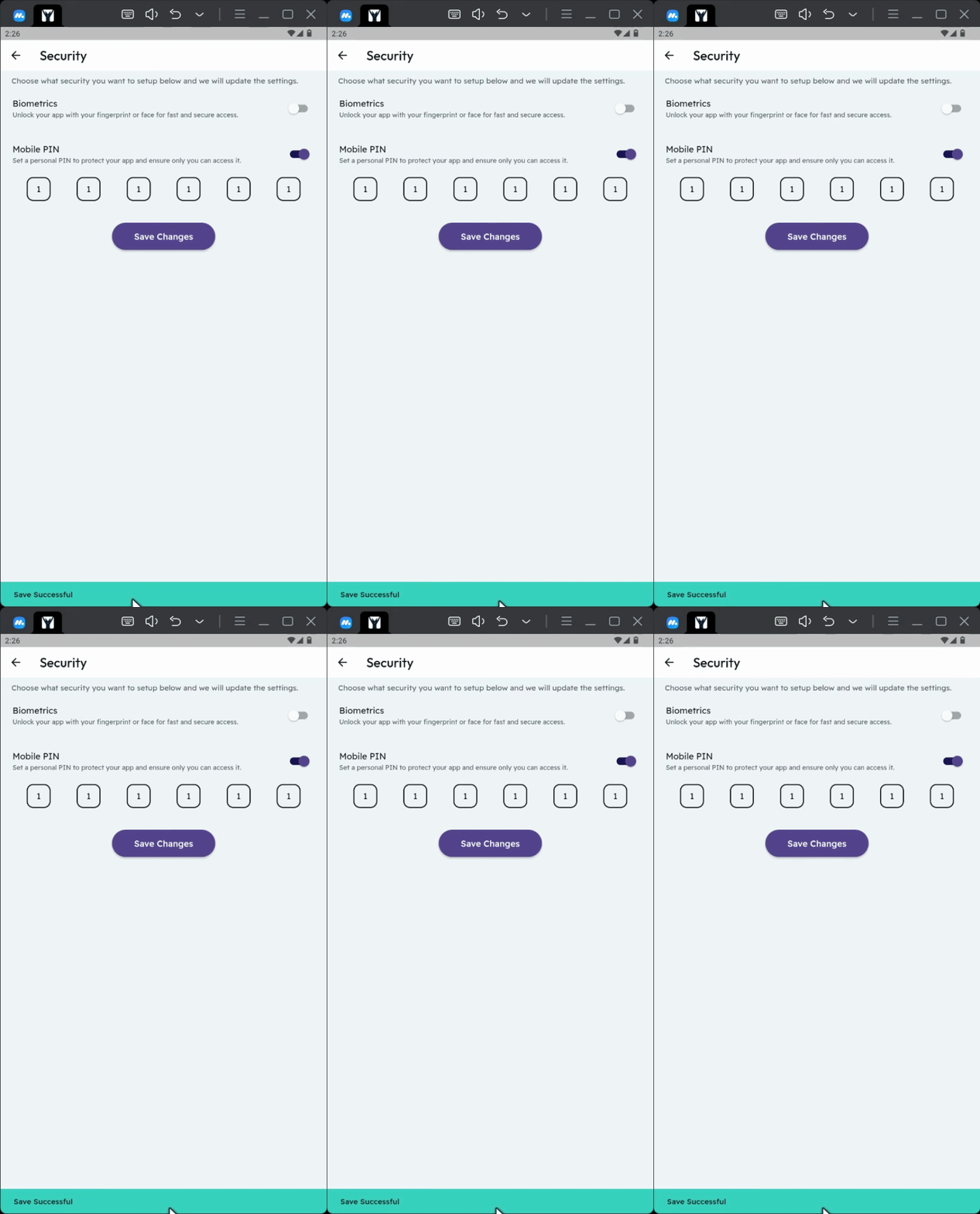
Toggle the Mobile PIN or MPIN option to enable it.
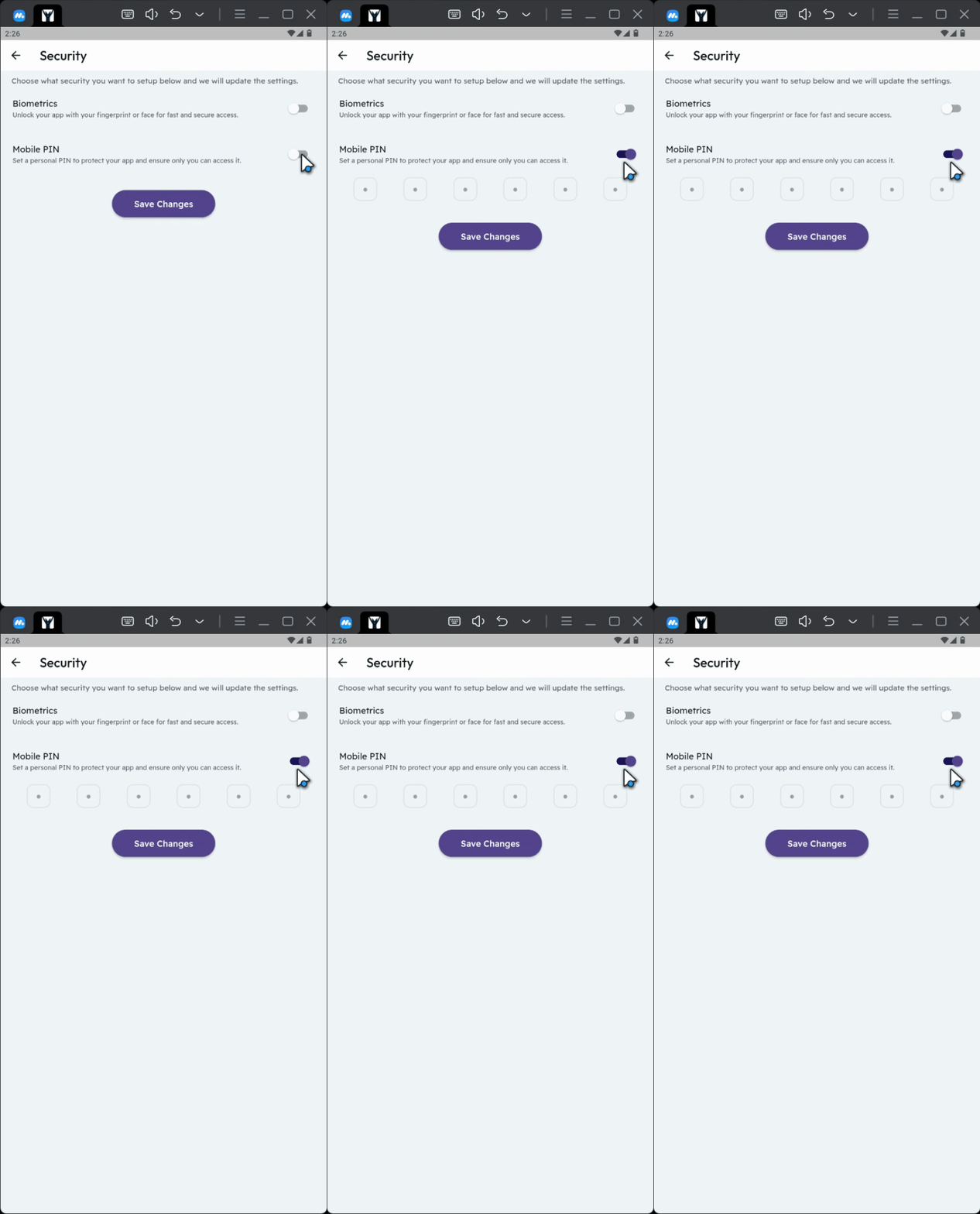
4. Input Your New PIN
Once enabled, you will see six boxes where you need to input your new PIN. Enter a six-digit numeric PIN of your choice.
5. Save Your Changes
After entering the PIN, click on Save Changes to finalize your setup.

6. Using Your MPIN
After saving, you can now use this PIN as an alternative way to log into your Anya HR mobile app account.
Conclusion
By following these steps, you have successfully set up your Mobile PIN (MPIN) for your Unhure account, allowing for a faster and more secure login experience.