

Follow the steps below to review your attendance records and log details.
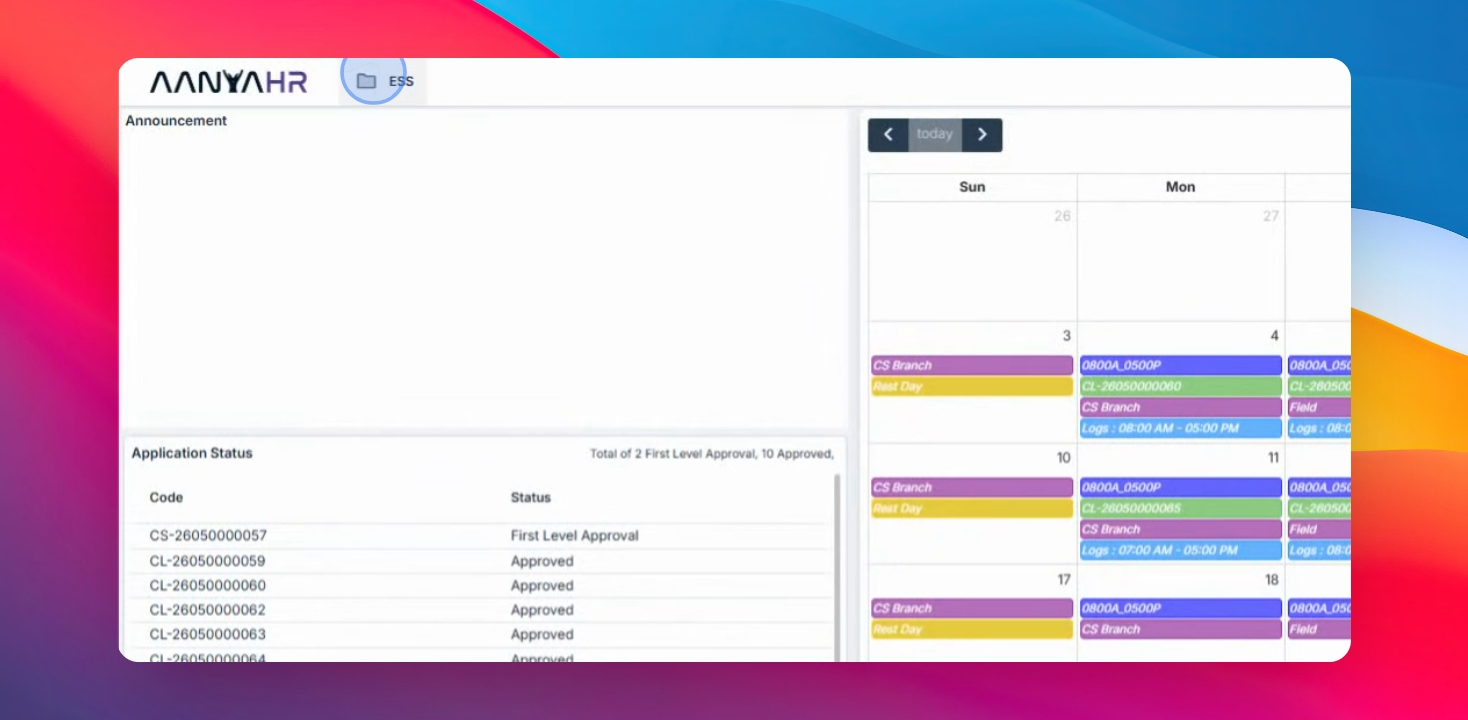
Step 1: Open Time Logs
Navigate to the ESS menu and select Time Logs
Step 2: Set Date Range and Search
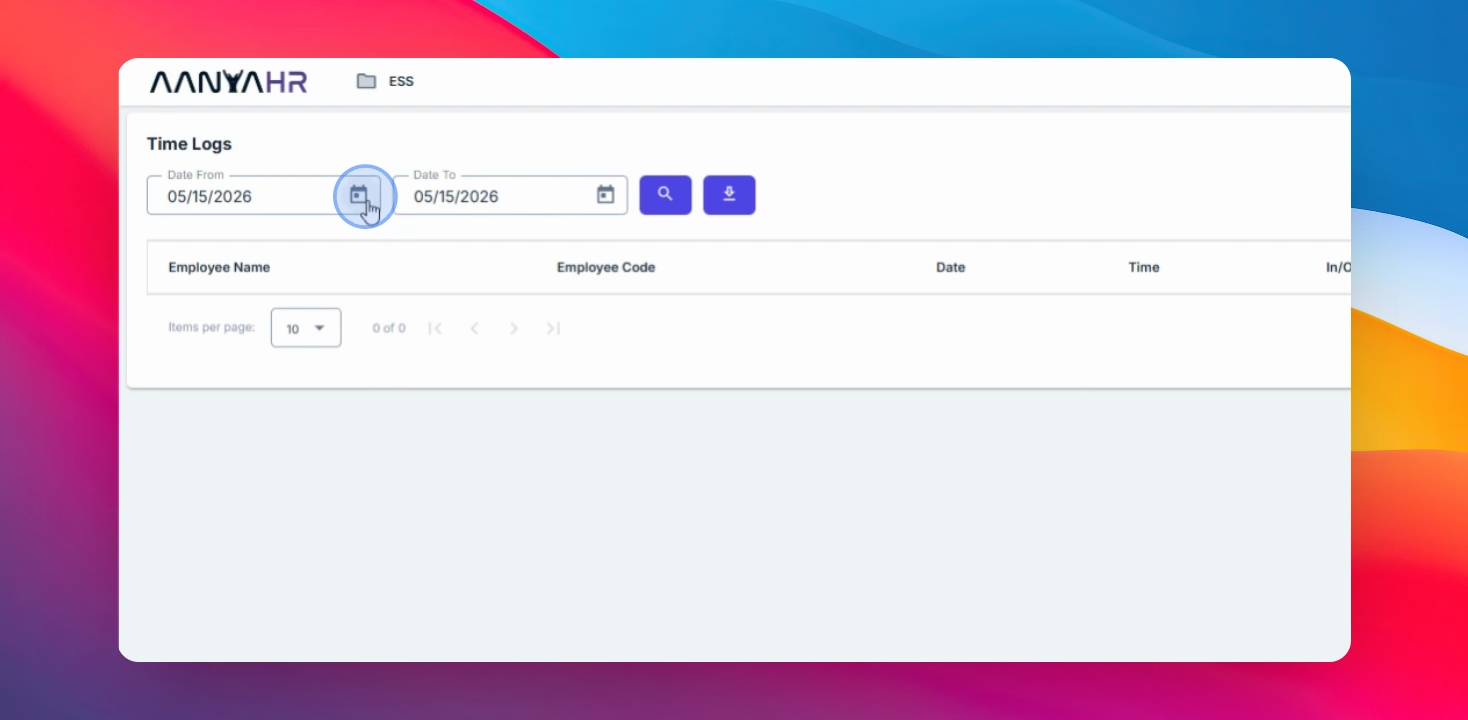
Select the date range you want to view, then click the Search button.
Step 3: Review Time Log Details
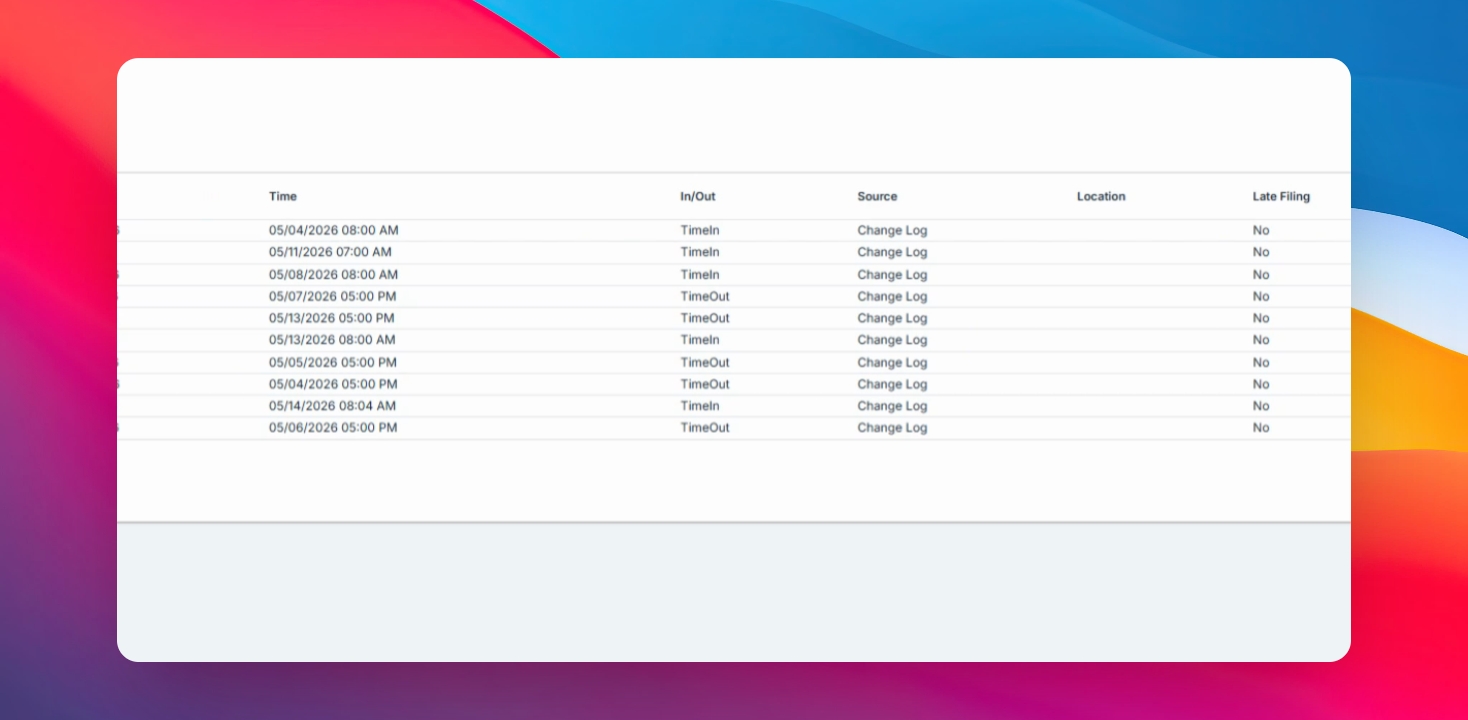
The results will display your time log information, including:
Employee Name
Employee Code
Date
Time
Actual Time In and Time Out indicators
Additional Information
The source image or record for each log entry may come from the following sources:
Change Log Filing
Biometrics
Upload
Web Bundy
Mobile Application
If your company uses biometric devices, the reflected location will be based on the location configured in the Admin biometric setup.
Entries submitted through Late Filing or approved through Change Time Logs Filing will also display as "True" under the Late Filing column.
You have now learned how to view and review your Time Logs using ESS Access. Monitoring your logs regularly helps ensure that your attendance records are accurate and complete.