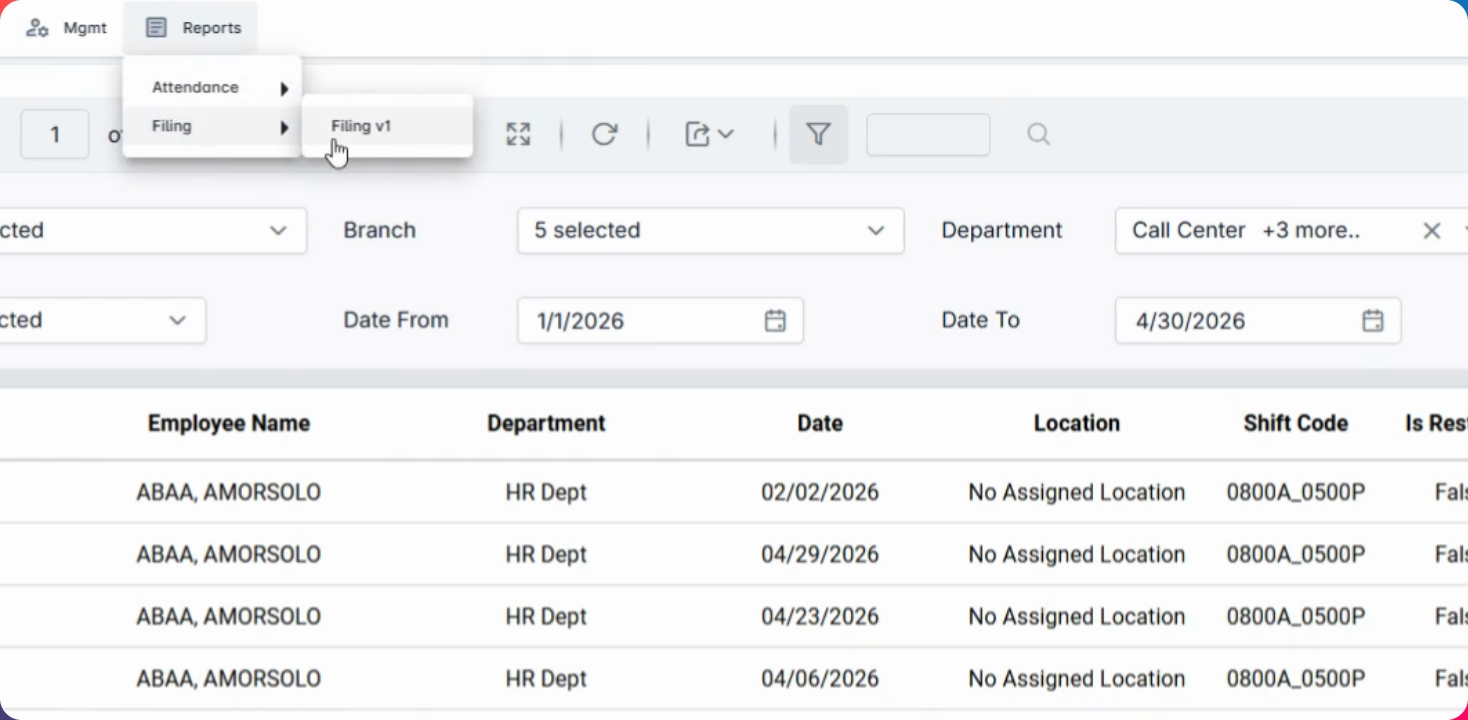
In this video, we'll discuss how to navigate your supervisor's dashboard and generate reports from a supervisor's perspective. Let's look at the steps:
Step 1: Log In
Log in to your supervisor's account. From the uppermost right corner of your dashboard, click the flip button.
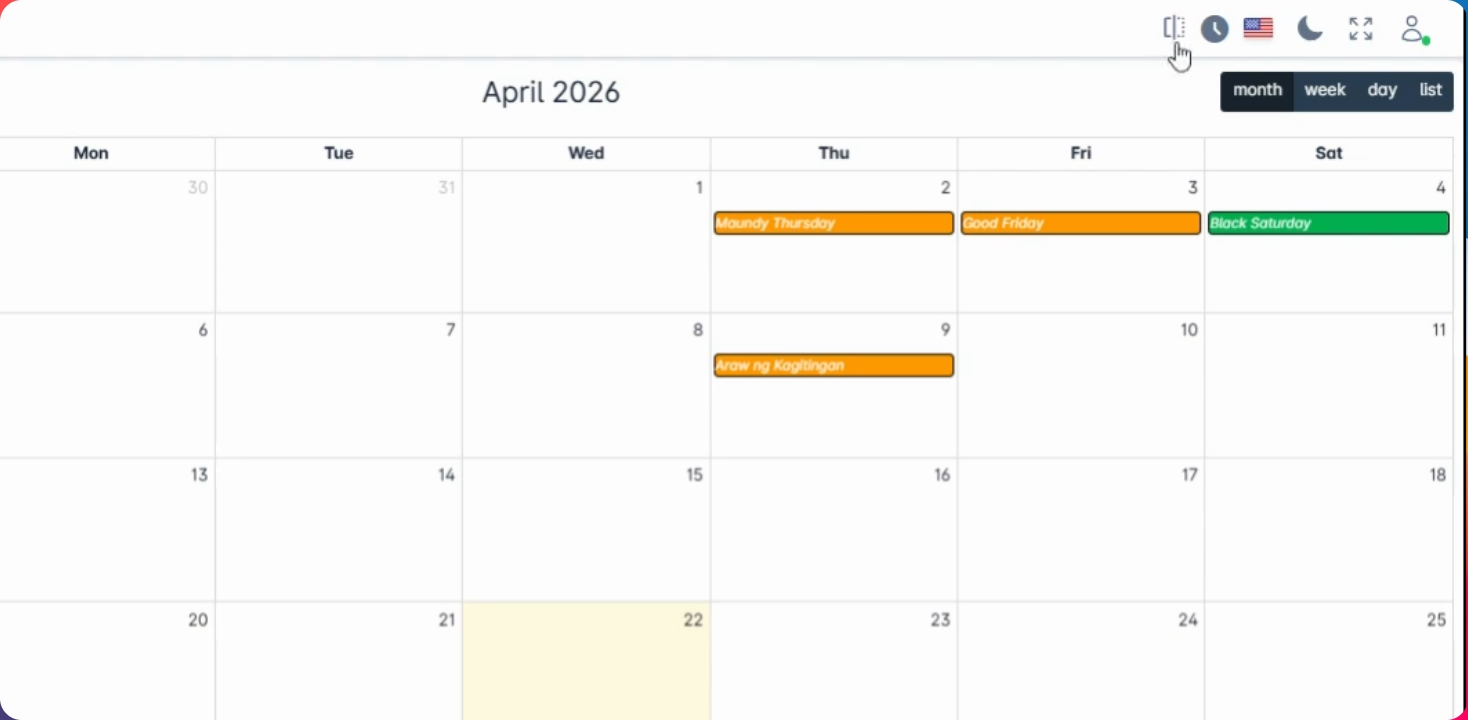
This action will navigate you to your supervisor's dashboard from your employee dashboard.
The supervisor's dashboard contains five sections:
Timekeeping alerts pending for approval
Today's employee status
Leave calendar
Employee's birthday
The timekeeping alerts section displays all possible errors or problems with your subordinates' timekeeping sheets, including:
Employee code
Date
Type of the day (regular day, no schedule day, or holiday rest day)
Alert of the concern (no logs, no schedule, etc.)
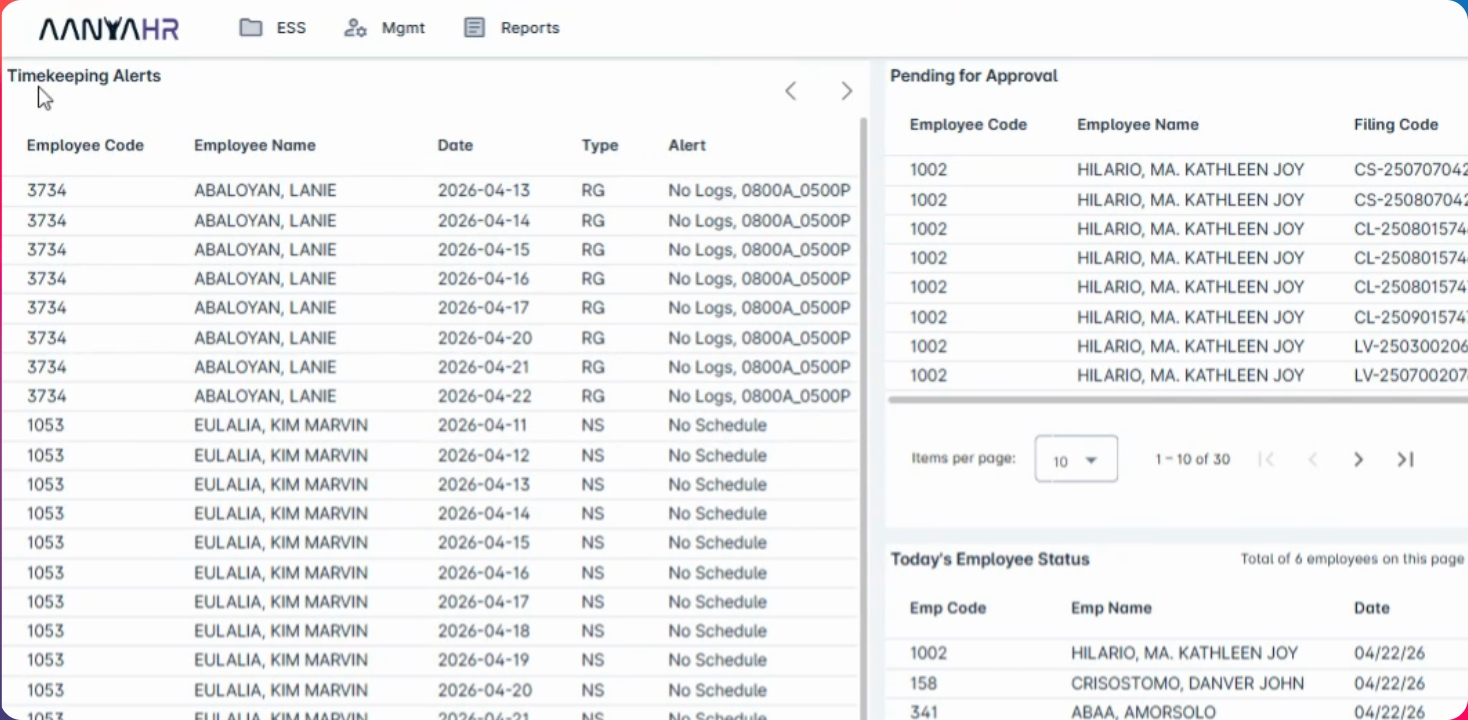
Next, the pending approval section provides an overview of your pending approvals, including:
Employee code
Name
Filing codes (hints for changes)
Status (first level approval, second level approval, etc.)
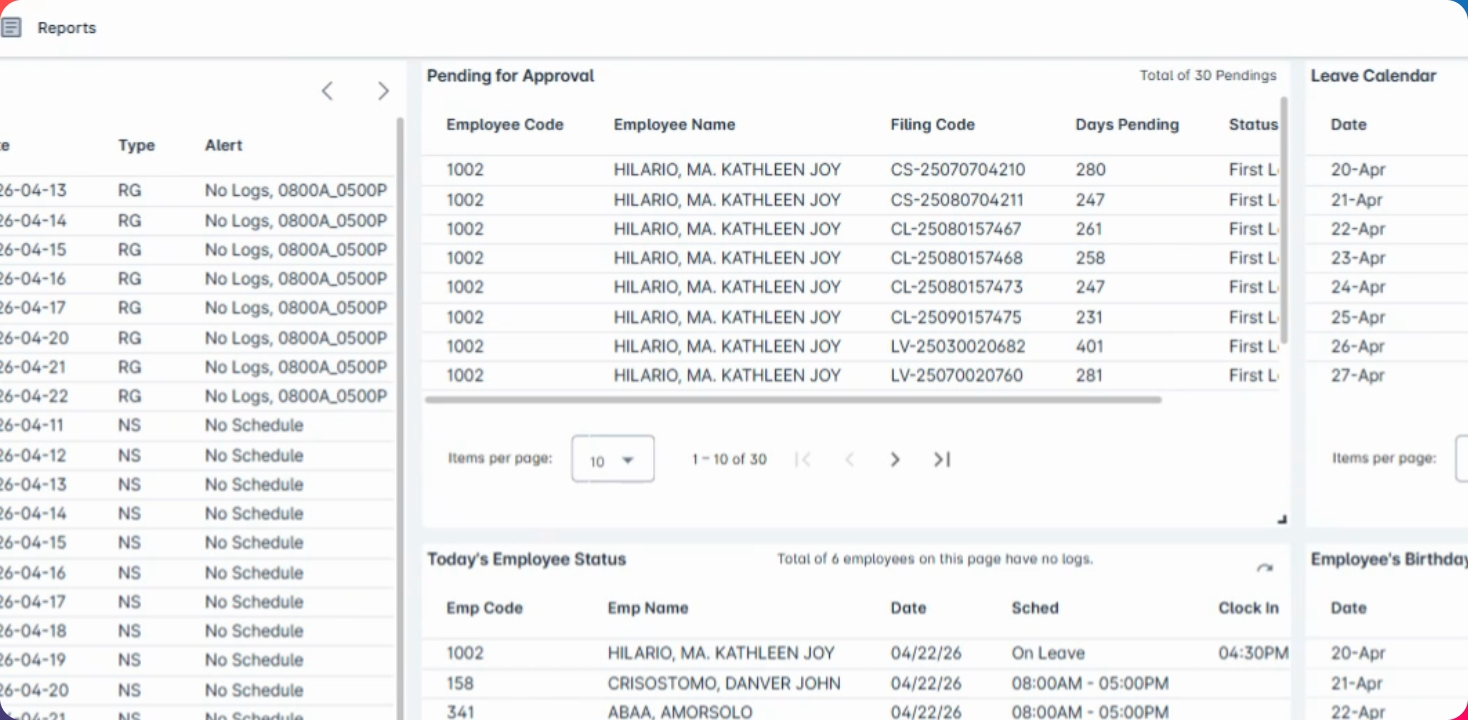
The today's employee status section includes:
Subordinates' clock in and out times
Employee code
Employee name
Date
Schedule
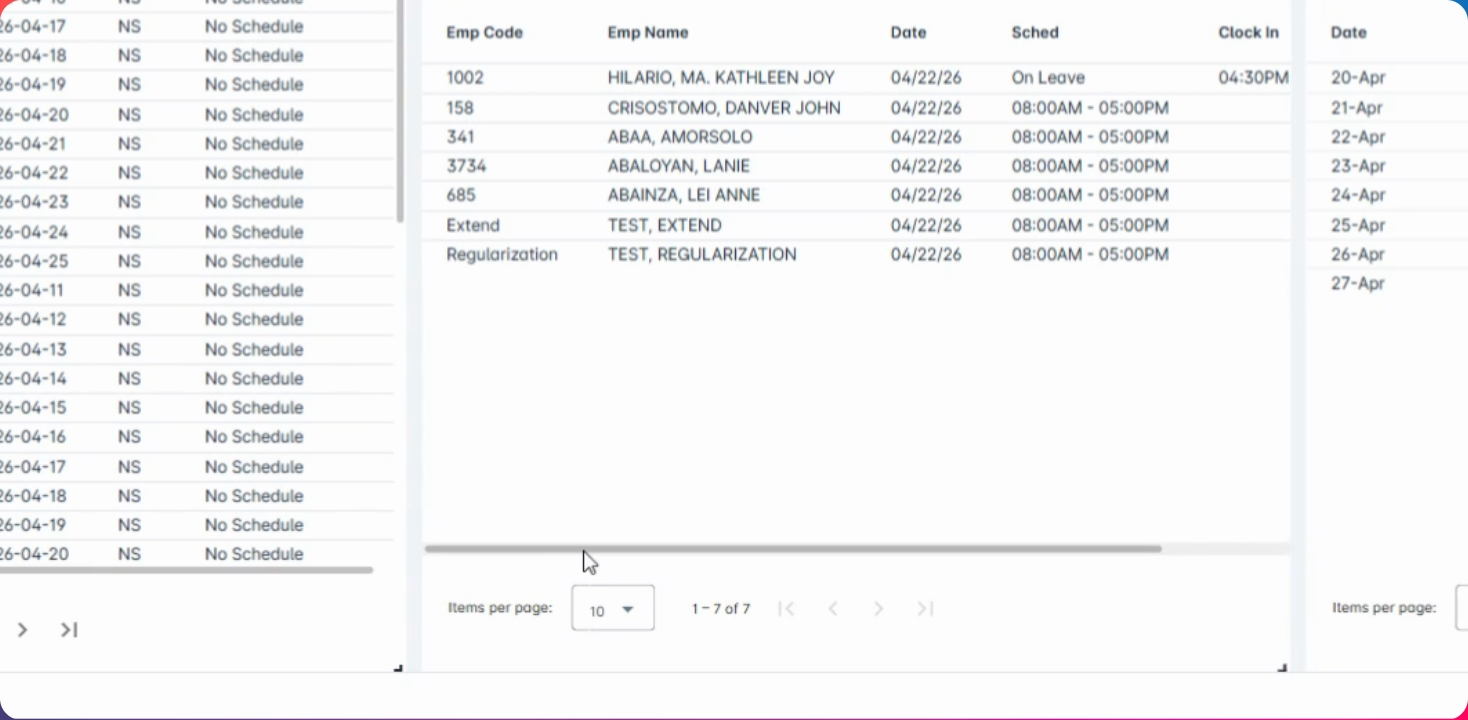
There is also information regarding the extension of the employee provisionary contract and regularization.
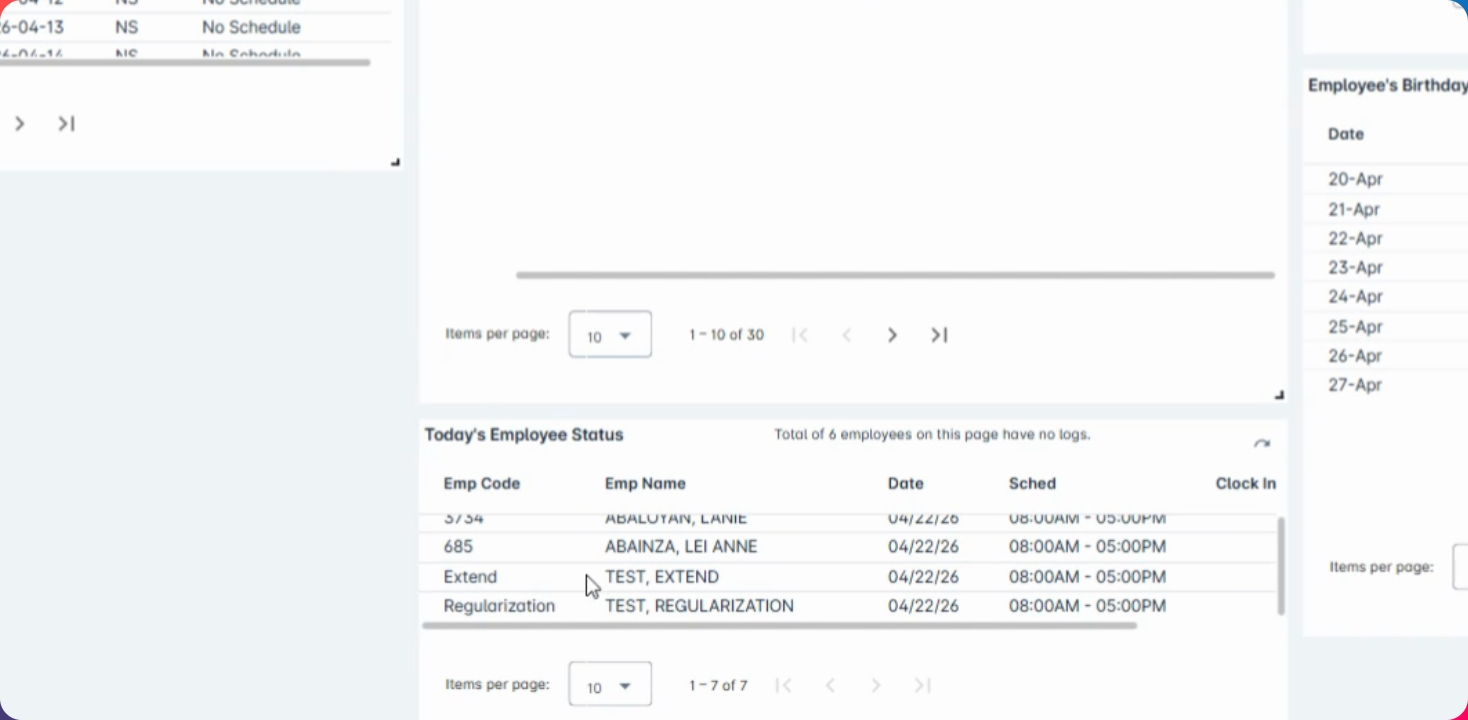
The leave calendar shows the approved leave of your team members for the current week, as well as your subordinates' birthdays within that week.
Now that we know the contents of the supervisor's dashboard, let's proceed to generating reports.
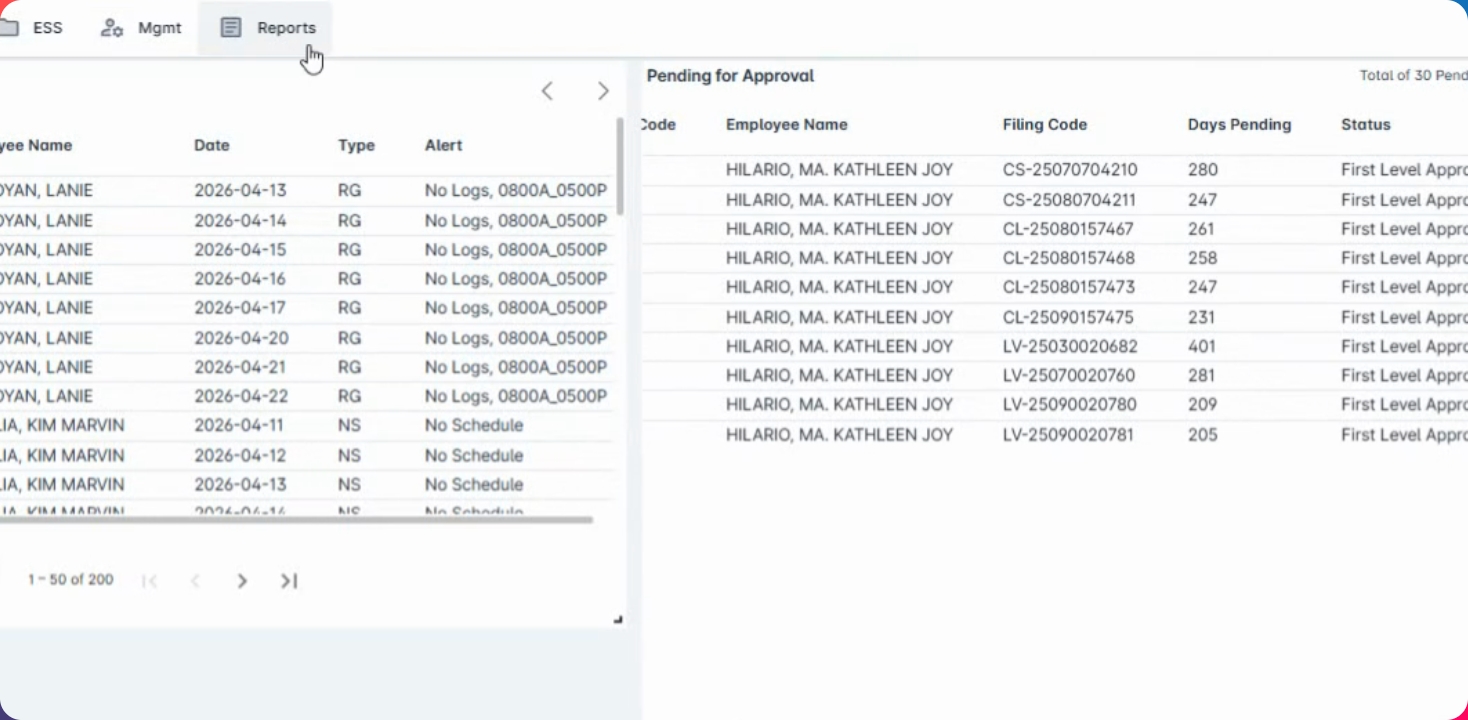
Step 2: Generate Reports
To generate reports, access the attendance schedule which includes all the schedules of your subordinates.
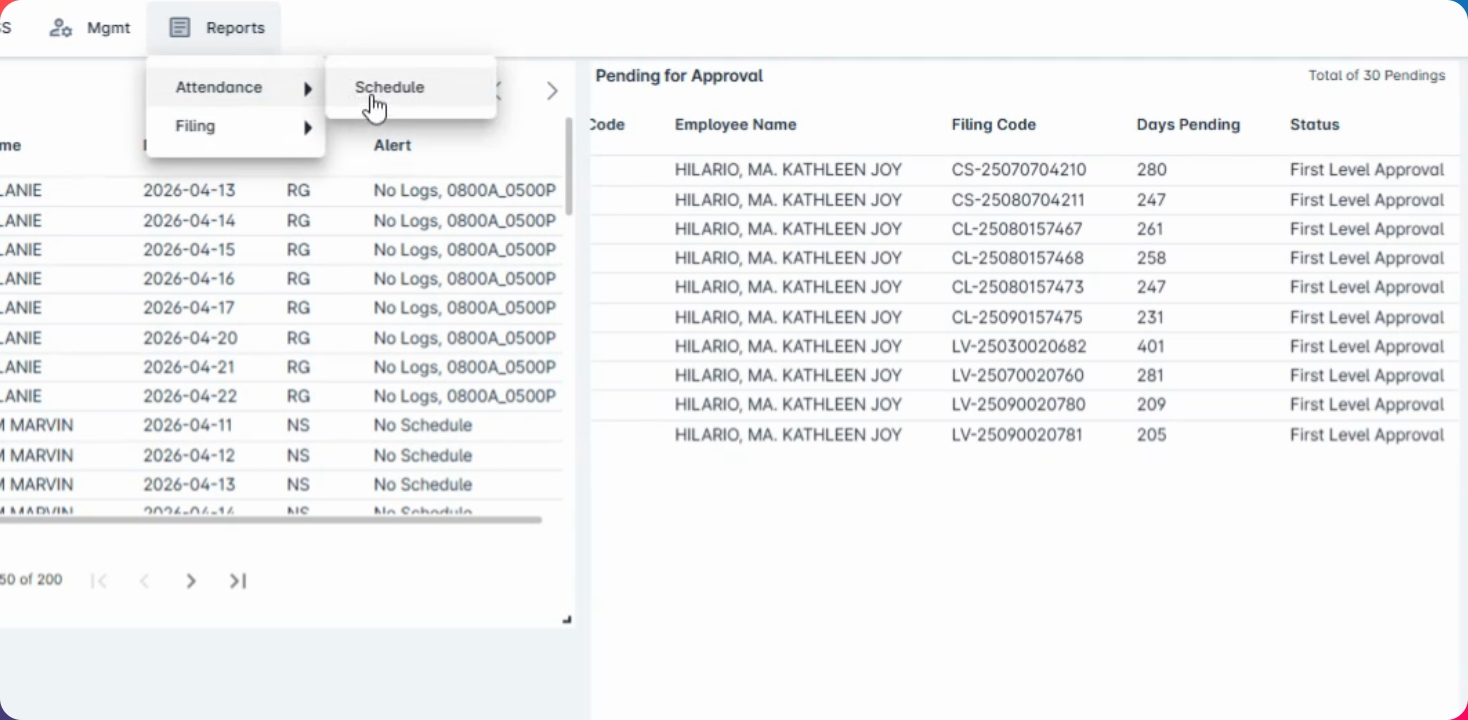
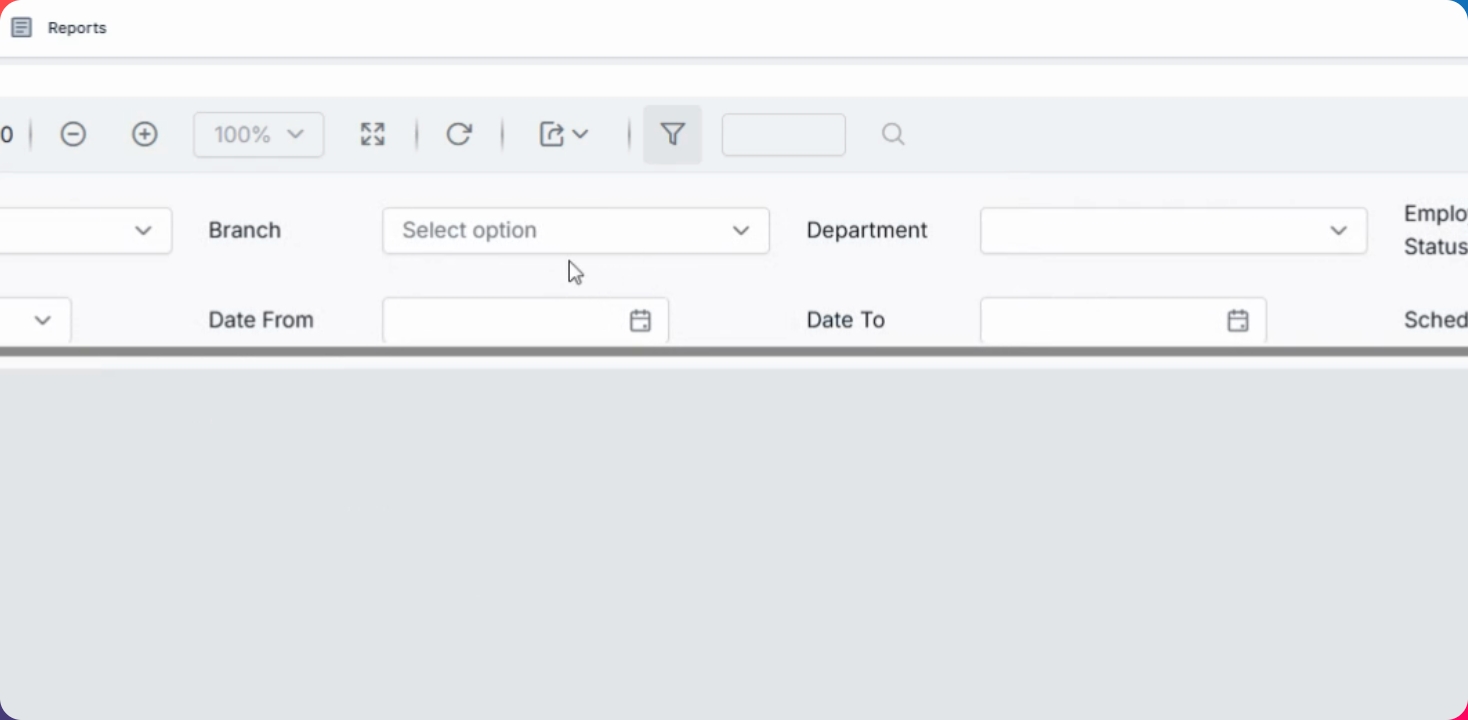
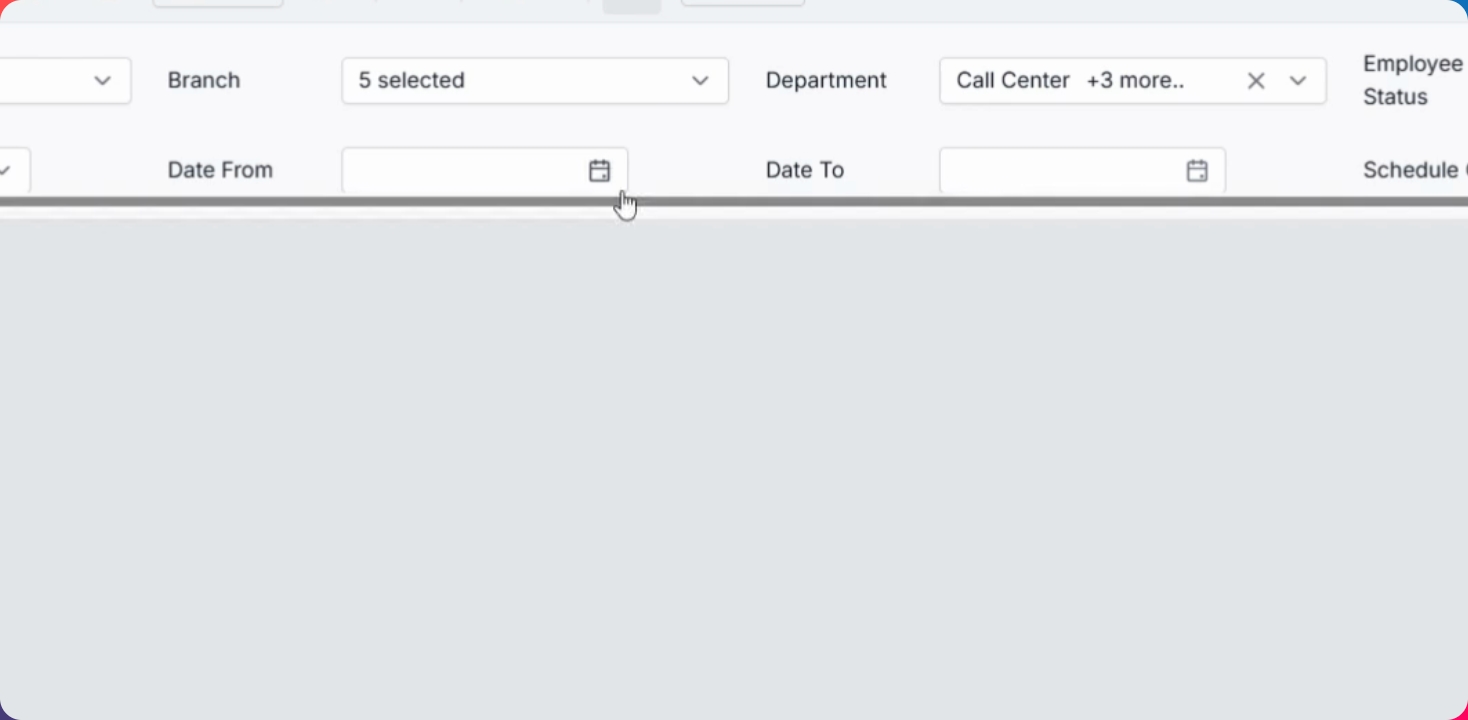
You can generate reports per company, brand, department, or employee status. Select each employee or multiple, or choose all. You have the option to view with schedule, without schedule, or both, and then click on View Report.
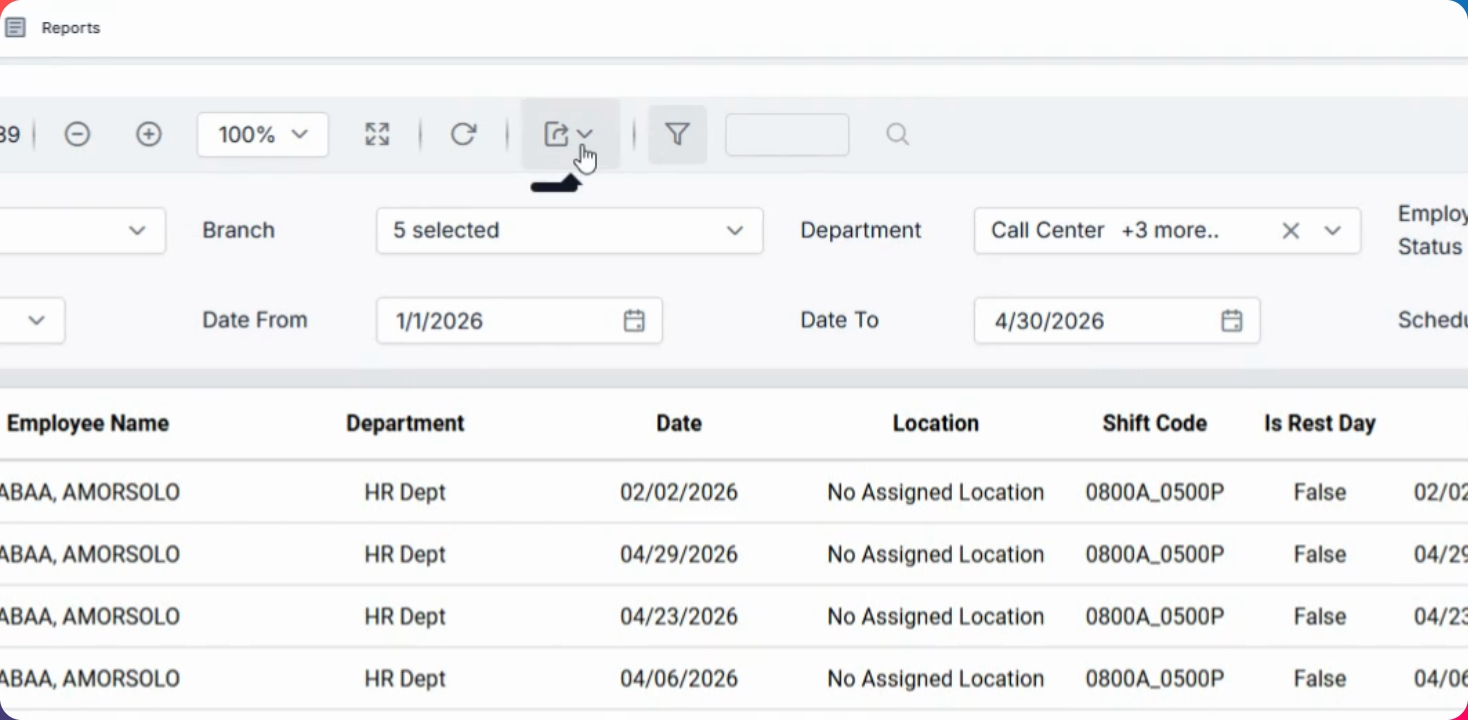
The report will display: employee name, code, department, date, shift code, rest day, shift breaks, the source (whether from assigned shifts, upload, or filing), and the source code.
You can also export this report into Excel format for a copy.
Additionally, there is a section for the filing report which includes all the filing details.