Welcome to this video where we will discuss how to assign location shift. Let's look at the steps:
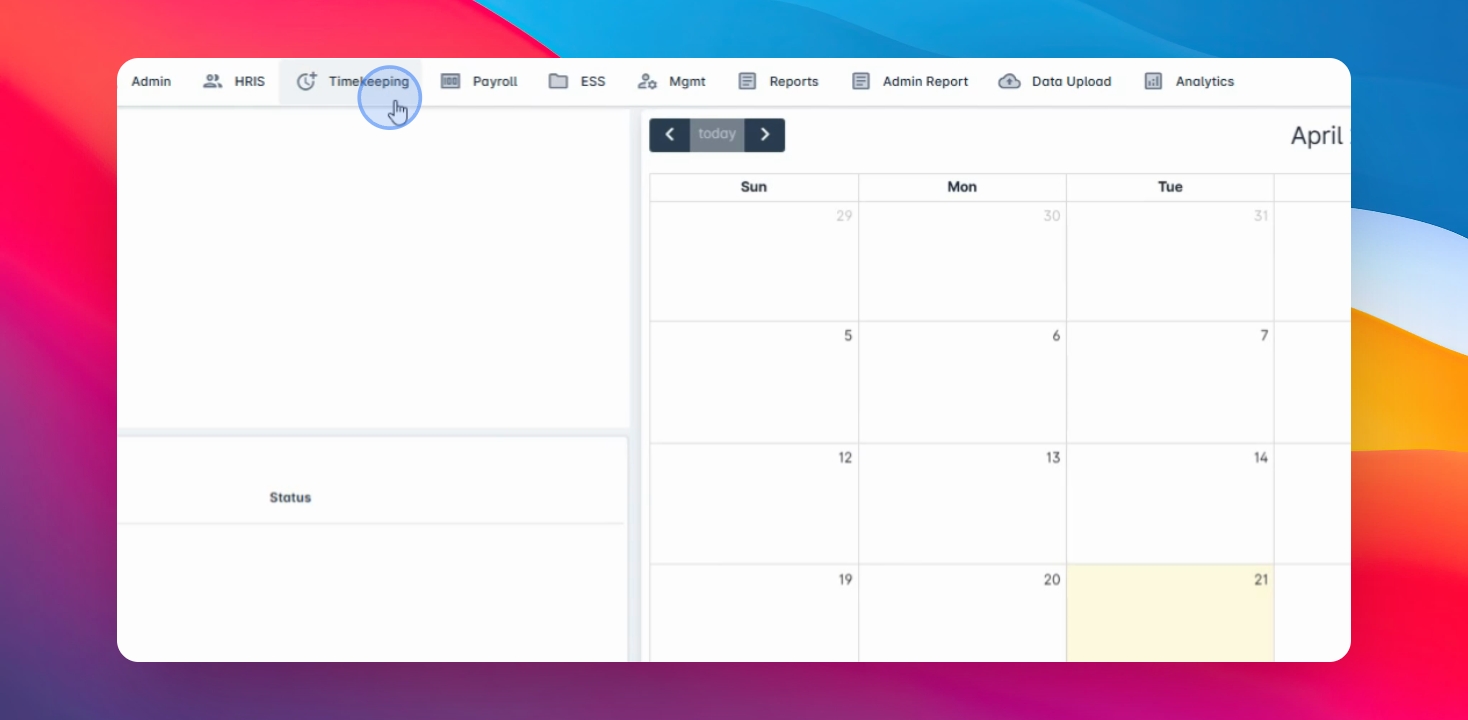
Step 1: Navigate to Timekeeping
Go to the timekeeping menu and select Assign location.
These locations are commonly used for allowances purposes, but if you have internal company monitoring for workplace location this will be helpful for you.
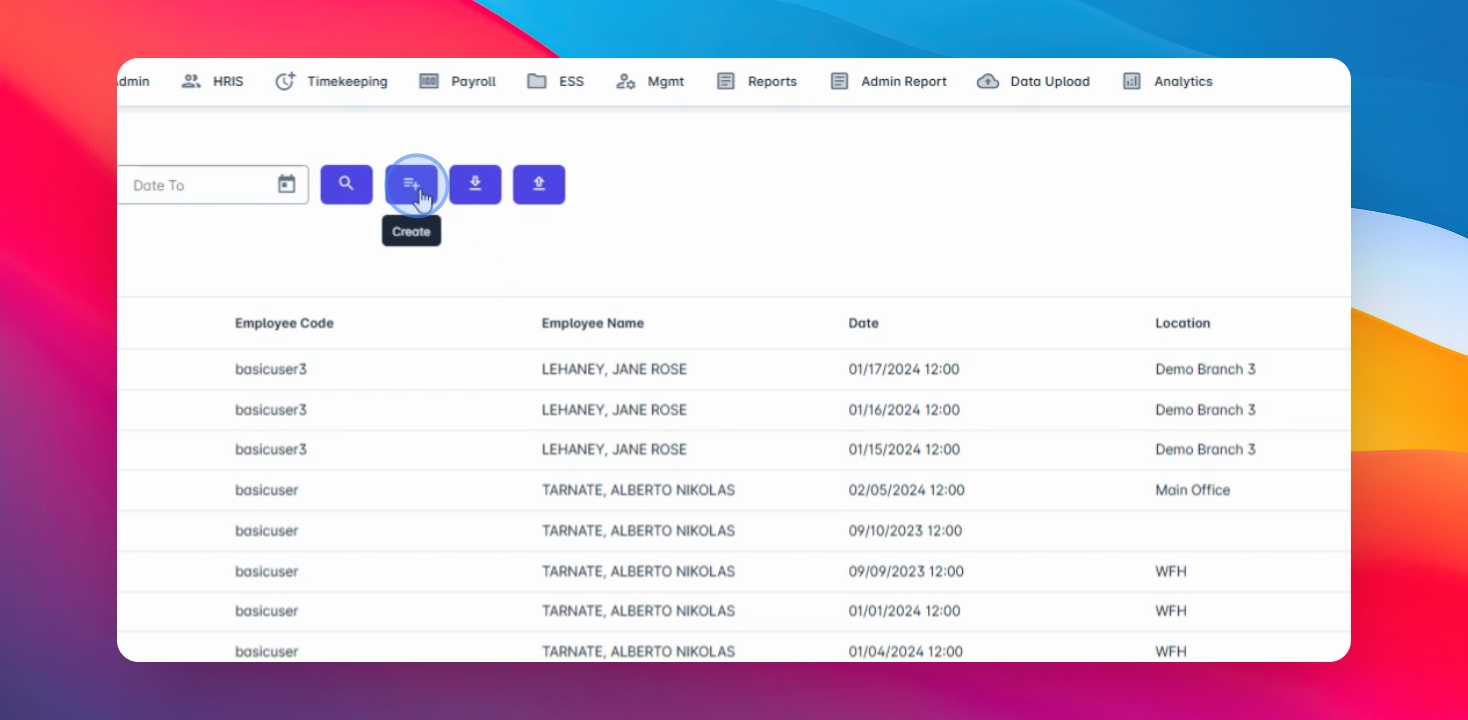
Step 2: Click Create
Now to start, click the Create button and select the date range you prefer to assign location.
Step 3: Filter Employees
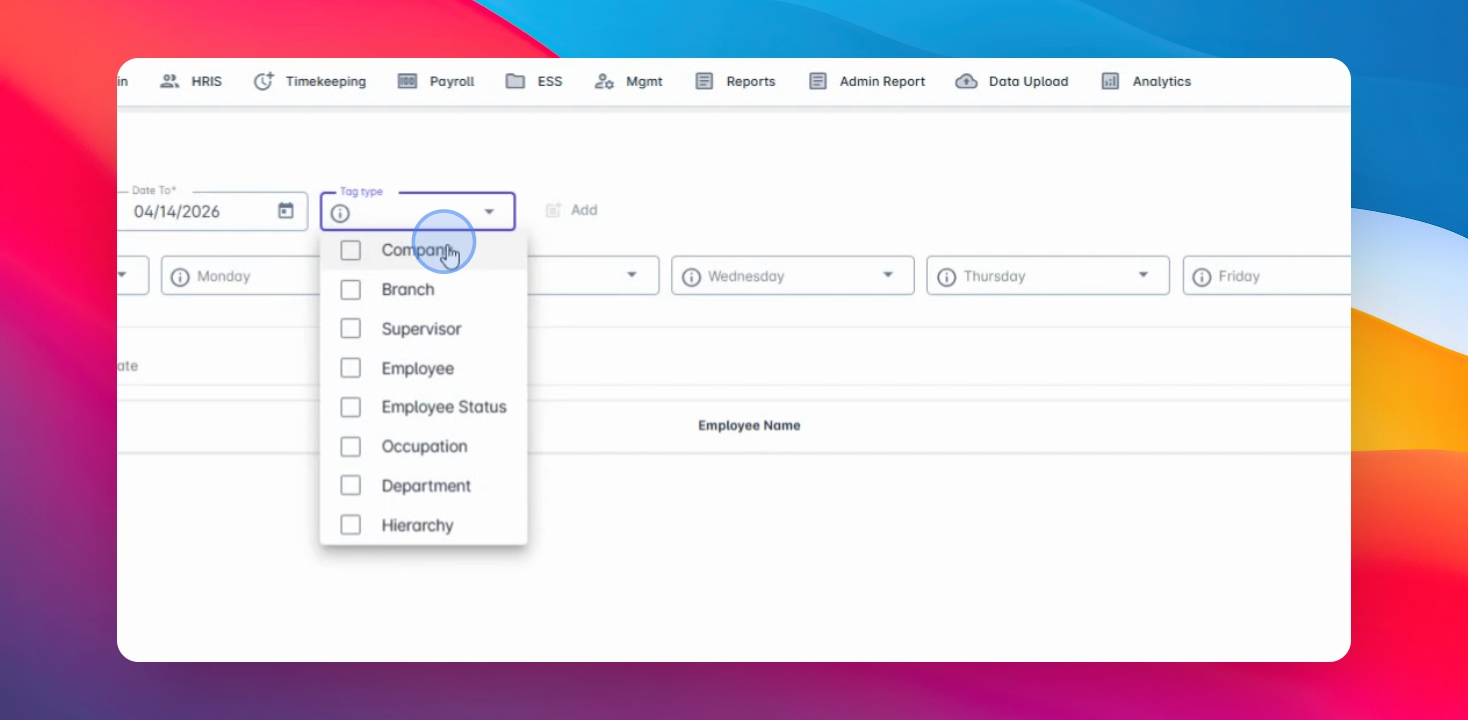
You can filter out your employees by using the tag type to easily divide it.
You can select for company branch supervisor employees by status, population, department, or hierarchy.
Step 4: Select Employees
You can select all or selected employees or you can choose multiple or one by one.
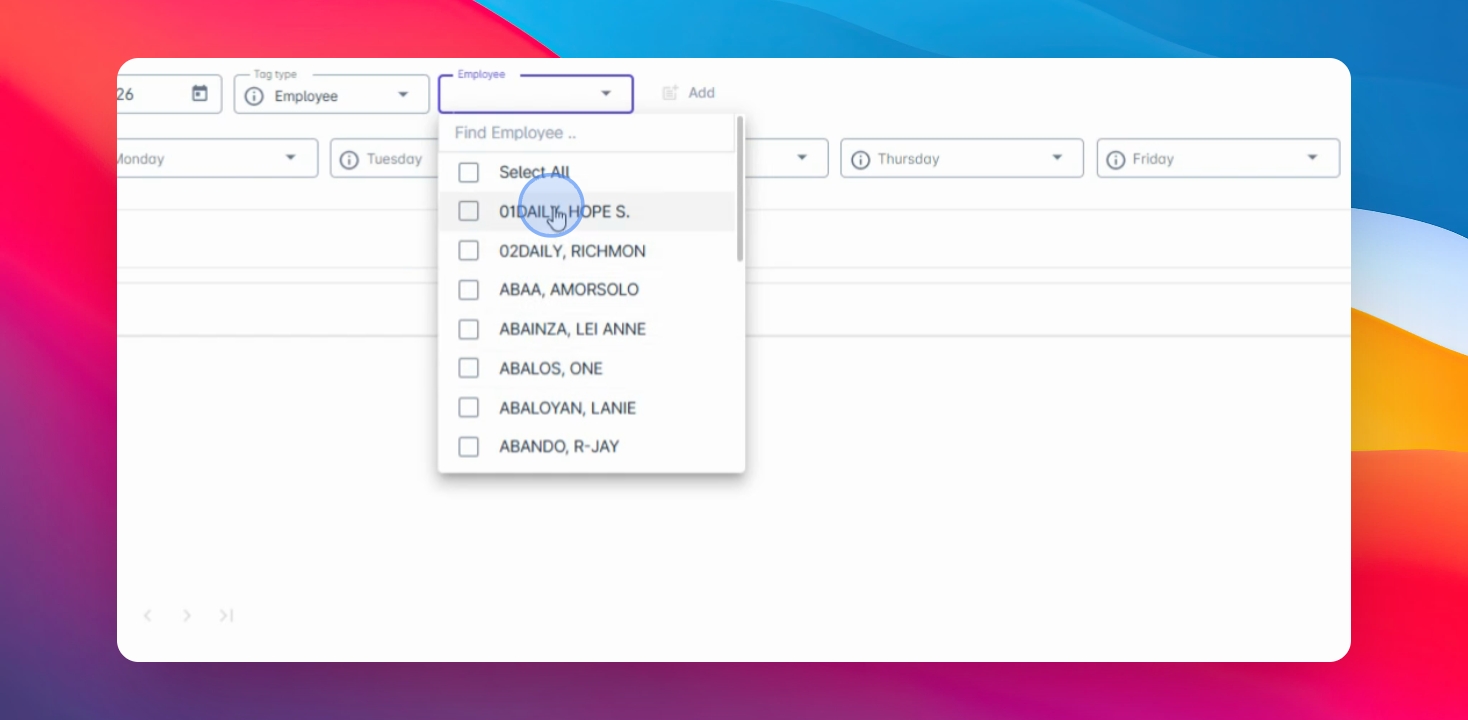
Step 5: Apply Location
Now proceed to Apply to all dropdown and select the location that you will be tagged to the employee.
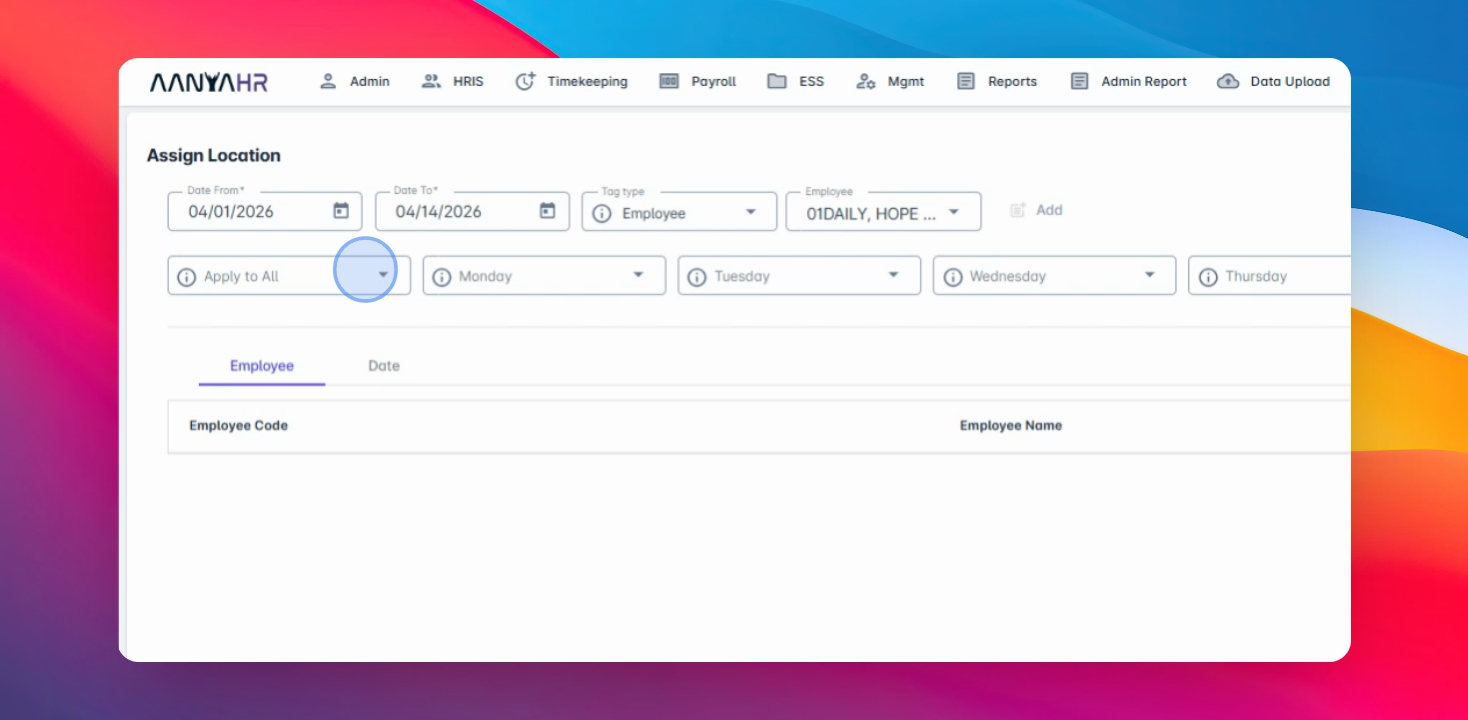
Ensure that these locations are added under the admin branch; if there is no added branch here, there will be no reflected location on this dropdown.
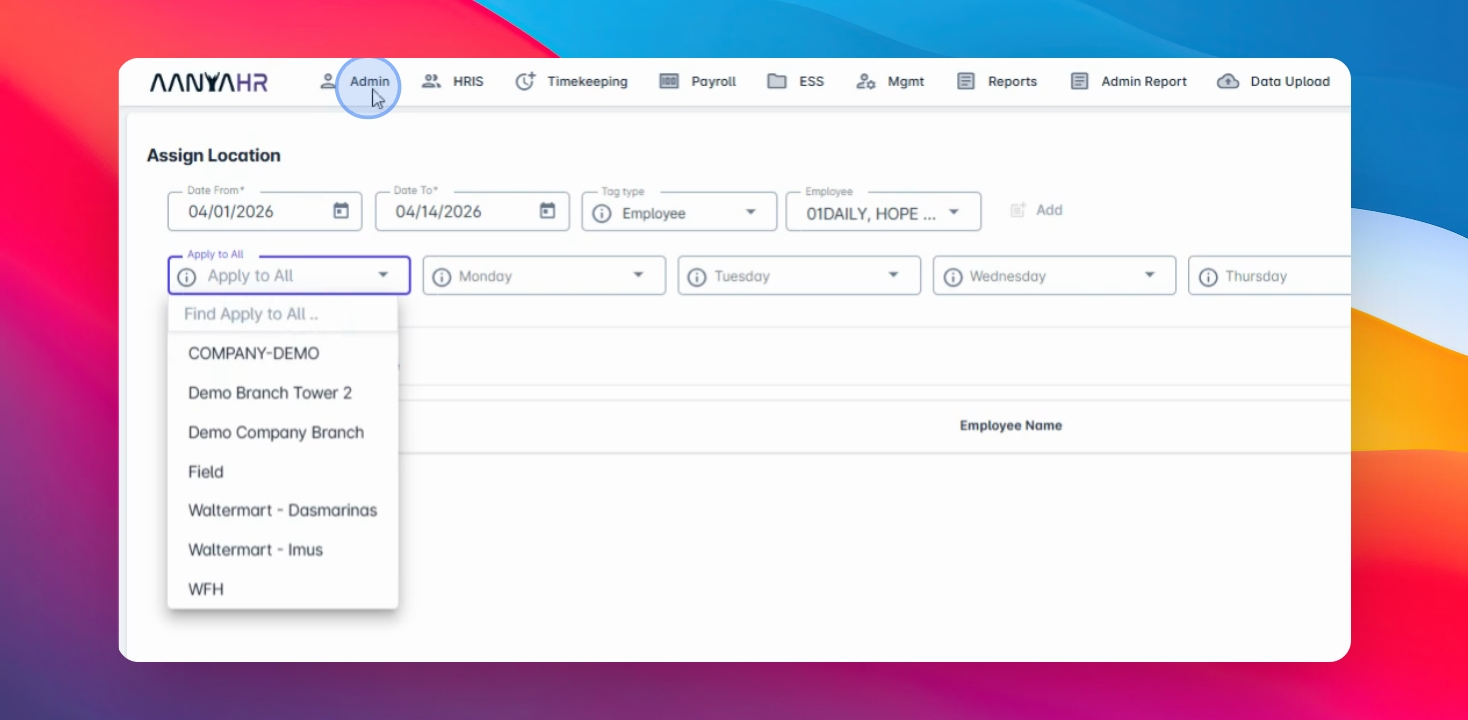
For field, it is used for field-based employees going on official business, while work from home is for those working from home.
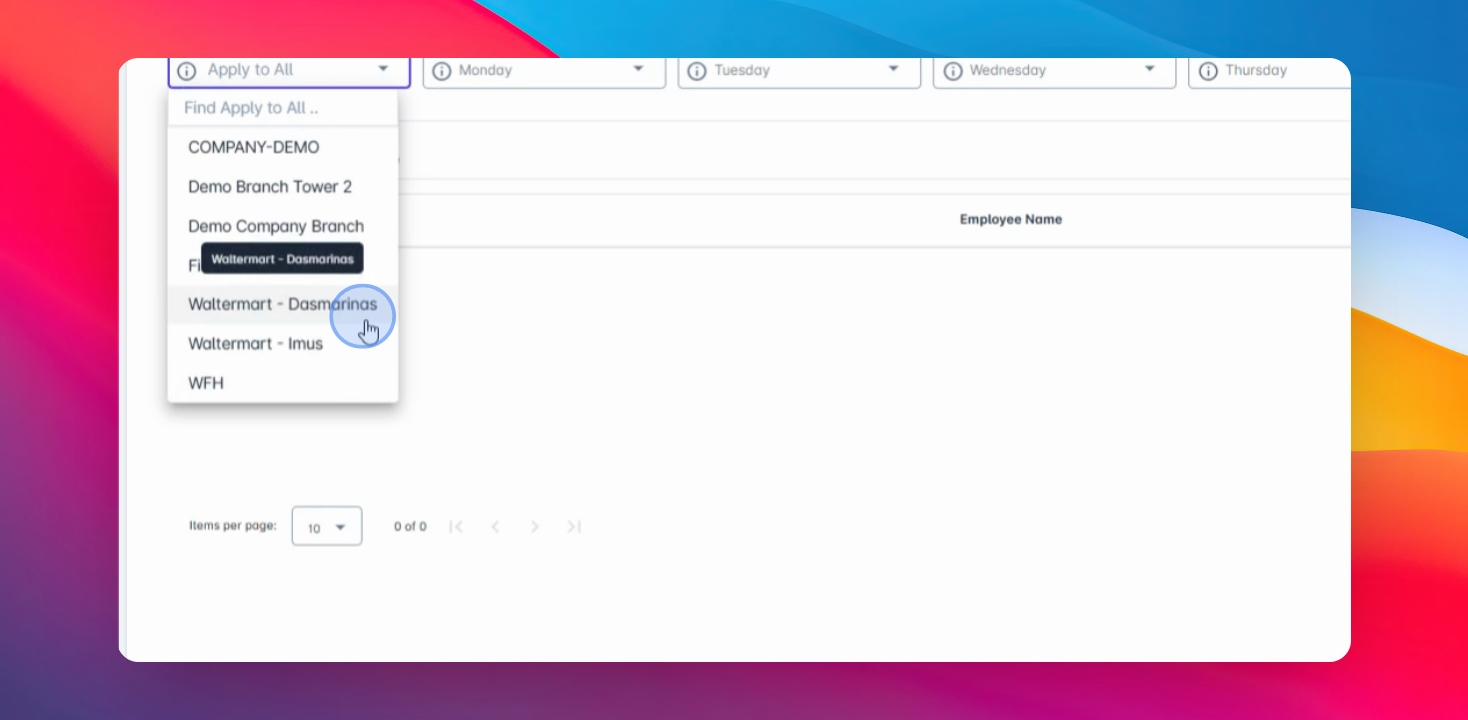
Step 6: Modify Per Day
You can also modify it per day. For example, the location is different on Monday, so you will be going to Walter Martin, and for Tuesday back to Tasmarinas.
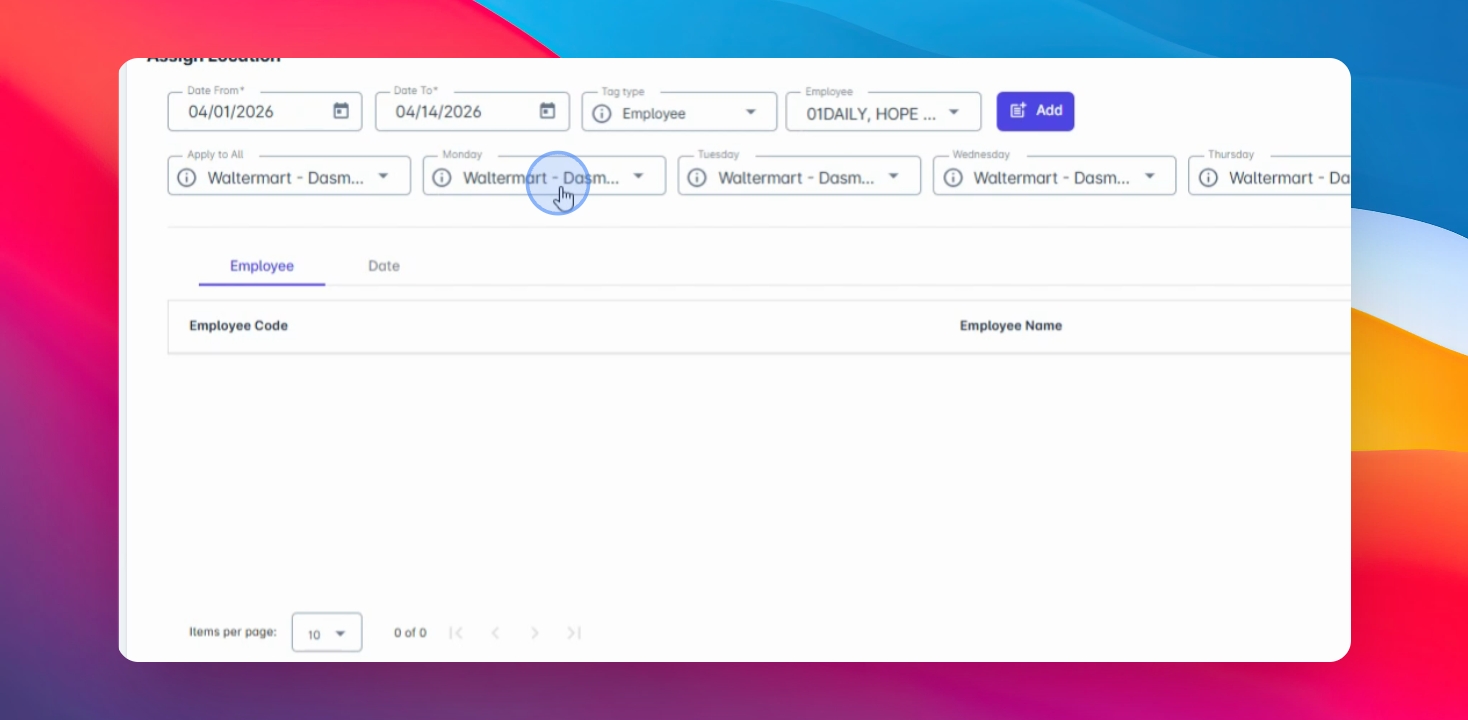
Step 7: Click Add
Then click on the Add button.
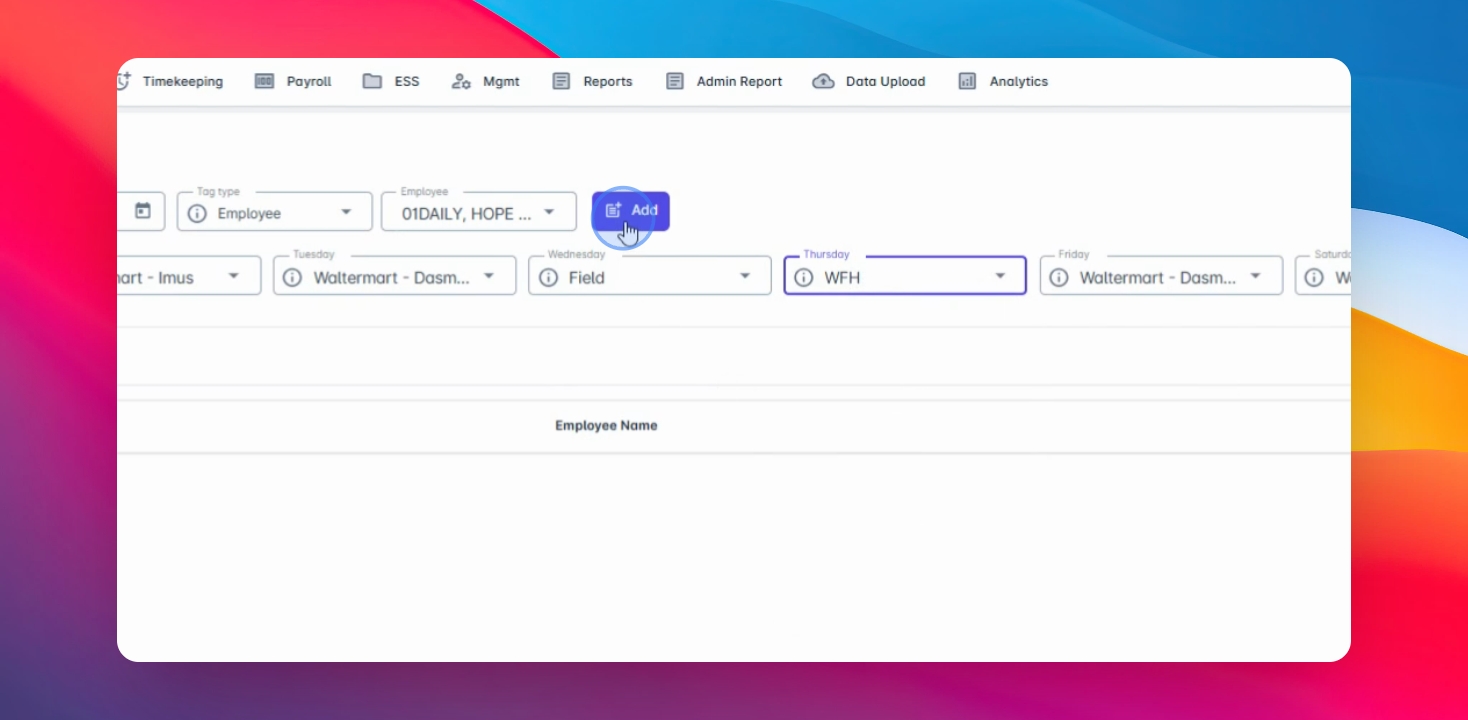
You can check from the employee section below. Employees that are selected will be reflected here.
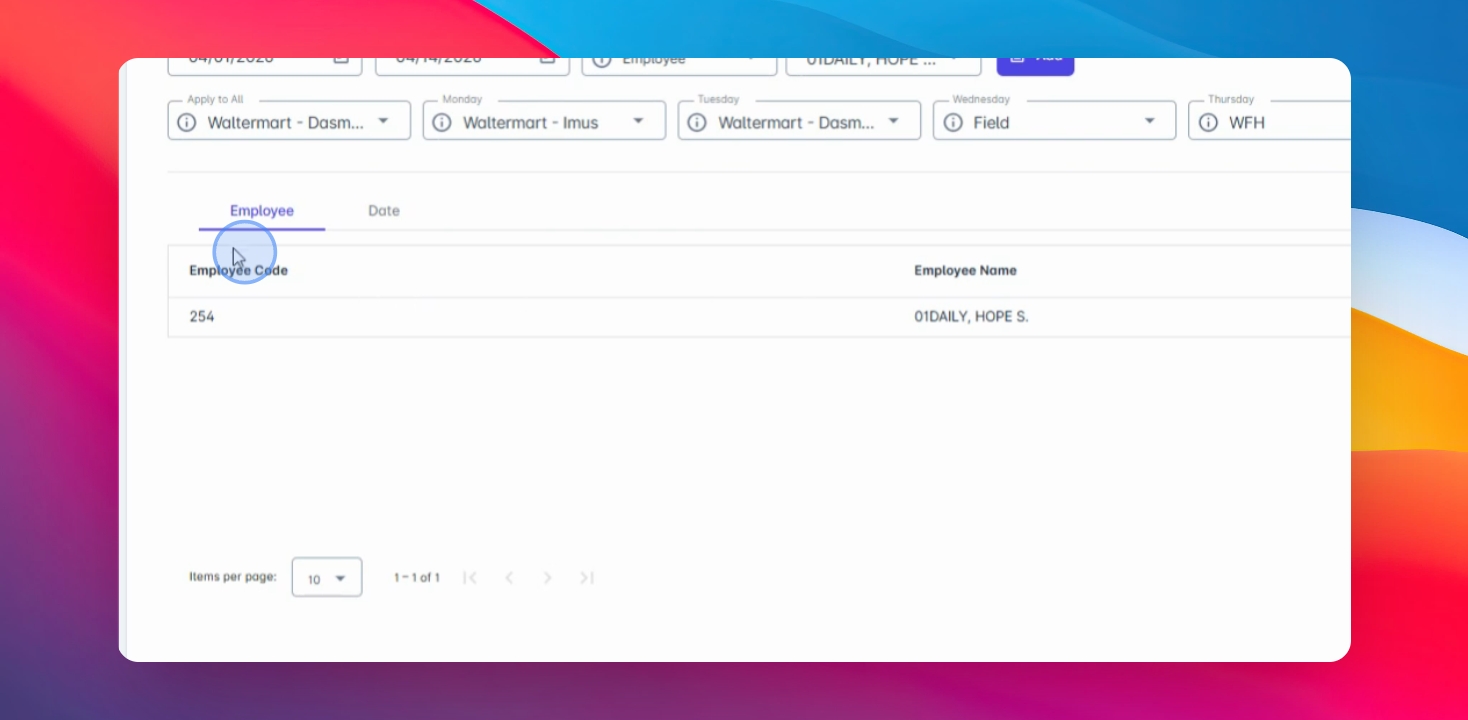
Step 8: Review and Save
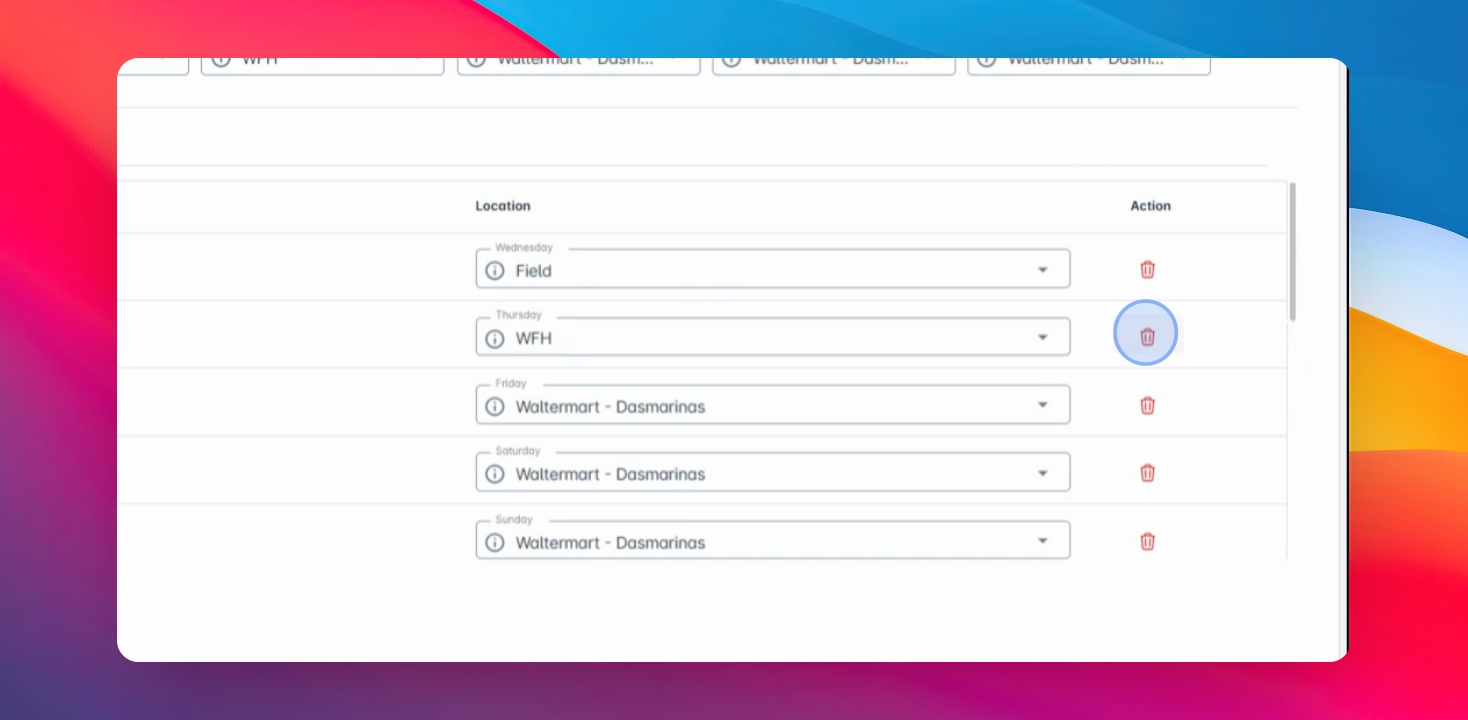
Double check the dates affected and click Save changes to proceed.
Step 9: Assign Schedule
Next, navigate again to timekeeping, select Assign ship.
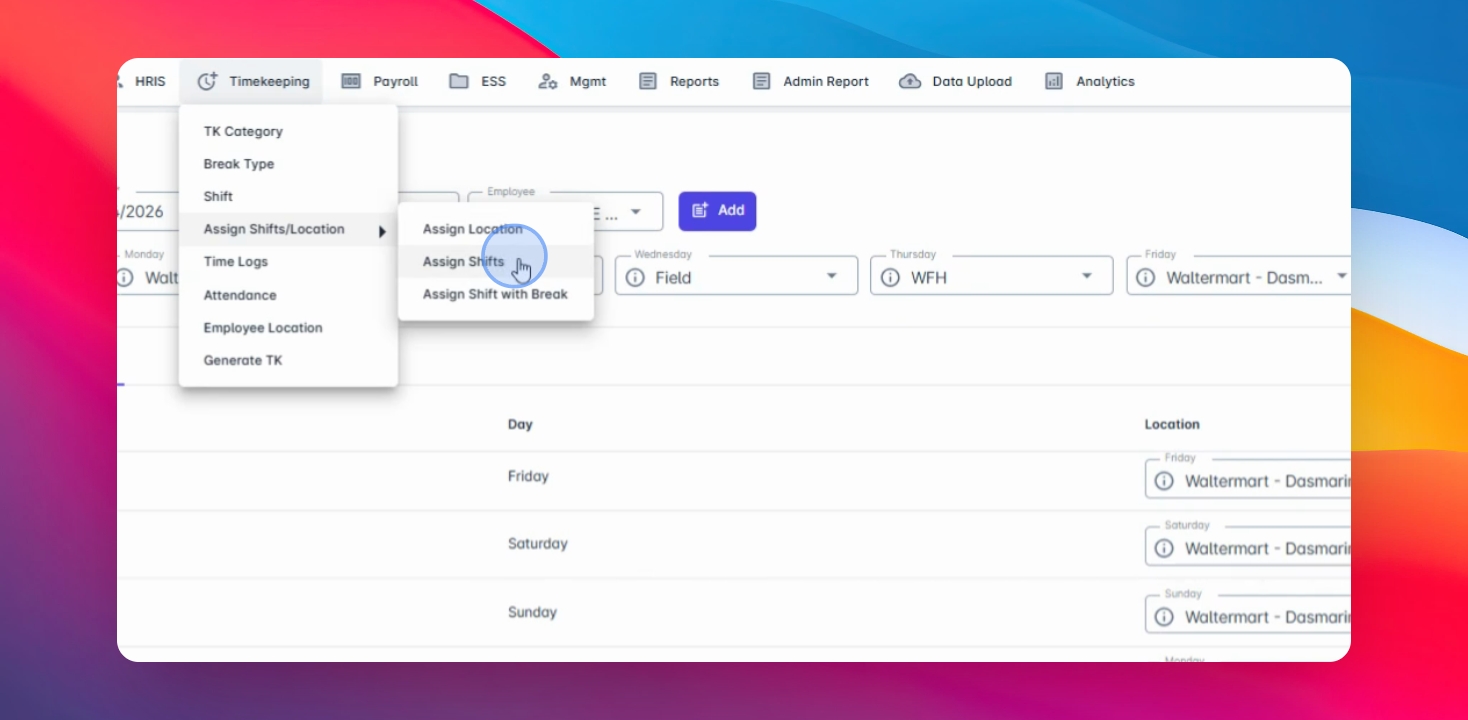
Step 10: Click Edit
Click on the Edit button and select the date range.
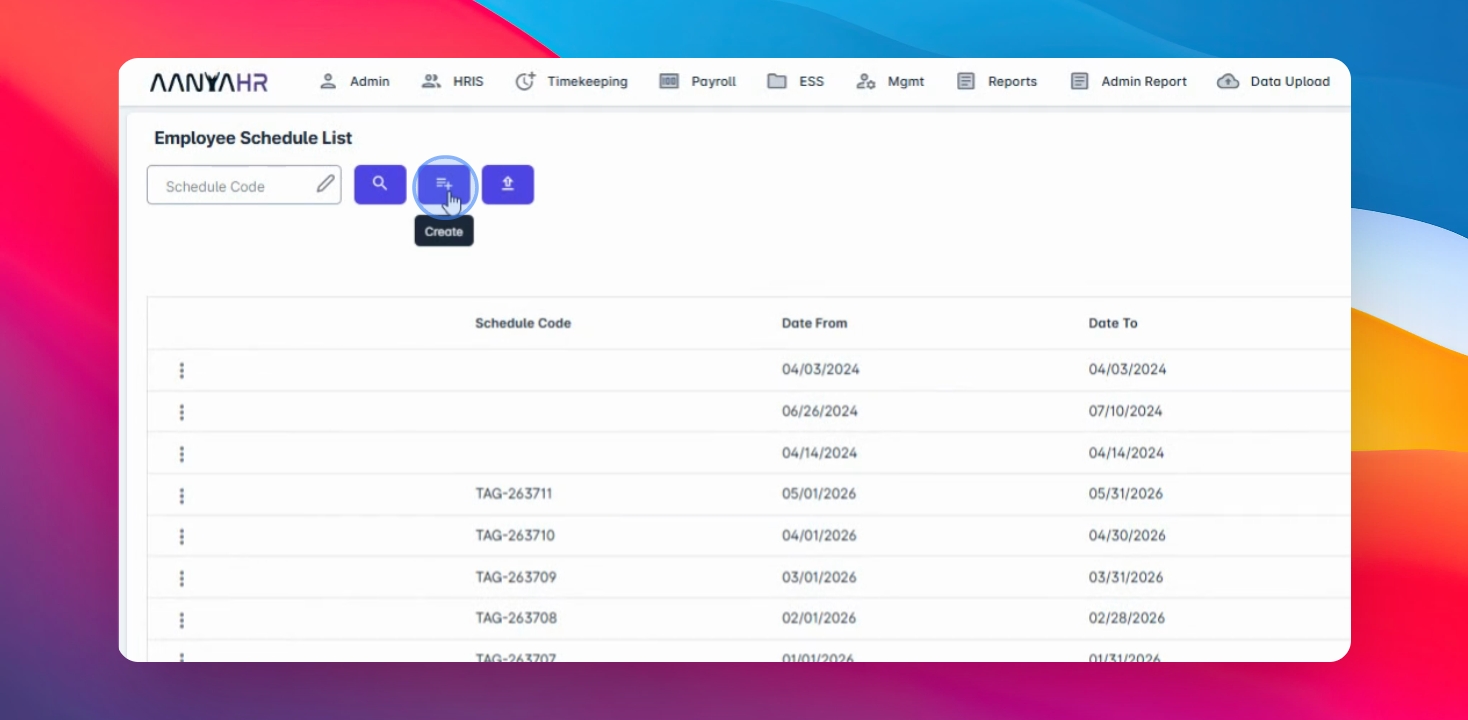
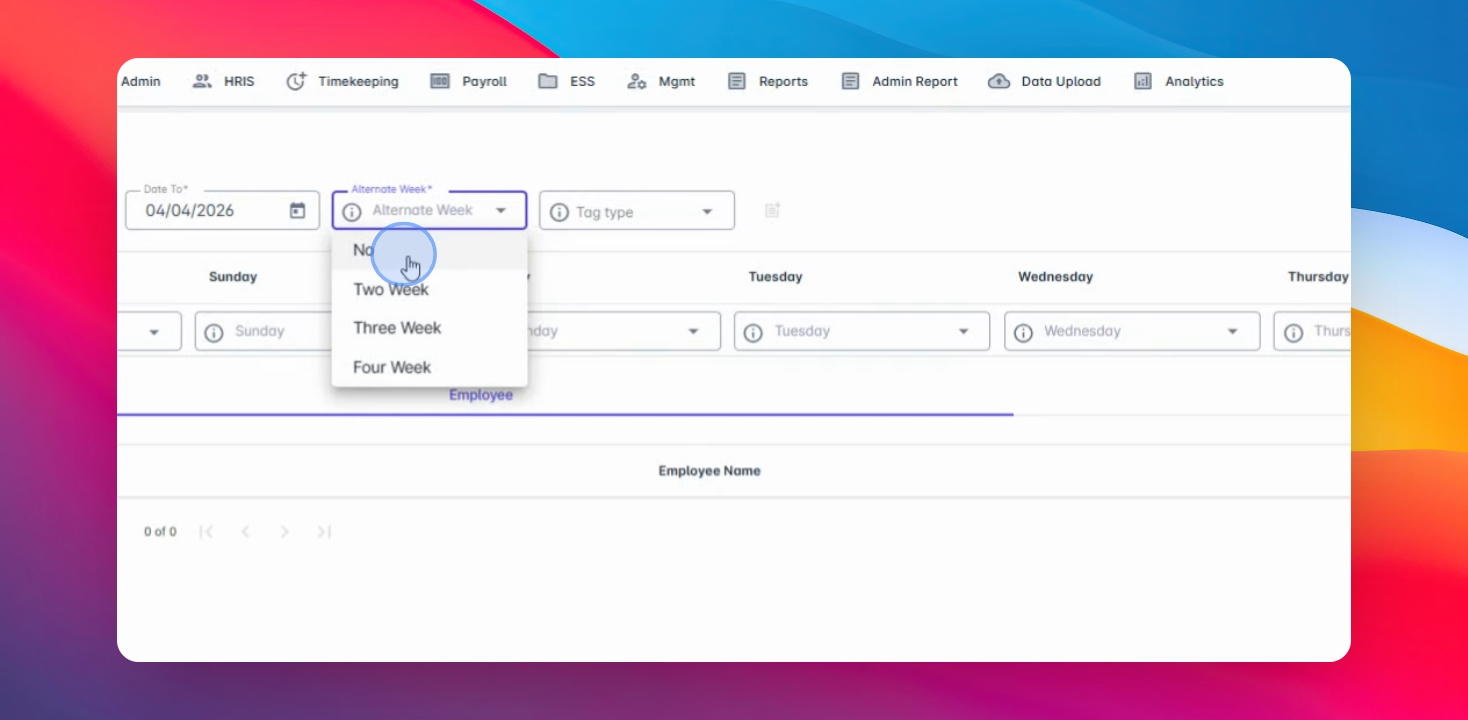
You have options for alternate weeks if you have a rotation schedule. Ensure to select the appropriate tag type and employee.
Step 11: Tag Correct Schedule
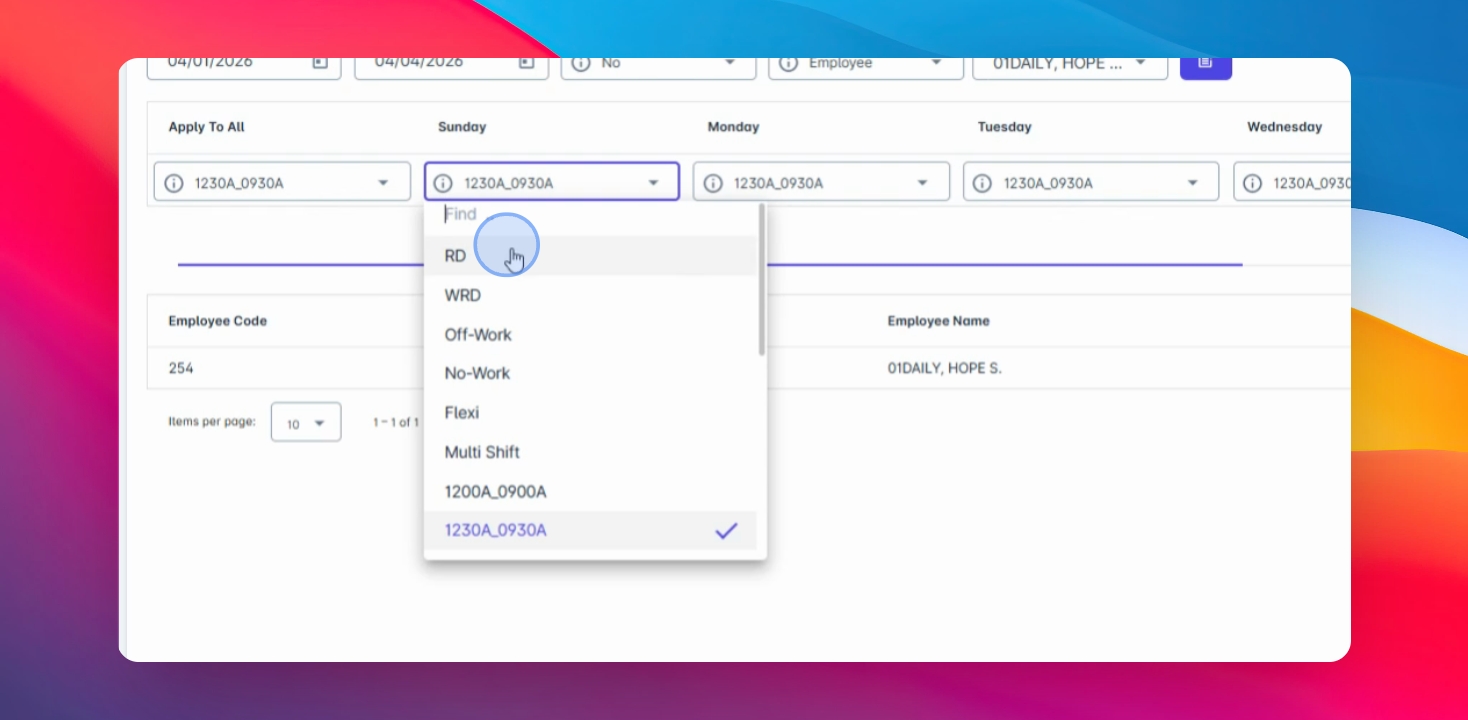
It is important to tag the correct schedule of WRD or working rest day to calculate the premium pay of the employee.
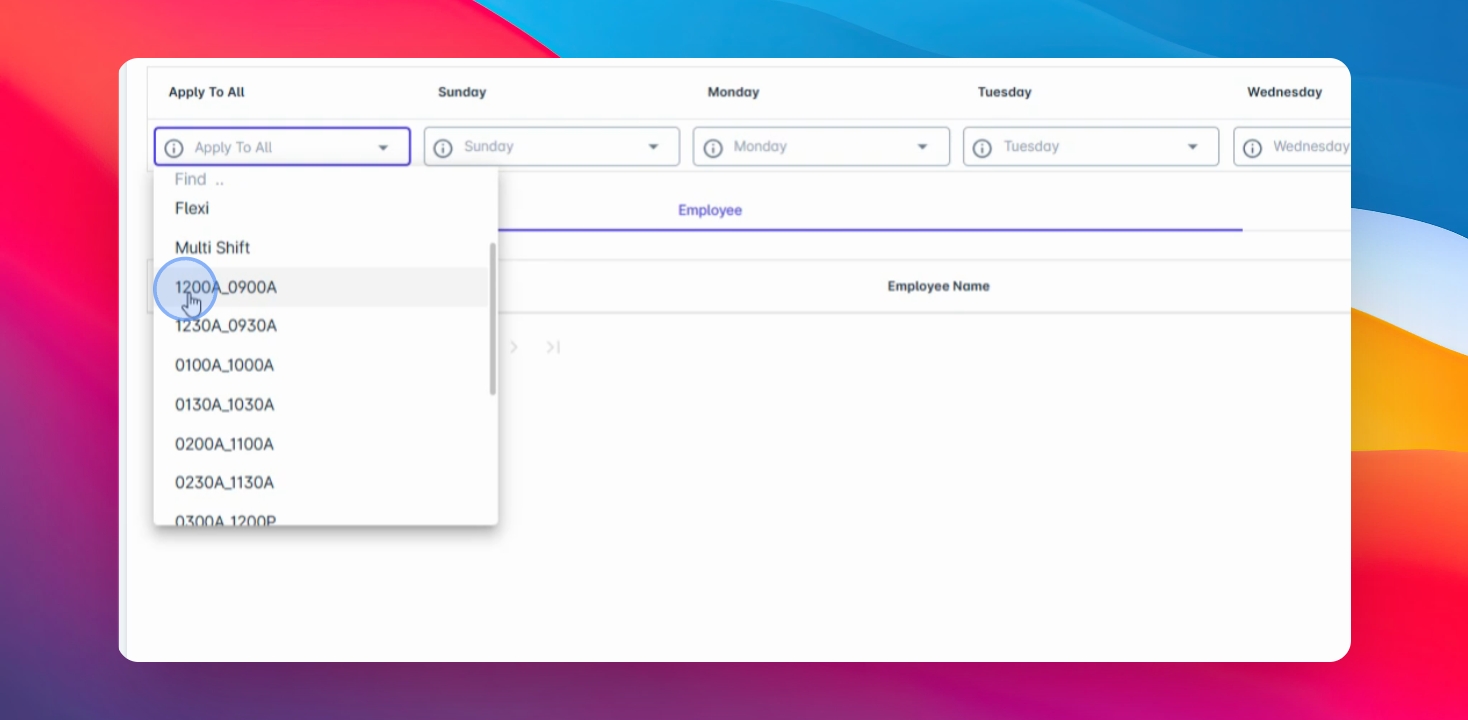
Step 12: Select Schedule Format
For flexible multi-shift employees, the schedule format follows this: the first two digits are hours followed by minutes, e.g., 12am, 9am.
Step 13: Save Changes
Click on Save changes to apply the selected schedules.