

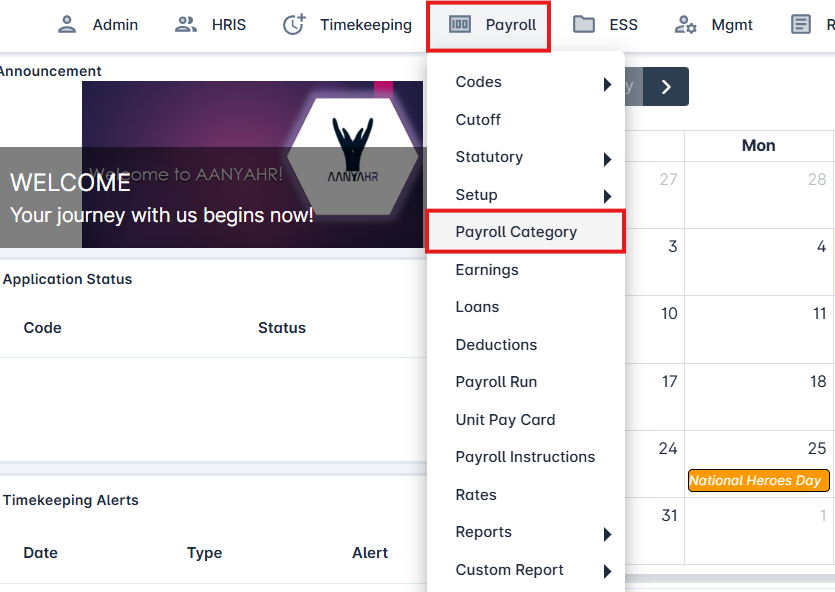
Go to Payroll tab.
Under Payroll, click Payroll Category.
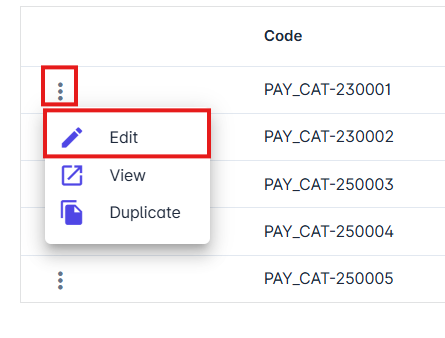
Click the ellipsis (⋮) and select Edit.
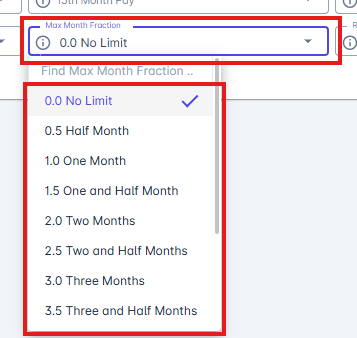
Click Max Month Fraction and select a limit.
How does it work?
For Semi-Monthly Employee
Sample Employee | Employee 001 | ||
Basic Salary | 10,000.00 | ||
Daily Rate | 766.77 | ||
Month Fraction | Regular Days | Amount | Fraction Amount |
0.0 No Limit | 14 | 10,734.78 | 10,734.78 |
0.5 Half Month | 14 | 10,734.78 | 10,000.00 |
For Monthly Employee
Sample Employee | Employee 001 | ||
Monthly Salary | 20,000.00 | ||
Daily Rate | 766.77 | ||
Month Fraction | Regular Days | Amount | Fraction Amount |
0.0 No Limit | 27 | 20,702.79 | 20,702.79 |
1.0 Half Month | 27 | 20,702.79 | 20,000.00 |
Click Regular Days Usage and select Usage type.
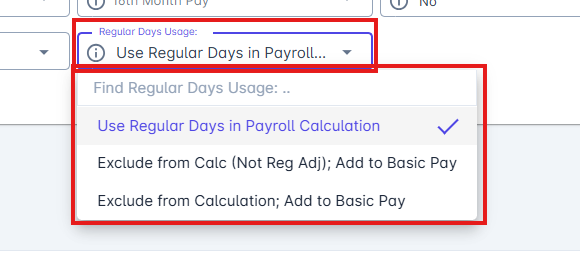
Use Regular Days in Payroll Calculation - If you want both the Regular Days and Regular Days Adjustment to appear under the Attendance column in the Payroll Register
Attendance | Days | Amount |
Regular Days | 14 | 10,734.78 |
Regular Days Adj | 5 | 3,833.85 |
Total | 14,568.63 |
Employee Code | Employee Name | Monthly Salary | Basic Salary | Attendance |
Emp001 | Employee 001 | 20,000.00 | 0 | 14,568.63 |
Exculed from Calc (Not Reg Adj); Add to Basic Pay - If you want the Regular Days to appear under the Basic Salary column and the Regular Days Adjustment to appear under the Attendance column in the Payroll Register.
Attendance | Days | Amount |
Regular Days | 14 | 10,734.78 |
Regular Days Adj | 5 | 3,833.85 |
Total | 14,568.63 |
Employee Code | Employee Name | Monthly Salary | Basic Salary | Attendance |
Emp001 | Employee 001 | 20,000.00 | 10,734.78 | 3,833.85 |
Exclude from Calculation; Add to Basic Pay - If you want both the Regular Days and Regular Days Adjustment to appear under the Basic Salary column in the Payroll Register
Attendance | Days | Amount |
Regular Days | 14 | 10,734.78 |
Regular Days Adj | 5 | 3,833.85 |
Total | 14,568.63 |
Employee Code | Employee Name | Monthly Salary | Basic Salary | Attendance |
Emp001 | Employee 001 | 20,000.00 | 14,568.63 | 0 |
Click Save.